
Promo Code from Data Base
Upload the promo code database, specify the variable in the message, and the system will automatically insert them.
This type is suitable for both single and broadcast campaigns.
Create and import a file with promo codes
The first step is to create a file with promo codes. Essentially, it’s a regular CSV file where you build a database of promo codes.
To see the file example, go to your profile → Settings → Promo codes → File example.
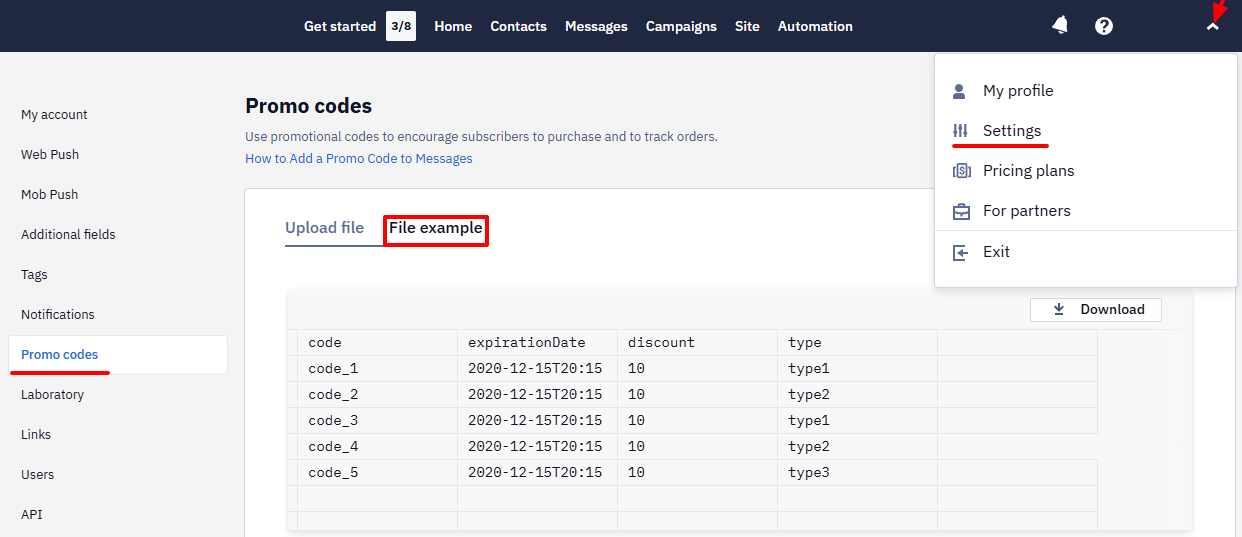
It should include the following parameters:
- code - promo code;
- expirationDate - promo code expiration date in one of the formats:
yyyy-MM-dd,yyyy-MM-dd'T'HH:mm:ss,yyyy-MM-dd'T'HH:mm,yyyy.MM.dd; - discount - discount;
- type - promo code type (letters and numbers).
ImportantIf you need to use only promo codes without other parameters, upload a file only with a code column.
If you upload only promo codes, tick the corresponding checkbox.
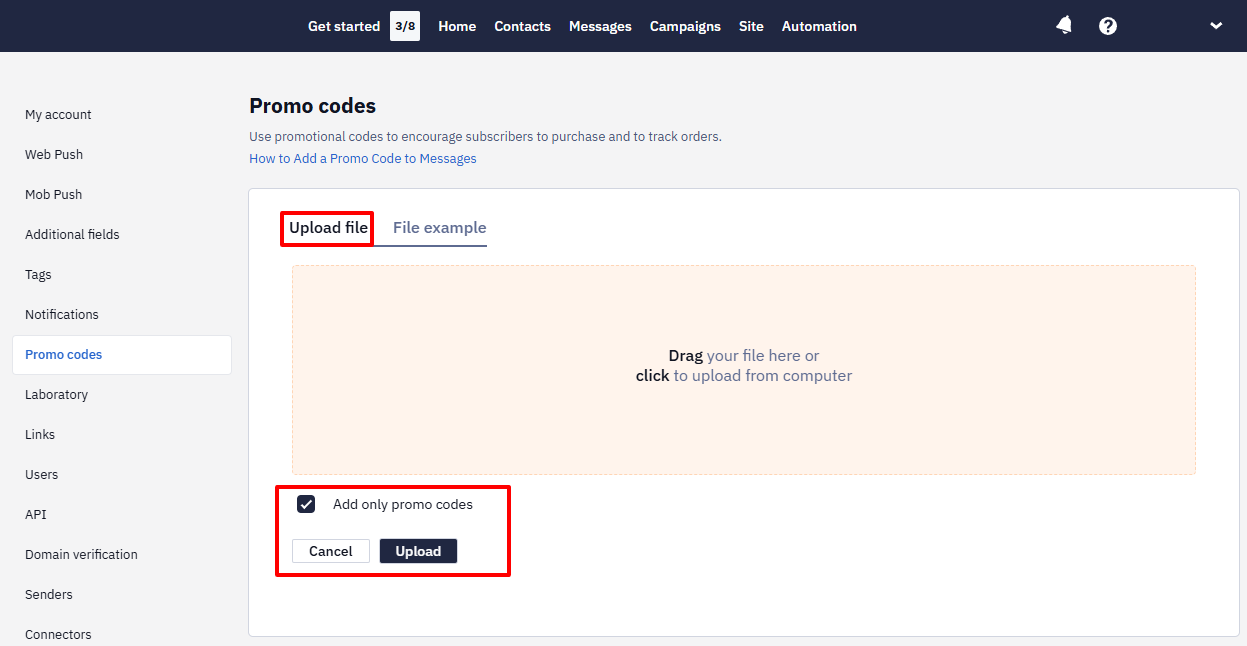
A file entitled General will be uploaded into the system. All promo codes uploaded in this way will be displayed in this file.
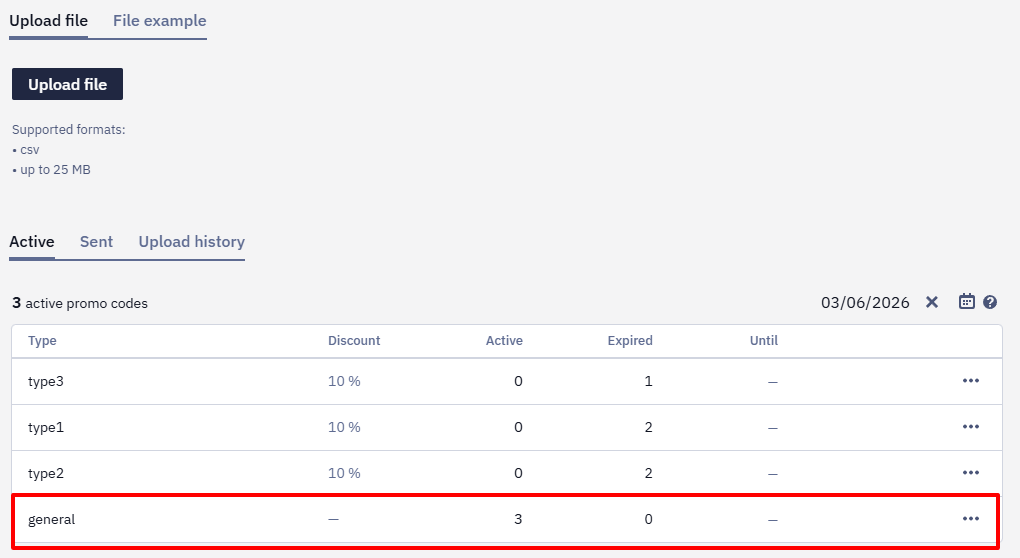
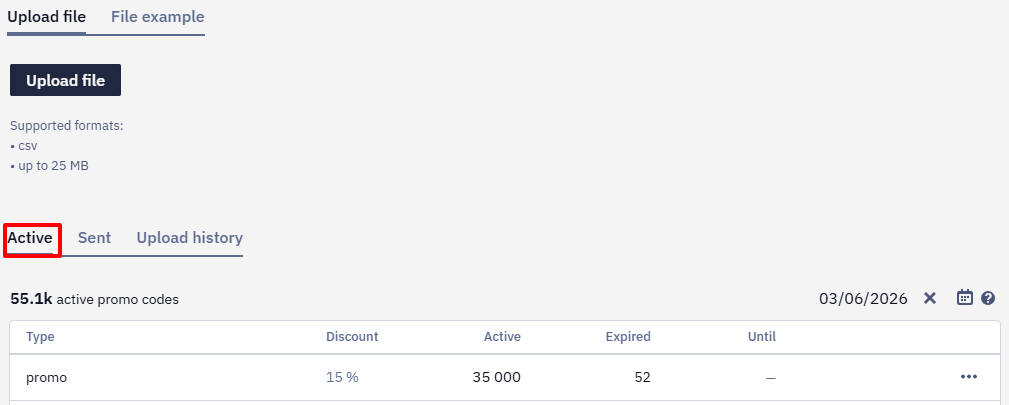
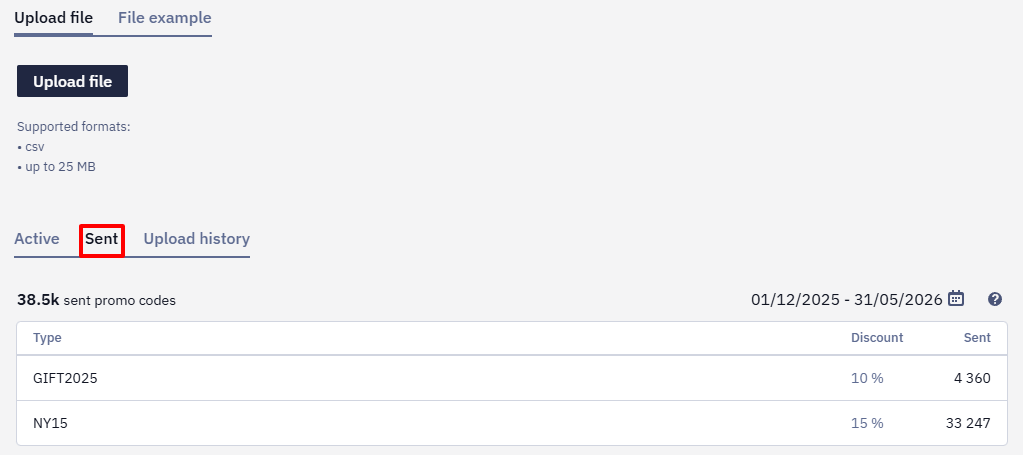
After downloading the file with Type, Discount and Expired parameters, you will see Active, Sent and Upload history tabs.
- On the Active tab, you can track the number of current and expired promo codes at the selected date:
- On the Sent tab, you can select a specific period and see the number of sent promotional codes of various types.
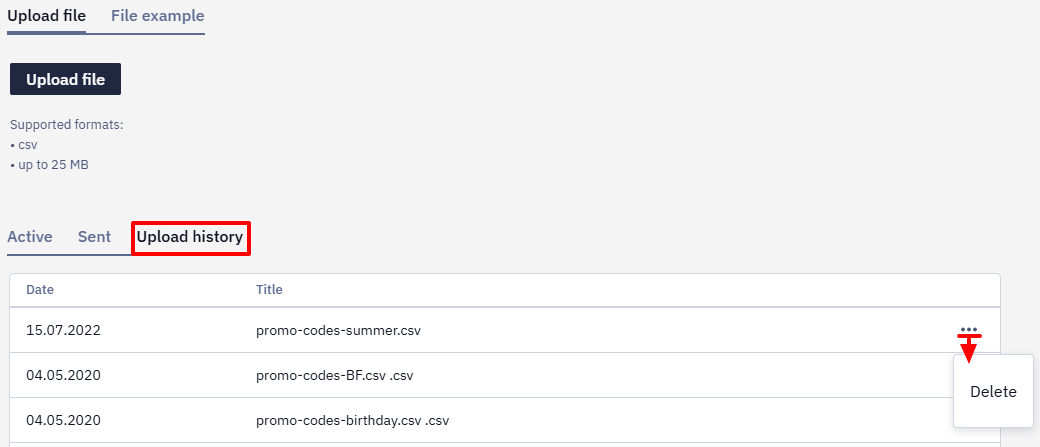
- To delete the promo codes list, go to the Upload history tab, click ... → Delete:
The expiration date of codes already uploaded can't be edited. To change it, delete the list and upload the codes again with a new expirationDate. There is also no way to export promo codes from the account, so keep the source file.
Keep an eye on the balance of each type.
- If there aren't enough codes of the required type for all recipients, a bulk campaign with a promo code variable (
%PC_GENERAL%or%PC_TYPE_EXPIRATIONDATE_DISCOUNT%) is paused with the No promo codes status, and no messages are sent. To resume it, upload a new file with promo codes of this type in the same format, then open the campaign and click Start. - If the promo code variable is inserted directly into an email that a workflow sends and there are no codes of the required type, the email isn't sent: in the workflow launch history, the sending block fails with General email error.
- If the codes run out, the Get promo code block doesn't stop the workflow — the message reaches the recipient without a code: the
$!promocodevariable is empty.
To be warned in advance, set up notifications about the remaining promo codes.
NoteThere's no self-serve way to export the list of currently loaded promo codes from these tabs. If you need a CSV of the loaded codes, contact support to request one.
Create an email
For promo codes only
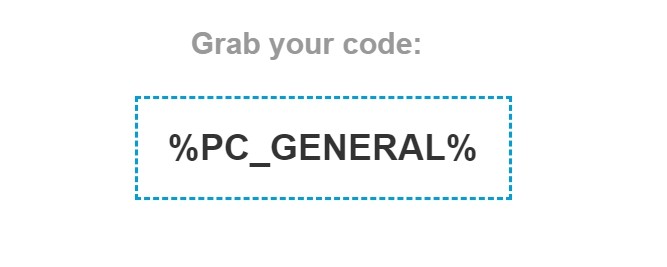
Insert the variable %PC_GENERAL% where you want your promo code in the email. At the moment of the campaign launch, the system will automatically replace it with the first valid promo code in the list.
NoteBy default, dynamic content copied into the message context is stored for 60 days. For mandatory (service) messages, this term was extended to 1 year in June 2025. For
%PC_GENERAL%in a bulk campaign, the reference point is 60 days.After this period, the dynamic data is no longer displayed in an email that was already sent, and new opens and link clicks in that email are no longer counted.
For promo codes with additional parameters
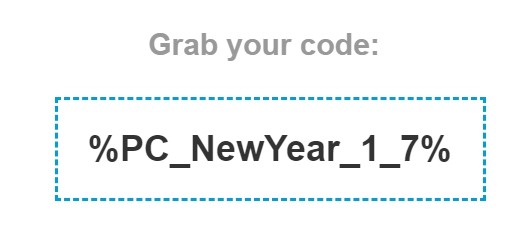
Insert the variable %PC_TYPE_EXPIRATIONDATE_DISCOUNT%, where you want your promo code in the email. It may look as follows: %PC_NewYear_1_7% where NewYear is a promo code type, 1 is the minimum number of days the promo code is valid, and 7 is the disсount.
ImportantWe recommend setting the minimum promo code validity period to 1 day. Promo codes will continue to be sent as long as more than 1 day remains before the promo codes in the file expire.
The second position in the variable is a filter, not a campaign setting. For example,
30in%PC_type1_30_5%does not set the campaign duration — it excludes promo codes with fewer than 30 days of validity left.The variable also works with a single promo code type. To insert codes of another type, use a separate variable with that type in the first position.
Updated 22 days ago