
Adding The Rollover Effect
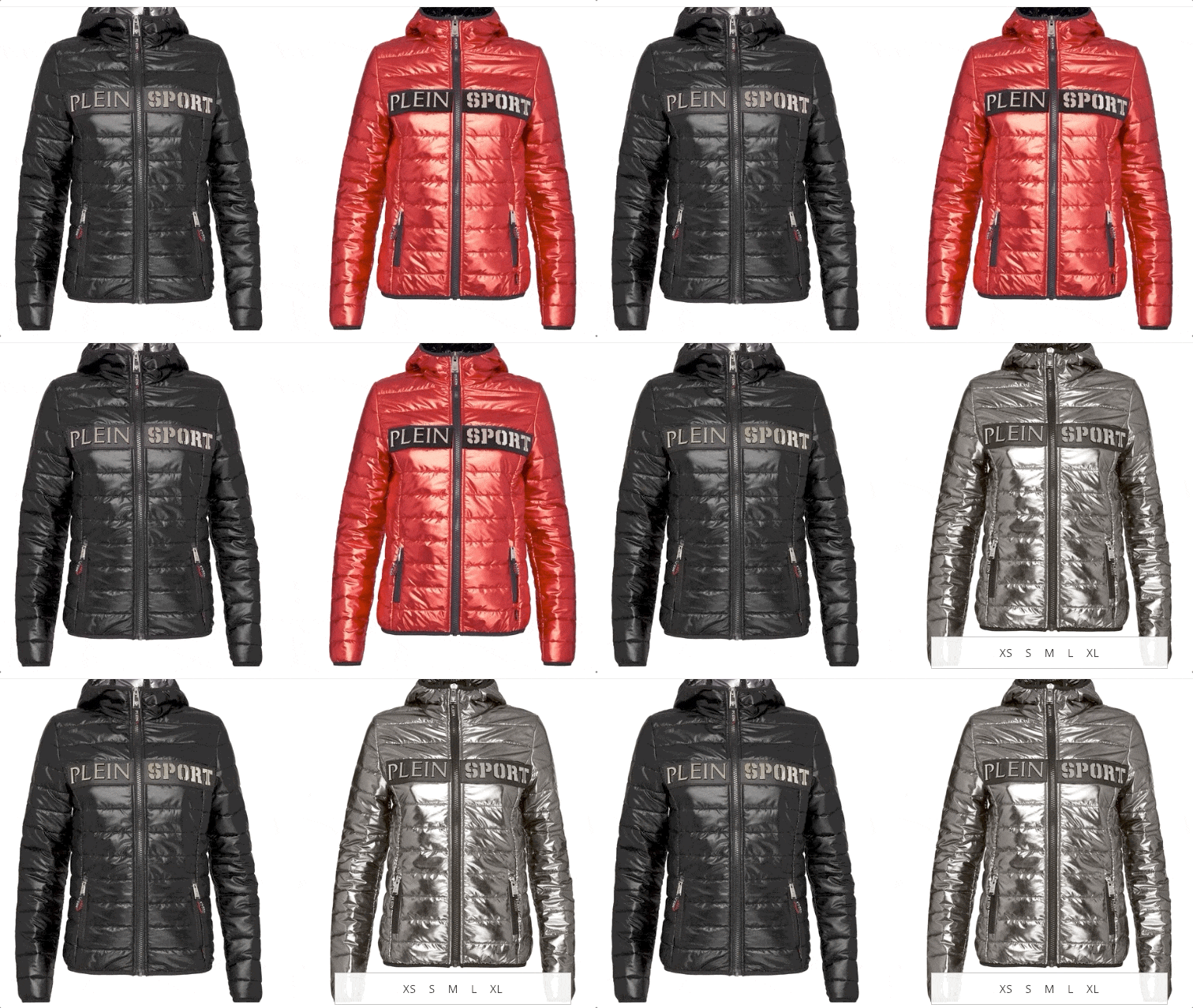
Rollover is an effect where an image changes when a user hovers over it and reverts to the original when the cursor moves away.
In email campaigns, rollover adds interactivity and makes the message more engaging for recipients. You can use it:
- in promotional banners;
- in product cards to show an additional view;
- in buttons to add a hover highlight effect.
For example, when a user hovers over a product image, the email shows a different angle, a specific detail, or the same item in another color.
Creating a Rollover
- Create a new email or open an existing one.
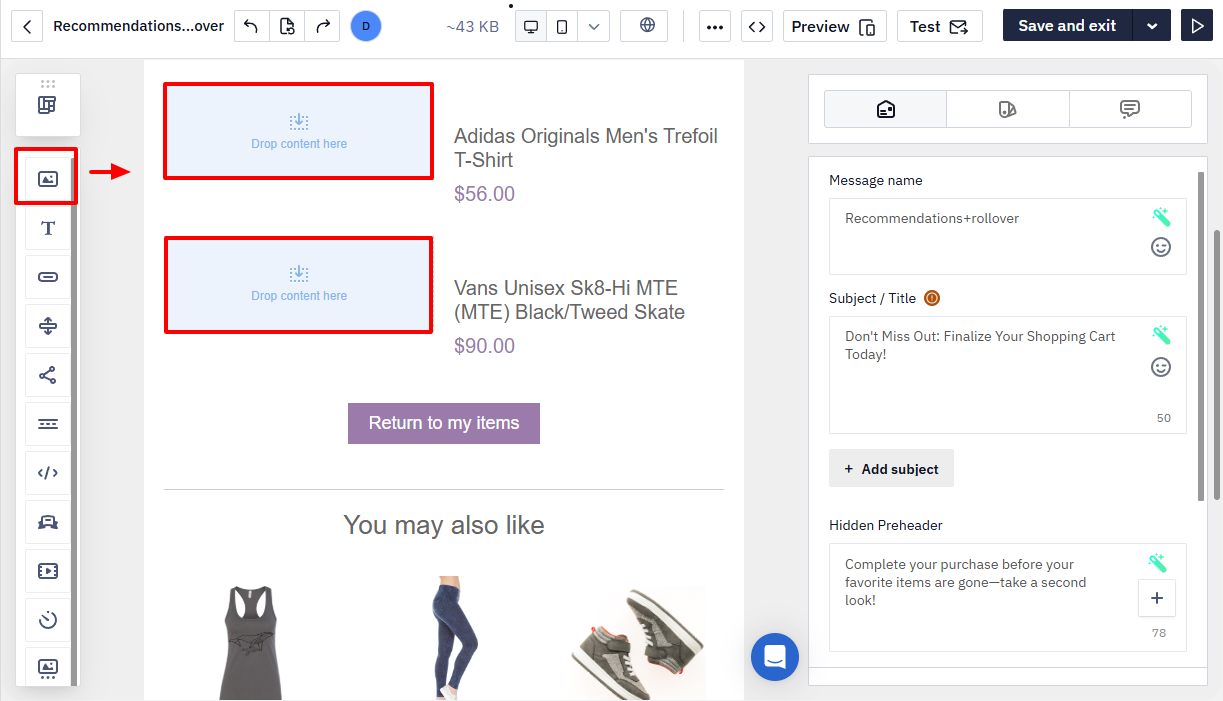
- Add the Image block to the required position in the message.
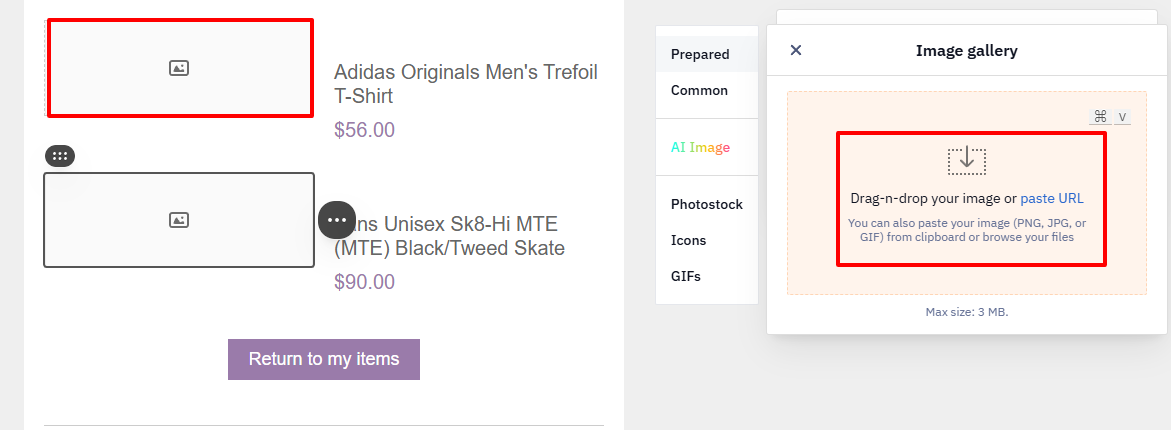
Prepare two images in PNG, JPG, or GIF format:
- file size — up to 3 MB;
- maximum dimensions — 4000 × 4000 px.
ImportantBoth images must have the same aspect ratio. Otherwise, the email layout may shift when the user hovers over the image.
- Click the Image block and upload the main image that will appear:
- when the user does not hover over it;
- in email clients that do not support rollover;
- on mobile devices.
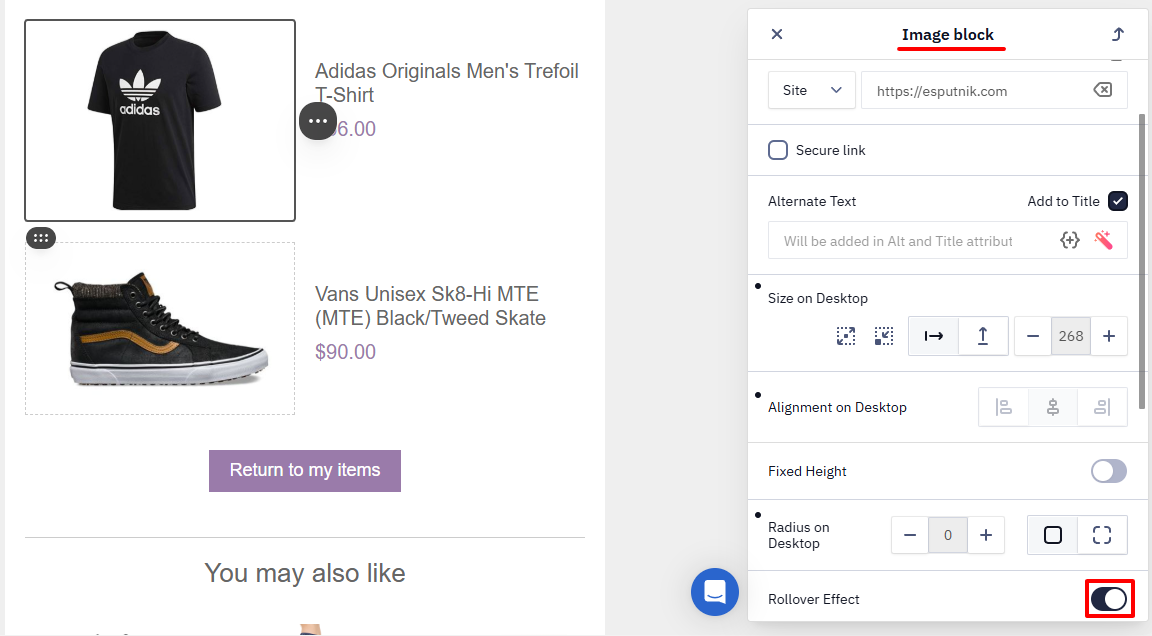
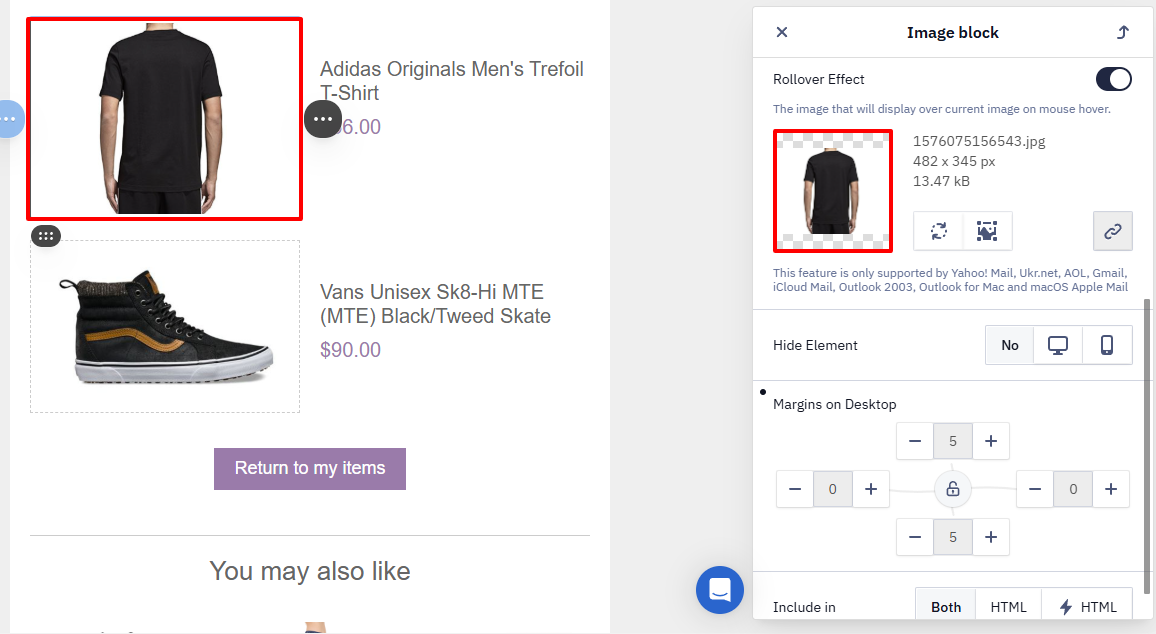
- In the block settings, enable the Rollover Effect toggle.
- Upload the second image.
- Add a Link and Alternate Text.
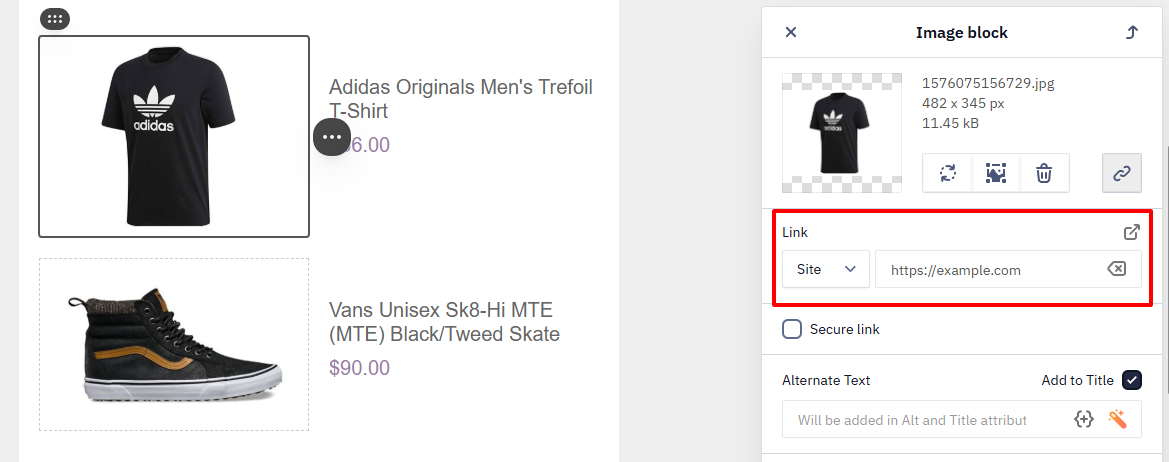
NoteSet the Link and Alternate Text. The system applies them to both images.
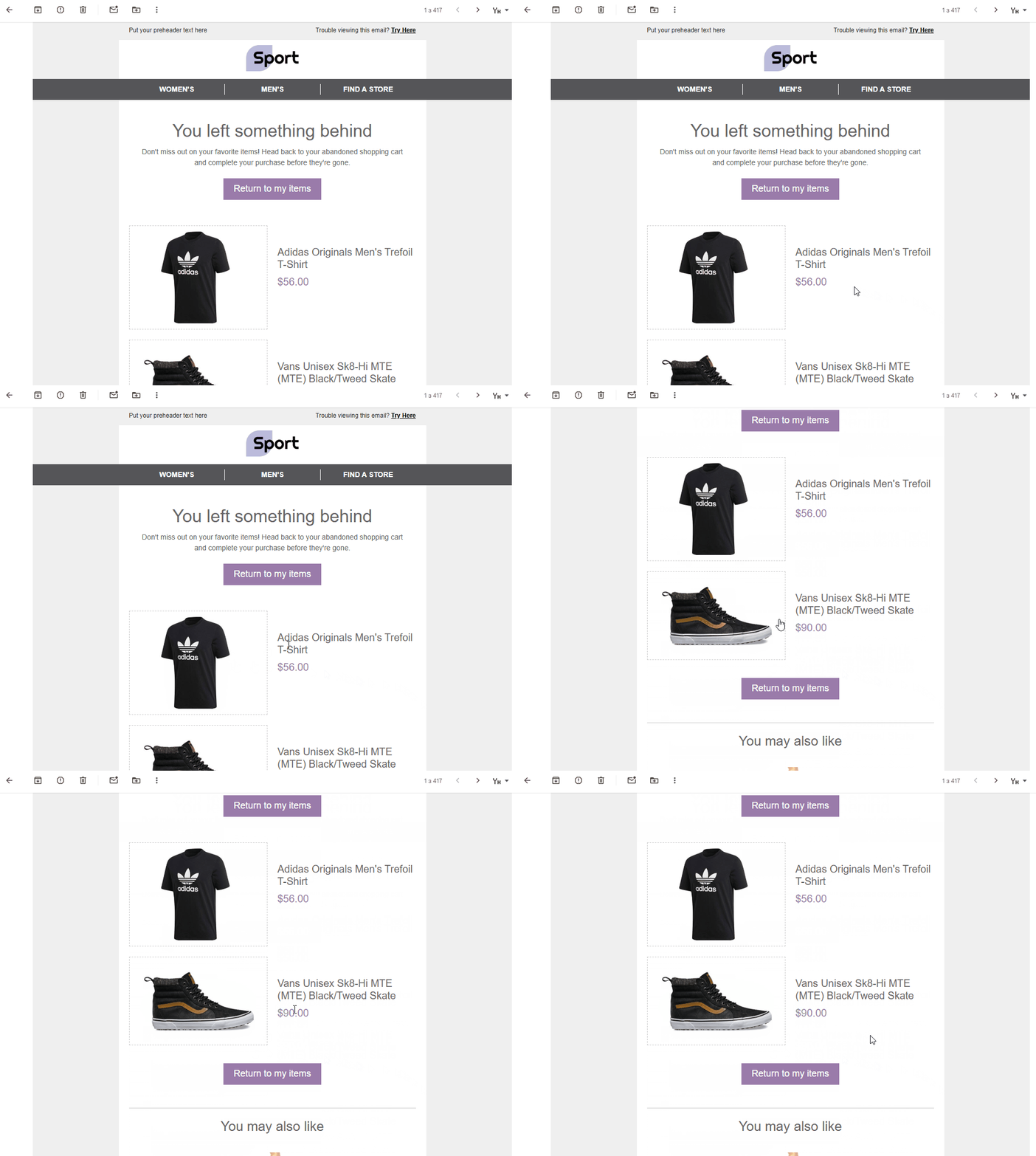
This is how the finished email will appear in the email client:
Rollover Usage in Email Campaigns
- Rollover is supported on desktop devices only in certain email clients, including: Yahoo! Mail, Ukr.net, AOL, Gmail, iCloud Mail, Outlook 2003, and macOS Apple Mail.
- On mobile devices, behavior depends on the email client. Some services may emulate the hover effect after the first tap on the image.
- Testing tools (Litmus, Email on Acid) do not fully support interactive effects. Send test emails to different email clients and verify the rendering manually.
- The Rollover feature is available for:
- the Image block;
- the Button block (hover highlight effect).
Updated 3 months ago
Did this page help you?