
Deep Link Types
A deep link is a uniform resource identifier (URI) that links to a specific location within a website, app, or app store. You can use 3 deep link types in eSputnik’s mobile push notifications:
- Traditional links (
app-name://category/screenX), - Web deep links (
https://www.example.com/products) - Universal links (
https://www.example.com/products)
Traditional Deep Links
Traditional deep links lead to the app or any of its screens. Add your application name instead of the HTTP protocol to create the traditional deep link. The traditional link may look as follows:
app-name://category/screenX
A traditional deep link added as the mobile push link is wrapped in a tracking link the same way as regular links, so a click on it is registered. For details, see Tracking click-through rates.
ImportantAssigning the appropriate link to the screen within the application is necessary
If the user doesn’t have the app installed, clicking the deep link leads to an error page. But since you send a deep link in a mobile push, you can be sure that the contact has your application installed.
NoteThe operation of the traditional deep links after clicking without app installed depends on the implementation of link processing
Web Deep Links
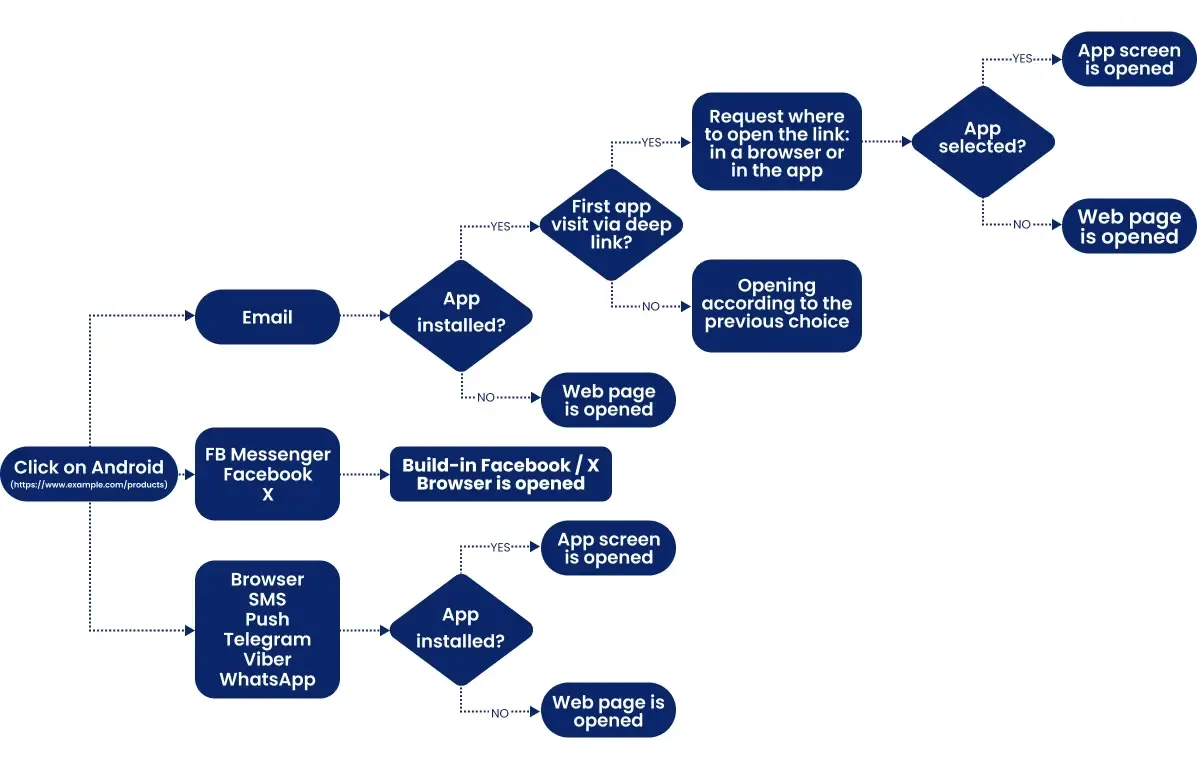
The click on the web deep link is processed according to the schemes outlined below.
On iOS:
On Android:
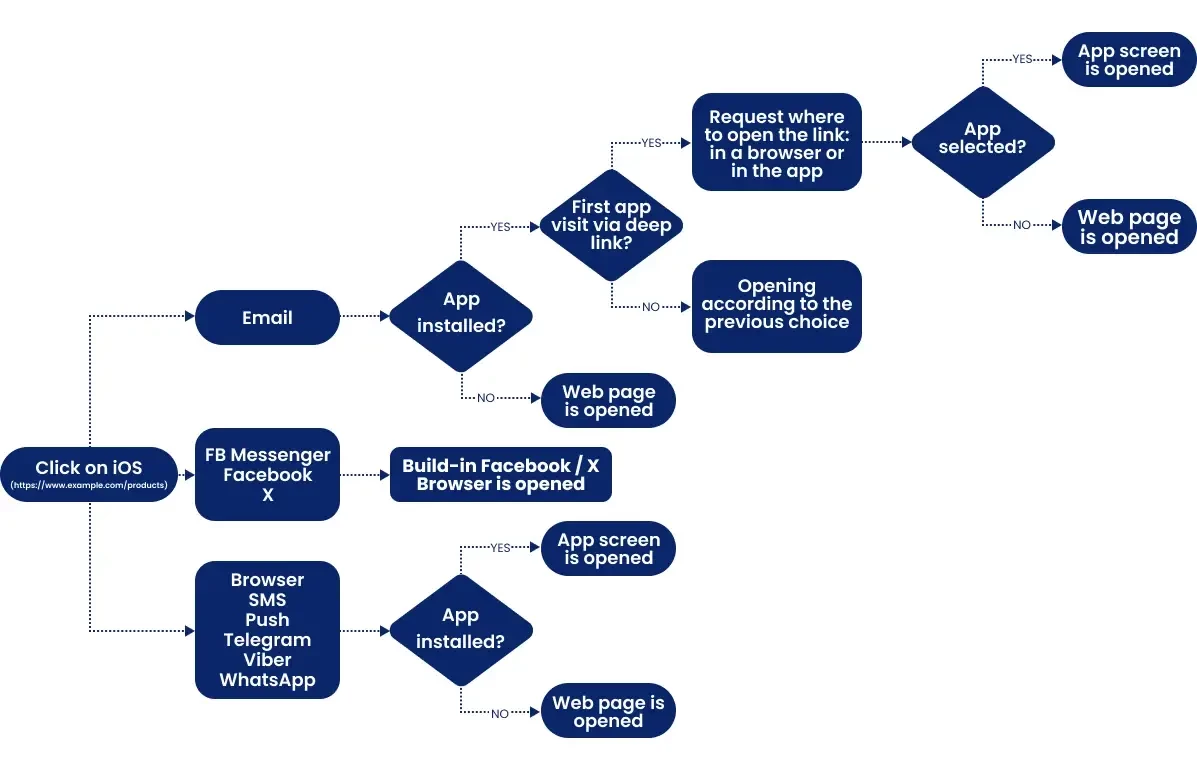
Clicks on web deep links in a web browser direct users to a specific section within an app or to a web page if the app is not installed.
Web deep link looks like a web link: https://www.example.com/products
You need to set up opening your app by tapping on www.example.com in your app settings.
NoteWeb deep links may be helpful for apps supported by websites, for example — ecommerce. But we don’t recommend using it because of the high risk of loose UTMs or other important parameters, which may be critical for analytics.
Universal Links (on iOS) and Android App Links
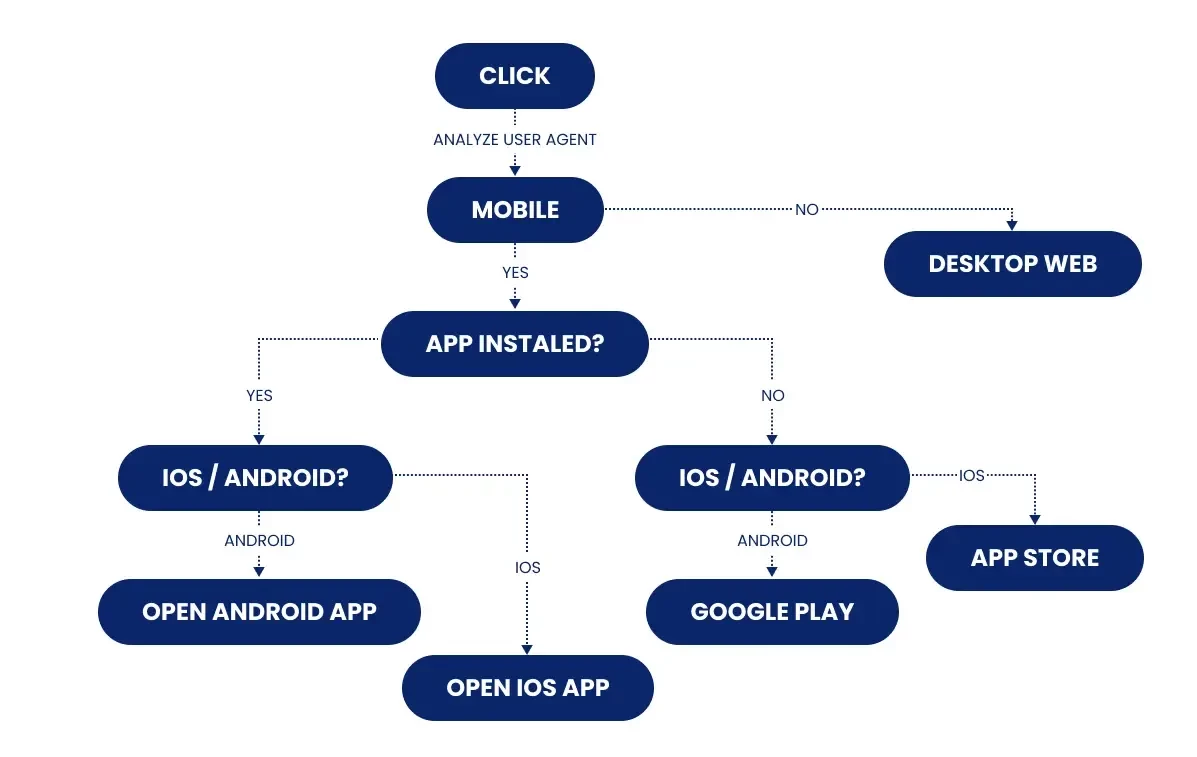
Universal Links and Android App Links are back-end frameworks with specific configurations.
They can be used in email campaigns to direct users to a specific section within an app.
NoteA link in an email button always goes through eSputnik's tracking redirect first. If a link opens a browser instead of the app, Universal Links (iOS) or App Links (Android) aren't configured for your app — this doesn't happen automatically and requires the app-side setup described below.
Android
Guide on the official website: developer.android.com.
- Create links to certain app pages.
- Add intent filters to incoming links.
- Add the association file in a JSON format to your domain (app domain or ad tracker domain).
Test intent (Shell):
adb shell am start
     -W -a android.intent.action.VIEW
     -d <URI> <PACKAGE>
iOS
Guide on the official website: developer.apple.com.
- In the app settings, create an association between your app and your domain (app domain or ad tracker domain) via XCode.
- Create an association file — a page that contains data in the JSON format that is content in the app.
- In app delegate, set up rules for clicks on universal links. A click will redirect to the app if it is installed or to the page in Safari if the app is not installed.
ImportantFor Universal Links and App Links to work with the links in your campaigns, set the domain up in your account: first add a custom domain for short links — a separate subdomain of your own, pointed at us with a CNAME record — then create a destination domain and upload the association files to it. See Short Links Settings.
The files are served from your own domain, and the links in your campaigns are built on it too, for example
https://click.example.com/u/jh3kkj3kl. When a user clicks such a link, the request goes to our server: the system registers the click and returns the original link.
Deferred Deep Linking
eSputnik has no deferred deep linking of its own: when a link sends the user to the store, nothing restores its target or its parameters after the install, so the UTM tags of the original link are lost.
For links that have to survive an installation, route them through AppsFlyer OneLink, which provides deferred deep linking on its side. See Integrating AppsFlyer Deep Linking.
Updated 17 days ago