
Deliverability Control Process
Monitoring and rules to follow when sending emails (and what happens if you don’t)
Mail providers continuously evaluate how recipients engage with your emails: whether they open, click, unsubscribe, ignore, or report spam. Even a well-configured domain can lose reputation after a single aggressive launch to an inactive list, an unvalidated import, or a sudden volume spike before a major sale.
This guide will help you monitor email sending quality, spot risks early, and adjust campaigns before problems affect your entire list.
For initial domain, list setup, and warmup: Email Deliverability: Getting Started
Deliverability Metrics
Monitor the full set of metrics together, not individual indicators in isolation. For example, a drop in opens alone does not necessarily mean a deliverability problem. But if errors, complaints, or unsubscribes are rising at the same time, the campaign needs review and scaling should pause.
| Metric | What it means | Healthy | Needs attention | Stop and fix |
|---|---|---|---|---|
| Spam complaints | Share of recipients who reported the email as spam. One of the strongest negative signals for mail providers. | <0.1% | 0.1–0.3% | ≥0.3% |
| Delivery errors | Share of emails not delivered due to address, mailbox, domain issues, or temporary provider limits. | <1.0% | 1–2% | ≥2% |
| Unsubscribes | Share of recipients who clicked the unsubscribe link or used list-unsubscribe. | <0.3% | 0.3–1.2% | ≥1.2% |
| Open rate (OR) | Initial engagement trend. Can be inflated by Apple MPP — use as a trend signal, not the sole criterion. | >20% | 10–20% | <10% or a sudden drop vs your baseline |
| CTR | Share of recipients who clicked a link in the email. One of the most important positive engagement signals. | >1.2% | 0.8–1.2% | <0.8% or a sudden drop vs your baseline |
How to calculate metrics
| Metric | Formula |
|---|---|
| Spam complaints | (Number of complaints ÷ Number of delivered emails) × 100 |
| Delivery errors | (Number of undelivered emails ÷ Number of sent emails) × 100 |
| Unsubscribes | (Number of unsubscribes ÷ Number of delivered emails) × 100 |
| Open rate | (Number of unique opens ÷ Number of delivered emails) × 100 |
| CTR | (Number of unique clicks ÷ Number of delivered emails) × 100 |
| CTOR | (Number of unique clicks ÷ Number of unique opens) × 100 |
NoteUse open rate as a trend signal, not as the single source of truth. Due to Apple Mail Privacy Protection, opens can be inflated. For a complete picture of sending quality, analyse complaints, errors, unsubscribes, CTR, and domain-level metrics together.
Where to Check Metrics in eSputnik
Check metrics at multiple levels: overall account dynamics → specific campaign → recipient domains → external postmaster tools.
Overall Analytics
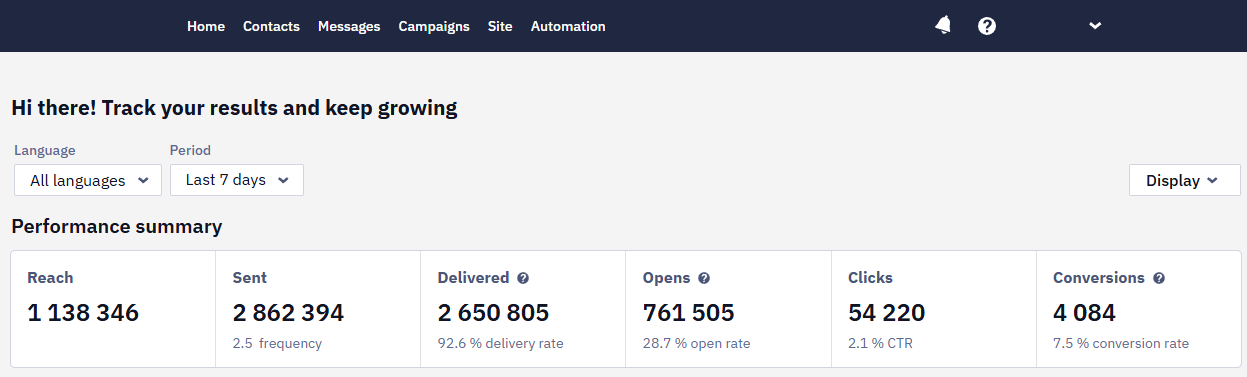
The Home analytics dashboard shows email channel dynamics: delivery, opens, clicks, unsubscribes, errors, and revenue (if order tracking is configured). This level helps determine whether a problem affects the whole channel or only a specific campaign.
Email Campaign Report
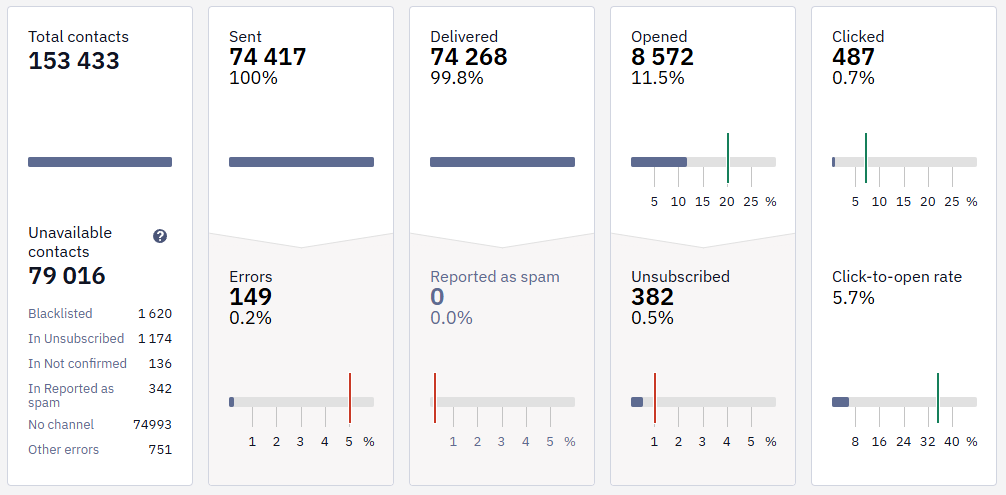
For each campaign, review the number of sent and delivered emails, errors, opens, clicks, unsubscribes, complaints, revenue, and domain-level metrics. If a problem appeared after a specific campaign, start analysis with its report.
More: Email Campaign Report
Domain-Level Metrics
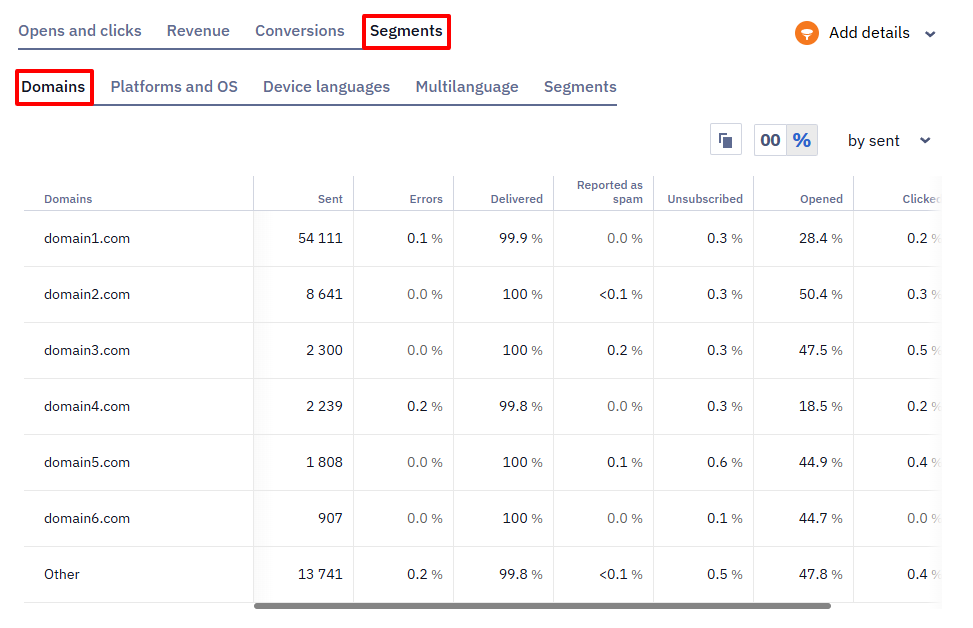
The Domains tab helps determine whether a problem affects all mail providers or just one. If metrics dropped for a single domain, check: whether errors and complaints rose specifically there, whether the campaign was sent to a cold or imported segment, and what the postmaster shows for that domain.
Postmaster Tools
Use postmaster tools as a second diagnostic layer: check the eSputnik report first, then confirm the problem in postmaster dashboards. If a postmaster shows deterioration, reduce send volume and narrow the audience to the most active contacts.
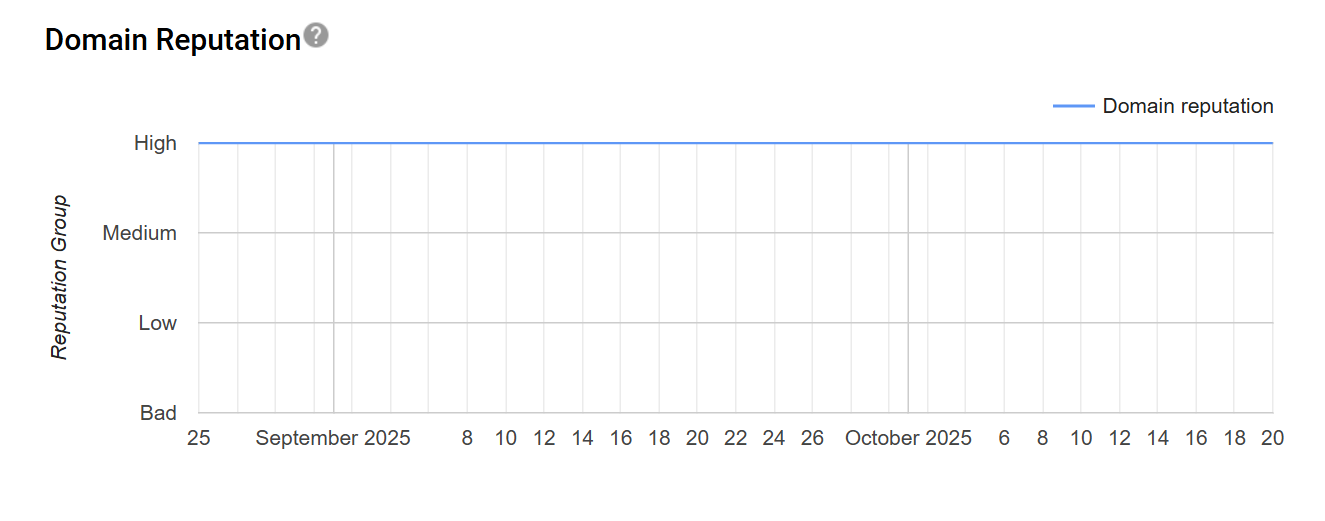
Gmail Postmaster Tools — pay attention to:
- Compliance Status — Gmail compliance for bulk senders. Fix any red or yellow signals first.
- Spam — keep user-reported spam rate below 0.3%.
- Delivery Errors — share of rejected or temporarily undelivered emails, with reasons.
Yahoo Sender Hub — monitor complaint rate. If it rises, reduce the audience, lower frequency, and make the unsubscribe link more prominent.
NoteYahoo feedback loop (FBL) complaints are routed to eSputnik's internal abuse-processing system through the verified sending domain and tied to the specific
interaction_id. There is no client-facing FBL report — use the complaint rate in Yahoo Sender Hub and the metrics above to monitor this signal.
Microsoft SNDS — check IP-level data: volume, complaints, and trap signals. Helps determine whether the problem is infrastructure-wide or campaign-specific.
Provider Responses
When a mailbox provider rejects a message and returns a reason, that reason is stored with the send. You can read it in three places:
- Contact profile. For an address that was blacklisted after a bounce, the profile records the date and the reason. See Contact Information Tab.
- Campaign report. Export the group of contacts the campaign failed for. See Exporting User Groups from Campaign Reports.
- BigQuery export. The delivery error field of an email activity holds the SMTP bounce reason and its description. See Exporting Data to the BigQuery Tables.
Providers report rejections, not filtering decisions. A message that a provider accepts and then files in the Spam folder is returned as delivered, and no response explains it — Gmail, for example, sends no such signal. To see how a provider treats your mail after it is accepted, use the postmaster tools above.
When to Check Metrics
After Every Major Campaign or Significant Workflow Change
15–30 minutes — check early technical signals: no sharp error spike, no domain collapse, no mistakes in the segment or links.
2 hours — assess initial dynamics: delivery, opens, clicks, unsubscribes, domain-level errors. If errors or unsubscribes are rising fast — do not launch the next wave to a wider audience.
24 hours — evaluate the full picture: complaints, errors, unsubscribes, opens, CTR, domain metrics, revenue. Compare against your own history — previous campaigns, similar segments, seasonality.
Weekly
- Email channel dynamics in eSputnik.
- Worst-performing campaigns by complaints, errors, and unsubscribes.
- Domain-level metrics.
- Postmaster tools: spam/complaint rate, Compliance Status in Gmail, delivery errors, IP-level in Microsoft SNDS, and other available signals.
- Contact frequency with subscribers.
- Segments that consistently do not click or purchase.
- Impact of new imports or integrations on list quality.
Actions When Metrics Deteriorate
Spam Complaints Are Rising
Complaints are the most dangerous signal for domain reputation. Do not continue broadcasts to the same audience.
- Stop or postpone the next promotional campaigns.
- Switch to high-intent segments: recent buyers first.
- Verify that all contacts are confirmed; exclude imported, old, and inactive ones.
- Reduce send frequency.
- Make the unsubscribe link more prominent; review the subject line, preheader, and offer relevance.
Do not try to compensate for low performance by increasing volume — this will damage reputation further.
Delivery Errors Are Rising
Errors typically indicate list quality issues, old addresses, or a sharp volume increase.
- Reduce send speed and volume.
- Stop campaigns to cold and imported segments.
- Check recent imports; exclude invalid and suspicious addresses.
- Check whether the problem is isolated to a single domain.
- Continue sending only to active segments until metrics stabilise.
Unsubscribes Are Rising
An unsubscribe is less harmful than a complaint, but a rising rate signals that frequency, segment, or content is out of sync with expectations.
- Reduce promotional campaign frequency.
- Check whether a contact is receiving multiple emails in a short time from different campaigns and workflows; enable or strengthen Annoyance Level.
- Give contacts the option to change Subscription Categories instead of unsubscribing entirely.
- Remove inactive segments from broadcasts.
Opens or CTR Are Dropping
A drop in opens or clicks does not always mean a deliverability problem. Check the more dangerous signals first.
- Check complaints and delivery errors — these are the priority.
- Compare domain-level metrics: if the drop is isolated to one provider, check the postmaster for that provider.
- Compare the result against previous campaigns to a similar segment.
- Reduce frequency for less active contacts; test subject lines, preheaders, content, and send time.
- For trigger series (abandoned cart, post-purchase messages, reactivation), additionally check whether workflows include a sequence stop or narrowing logic for contacts without any interaction. Prioritise clicks, purchases, or other target actions as the primary signal, and treat opens as supplementary.
If complaints, delivery errors, and unsubscribes remain within normal ranges and the drop is not isolated to one domain, the issue may not be deliverability but campaign relevance: offer, segment, subject line, preheader, or frequency. This is a marketing problem, not a deliverability one.
If Campaign Metrics Drop Sharply
If campaign metrics have crossed safe boundaries, act step by step:
- Check domain-level metrics. Determine whether the problem is Gmail-only, Yahoo-only, Outlook-only, or widespread.
- Stop the next promotional wave. Do not send the next email to a wider audience until you understand the cause.
- Narrow the audience. For subsequent sends — recent buyers or contacts with recent clicks.
- Keep expected service messages active. Double Opt-In, order confirmation, shipping updates, and post-purchase messages must only be sent on the basis of real customer actions. Do not compensate for a promo drop by artificially increasing service sends.
- Run diagnostics with specialised tools:
- GlockApps — inbox placement, spam filter checks, SPF/DKIM/DMARC, domain and IP reputation.
- MailGenius — authentication, headers, DNS, potentially spammy content.
- MXToolbox — DNS, blacklists, sending domain, Return-Path domain, click domain.
- Litmus / Email on Acid — rendering, image loading, spam and placement tests.
- Check spam rate in postmaster tools. If it is high, temporarily send only to recently active contacts.
When You Can Return to Scaling
Gradually expand the audience only after metrics have returned to a safe zone. Before scaling, verify:
- spam complaints are below the risk threshold;
- delivery errors have stabilised;
- unsubscribes are not rising;
- CTR is not falling;
- no sharp drops for any specific domain;
- postmaster tools show no new issues;
- the next audience is not cold or unconfirmed.
Recommended order for returning to scale:
- Recent buyers.
- Contacts with recent clicks.
- Active confirmed subscribers.
- Contacts with recent site visits or abandoned carts.
- Wider segments — only after stable results.
Control Levels and Restrictions
eSputnik uses a gradual quality control model. Restrictions are a protection for the client's reputation, domain, and the platform — not a punishment.
Level 1 — Warning. One or more metrics enter the attention zone. The account enters enhanced monitoring and the client receives recommendations. No technical restrictions yet. Required actions: narrow the audience, reduce frequency, check the list and content.
Level 2 — Risk. Several metrics remain in the attention zone or one reaches a critical level. A corrective action plan is required. Soft restrictions may be applied; broadcasts may be temporarily limited. Required actions: stop sends to cold list, check imports and DOI status, send only to active segments.
Level 3 — Restriction. The client does not adjust their sending or metrics do not stabilise. Possible actions: speed throttling, blocking risky segments, temporary pause of email sending until stabilisation. Restrictions are lifted after metrics stabilise and a safe sending strategy is confirmed.
"Limit Reached" Error in a Workflow
If some contacts in a workflow don't receive an email and the launch history shows a limit reached error, this is a separate moderation check, not the metrics-based rate limits described above. To resolve it, add an identifying line to the email footer, before the unsubscribe button — for example, "You're receiving this email because you're a subscriber of [Product Name]" — so recipients can clearly tell why they got the message.
Post-Campaign Checklist
Check immediately after sending:
- Spam complaints have not risen
- Delivery errors have not risen
- Unsubscribes have not risen
- No single domain has dropped sharply
- The audience was not cold or unconfirmed
- Contacts did not receive too many emails in a short time
- The offer matched the segment's expectations
If several metrics have deteriorated simultaneously — stop the next wave and first stabilise deliverability on active segments.
Moderation is handled by email. If a campaign is stopped for review, reply directly to the moderator's email; moderation questions cannot be resolved through support chat. A campaign may be stopped even if an identical campaign was sent to the same audience the previous day.
Updated about 1 month ago