
Service Worker. Troubleshooting
The eSputnik's web push script is loaded via a Service Worker file called sw.js and placed in the site's root. The problem can occur if the site code already uses files with the same name or uses a different Service Worker.
1. Changing the Name of the Service Worker sw.js
sw.jsSome builders (GoDaddy, Wix, etc.) place the sw.js file in the site root by default. Since the eSputnik's file has the same name, errors may occur.
To avoid problems, you can rename the file and, if necessary, specify the path to it in the eSputnik's script.
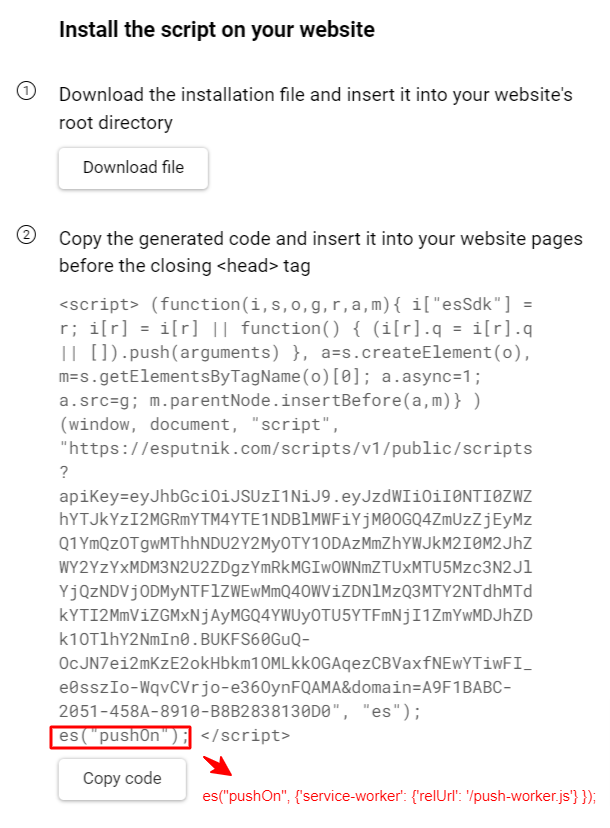
To do this, find the initialization function in the eSputnik's script code
es("pushOn");and add parameters to this entry in the following format:
es("pushOn", {'service-worker': {'relUrl': '/push-worker.js'} });where the 'relUrl' parameter is the path to the file and its arbitrary name.
2. Merging the eSputnik and PWA Service Workers
Sites with PWA (progressive web app) already use Service Worker, i.e., they contain a JavaScript file with a specific set of functions. To enable the ability to subscribe and send web pushes via eSputnik to your site, you need to add the line at the end of the JavaScript code of your Service Worker
importScripts('https://push.esputnik.com/service-worker.js');Note
The names of functions, variables or handlers in your Service Worker and Service Worker from eSputnik may be the same. In this case, conflicts leading to failures in your PWA and the eSputnik's script are possible.
Below is a list of methods’ (functions’) names in the eSputnik's file:
onPushNotificationgetNotificationContentshowNotificationgetNotificationDatadetermineClickedLinkcollectActionLinkstrackNewServiceWorkerActivation
If the names in your Service Worker and the eSputnik's Service Worker match, the function located last in the code will be called. For example, if the code according to this instruction ends with the line
importScripts('https://push.esputnik.com/service-worker.js');then the functionality related to web pushes will work correctly.
3. manifest.json Requirements for PWA Sites
manifest.json Requirements for PWA SiteseSputnik's web push script does not create or manage your PWA's manifest.json — it only merges with a Service Worker that already exists on the site (see section 2 above). If you're setting up a Progressive Web App and need a manifest.json, that file is a standard part of the PWA specification and is unrelated to eSputnik's script.
A couple of points that are relevant for sites combining PWA and eSputnik web push:
- Fields like
displayandstart_urlaffect how the installed app behaves but don't affect eSputnik's push subscription itself. gcm_sender_idis no longer required for push notifications in Chrome — it has been replaced by VAPID keys, which eSputnik's script handles automatically.
4. The None of providers responded with success Error
None of providers responded with success ErrorThis error indicates "phantom" subscribers — tokens in your contact base that have no browser type associated with them. Without the browser type, the system can't determine which push provider to send the notification to.
To clean such subscribers from your base, use the option to automatically delete tokens with no reads during the selected number of days.
5. The WEB_PUSH_GENERAL_ERROR Status
WEB_PUSH_GENERAL_ERROR StatusGENERAL_ERROR for Web Push is a fallback result of the sender — it appears when no more specific provider reason was captured. Only the channel, the error code and a generic "General error" message are stored; the provider's HTTP code and raw response are not.
Two consequences to keep in mind:
- This error does not cause the token to be deleted automatically.
- The same top-level code can hide different underlying causes, so it is not sufficient on its own to build a table of causes or to justify bulk-removing tokens. Remove tokens only after checking a specific group of them.
6. The Invalid subscription Error
Invalid subscription ErrorInvalid subscription means the browser token is no longer valid — most often because the visitor withdrew the notification permission or cleared it in browser settings. The platform finds this out only when it tries to send: the token is then removed, and if the contact has no other channels left, it is deleted automatically with the reason No media channels.
A contact can therefore show successful sends and then this error on the next one, without anything changing on the account side. Re-subscribing on the site creates a new token: clear the browser cache, open the site, allow notifications again, and only then send a test.
Another cause is a third-party script on the site that conflicts with ours and resets the subscription. If the error repeats for different contacts, check whether another script on the page also manages the push subscription.
Updated 6 days ago