
Monitoring Email Deliverability with Google Postmaster Tools
Postmaster Tools is a set of Google tools for analyzing and improving email deliverability in Gmail. The data helps you assess how Gmail and its users respond to your campaigns.
Google has updated Postmaster Tools with a new interface. The main dashboard is now Compliance status, which checks your domain against Gmail's sender requirements. Domain reputation and IP reputation remain available in the old version through Visit old Postmaster Tools. For regular monitoring, focus primarily on Compliance status, Spam, and Authentication.
The new version includes these dashboards:
- Compliance status
- Spam
- Feedback Loop
- Authentication
- Encryption
- Delivery Error
NoteSet up email domain authentication before you use Postmaster Tools.
Setting Up Postmaster Tools
- Go to Postmaster Tools.
- Enter your domain and add the
TXTrecord provided by Google to your DNS to verify domain ownership.
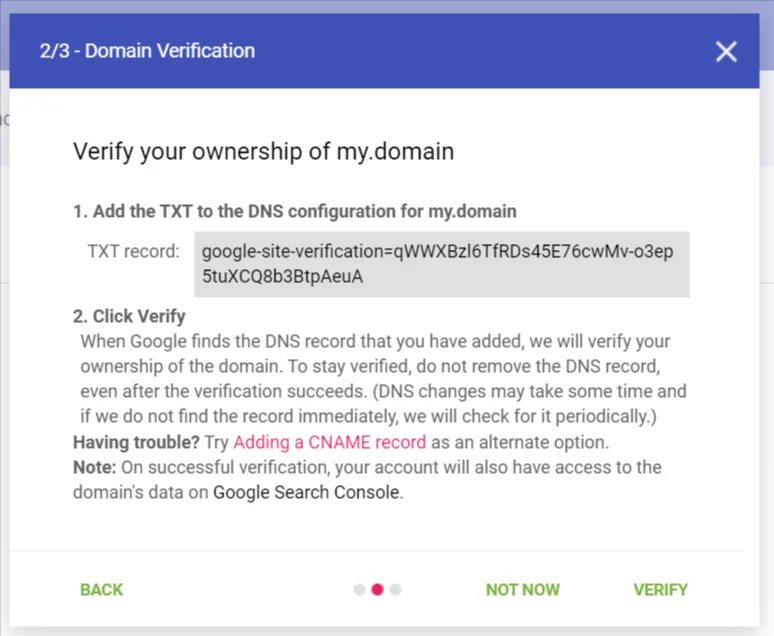
After the domain is verified, you can use the dashboards described below.
NoteIf needed, you can grant eSputnik access to your Postmaster Tools analytics. eSputnik provides a
TXTorCNAMErecord that you add to your DNS.
Compliance Status
Compliance status is the main dashboard in the new Postmaster Tools. It shows whether your primary domain meets Gmail's sender requirements. Data from subdomains is also used to evaluate compliance for the primary domain.
Each requirement has one of three statuses: Compliant, Needs work, or No data found.
The following requirements apply to all senders:
- SPF and DKIM authentication — your mail passes SPF and DKIM.
- DNS records — your sending domain has valid DNS records.
- Message formatting — messages meet Gmail's formatting requirements.
- Encryption — traffic is sent over TLS.
- User-reported spam rate — your spam rate stays within Gmail's limit.
For bulk senders, the dashboard also checks:
- DMARC authentication — your mail passes DMARC.
- One-click unsubscribe — bulk messages support one-click unsubscribe.
- Honor unsubscribe — unsubscribe requests are processed promptly.
During sending, aim to keep all applicable requirements Compliant. If a status changes to Needs work, pause volume increases and investigate the cause. No data found can mean that Google does not yet have enough qualifying email to evaluate the requirement.
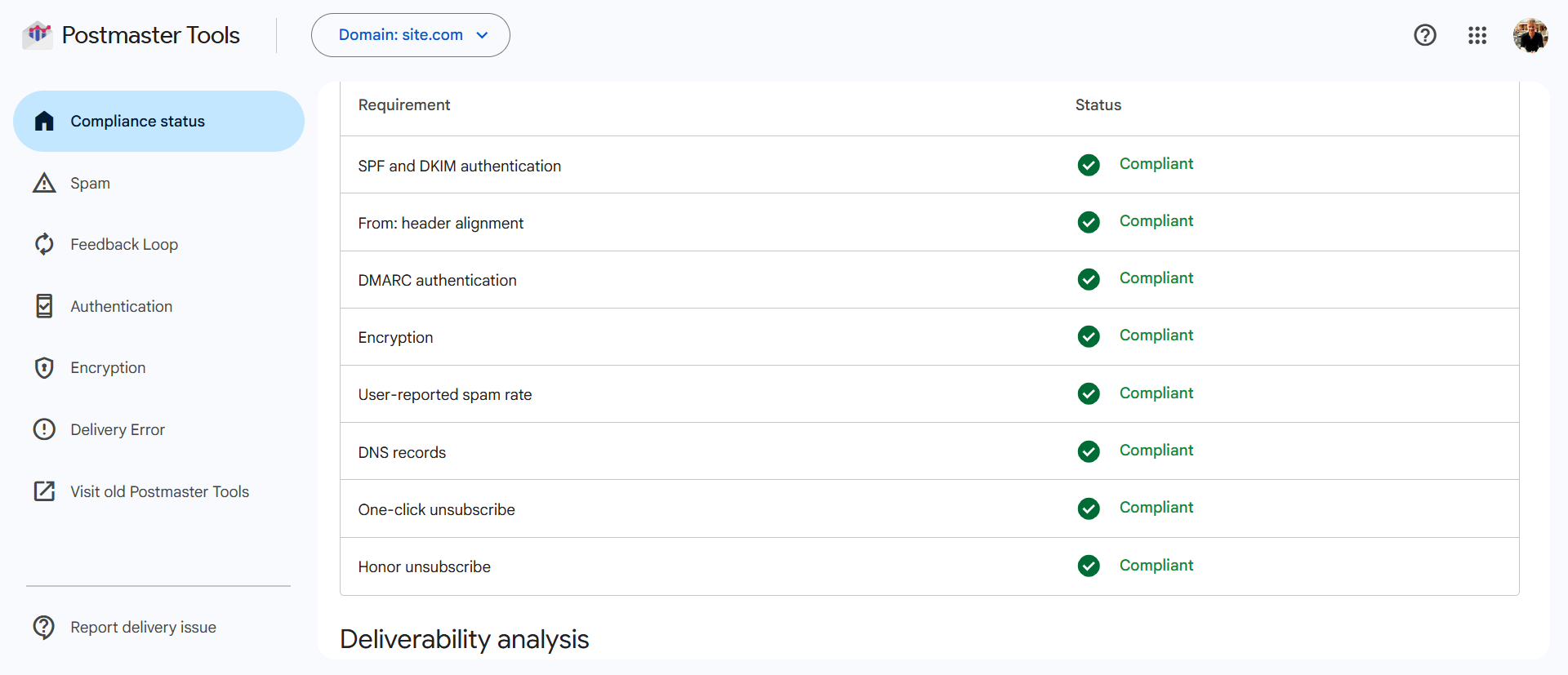
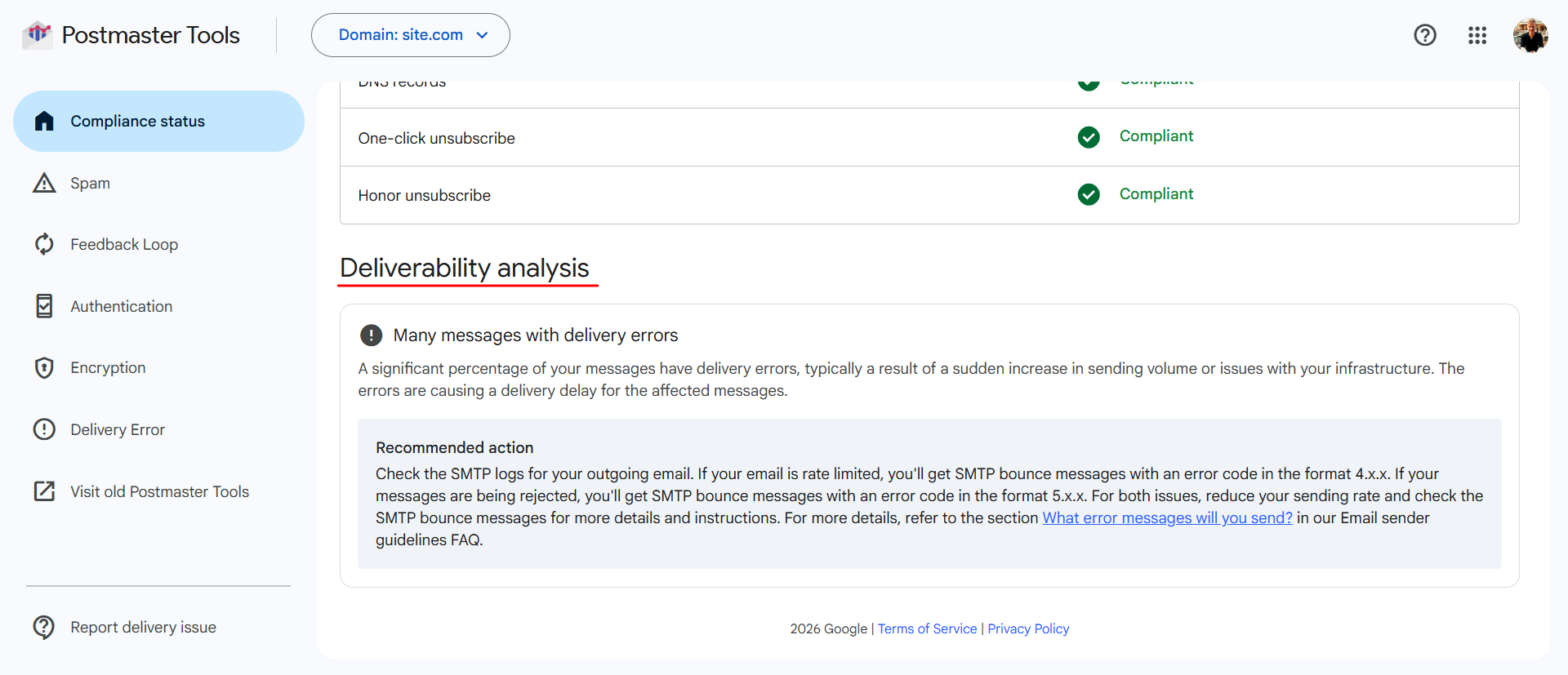
Below the table, the Deliverability analysis section highlights specific issues — for example, a high rate of delivery errors — and provides a recommended action for each.
Spam
The Spam dashboard shows the percentage of DKIM-authenticated messages delivered to the Inbox of engaged Gmail users and then marked as spam by recipients. Messages that Gmail sends directly to Spam are not included in this user-reported spam rate.
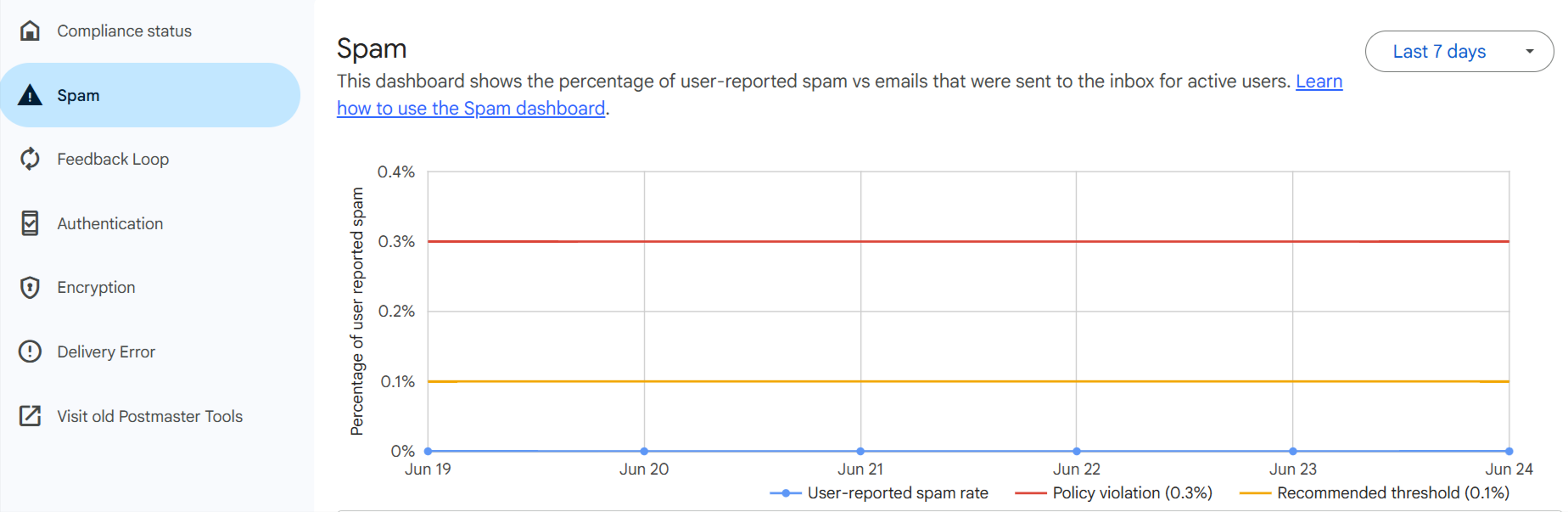
The graph compares your user-reported spam rate with two reference lines shown in the Google interface: the recommended threshold (0.1%) and the policy violation line (0.3%). Keep your rate at or below the recommended threshold.
For eSputnik's thresholds and recommended actions for different spam-rate levels, see Deliverability Control Process.
NoteGoogle does not pass spam complaints back to eSputnik: Gmail provides no Feedback Loop data on individual complaints. As a result, complaints from Gmail users are not shown in campaign statistics and do not block further sending — emails to a contact who previously marked your message as spam are still sent and delivered, usually to the Spam folder. The only way for such a contact to stop receiving your emails is to unsubscribe.
The Gmail complaint rate can be monitored only in aggregated form through Postmaster Tools. If the spam rate in eSputnik looks normal but Postmaster Tools shows a spike, use Postmaster Tools to monitor the Gmail user-reported spam rate.
Feedback Loop
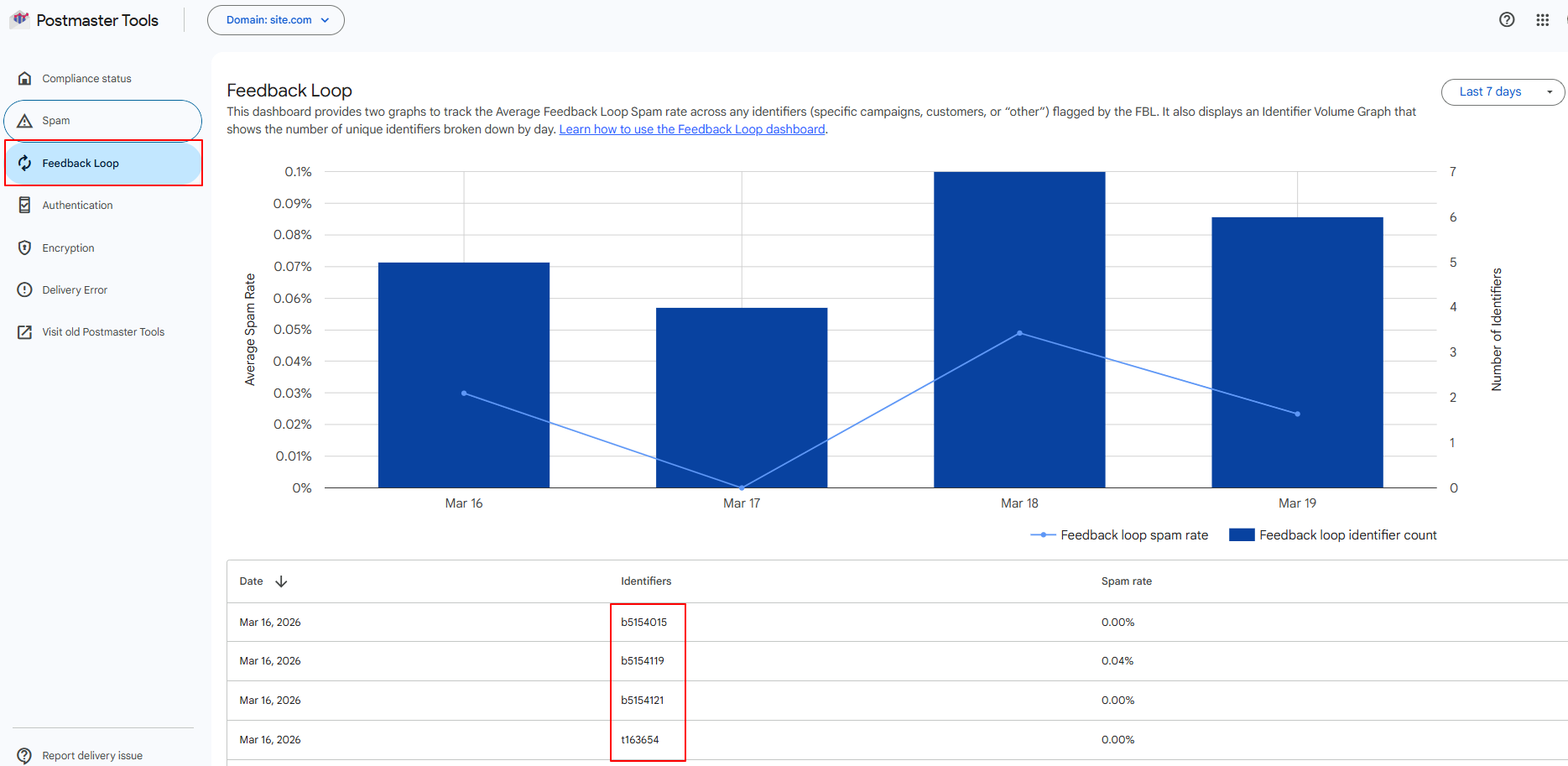
The Feedback Loop dashboard shows the average spam rate for messages identified by Feedback Loop IDs and the number of unique identifiers per day.
According to the Google Feedback Loop specification, the Feedback-ID header can contain campaign identifiers and a required sender ID. eSputnik uses an identifier that combines the message type with the campaign or message ID, followed by the eSputnik sender ID.
Feedback-IDfor a broadcast:b4502231:eSputnik.comFeedback-IDfor a trigger campaign:t197398:eSputnik.comFeedback-IDfor a single message:im14413670895:eSputnik.com
The prefix before the number identifies the type: b is a broadcast, t is a trigger campaign, and im is a single message. The number identifies the corresponding broadcast, trigger campaign (sent through a workflow or the Send prepared message resource), or single message, such as a test or a message sent using Send email message.
The structure of the header is fixed — the campaign or message identifier plus the sender identifier — and can't be customized. Google Postmaster Tools groups the statistics by these identifiers on its own, so the breakdown in the Feedback Loop dashboard requires no additional setup on your side.
To find which campaign caused complaints, open Feedback Loop, copy the identifier, for example, b5273156, and enter it under Campaigns → Reports → Email → Broadcasts/Triggered in the format cid:1234567.
Authentication
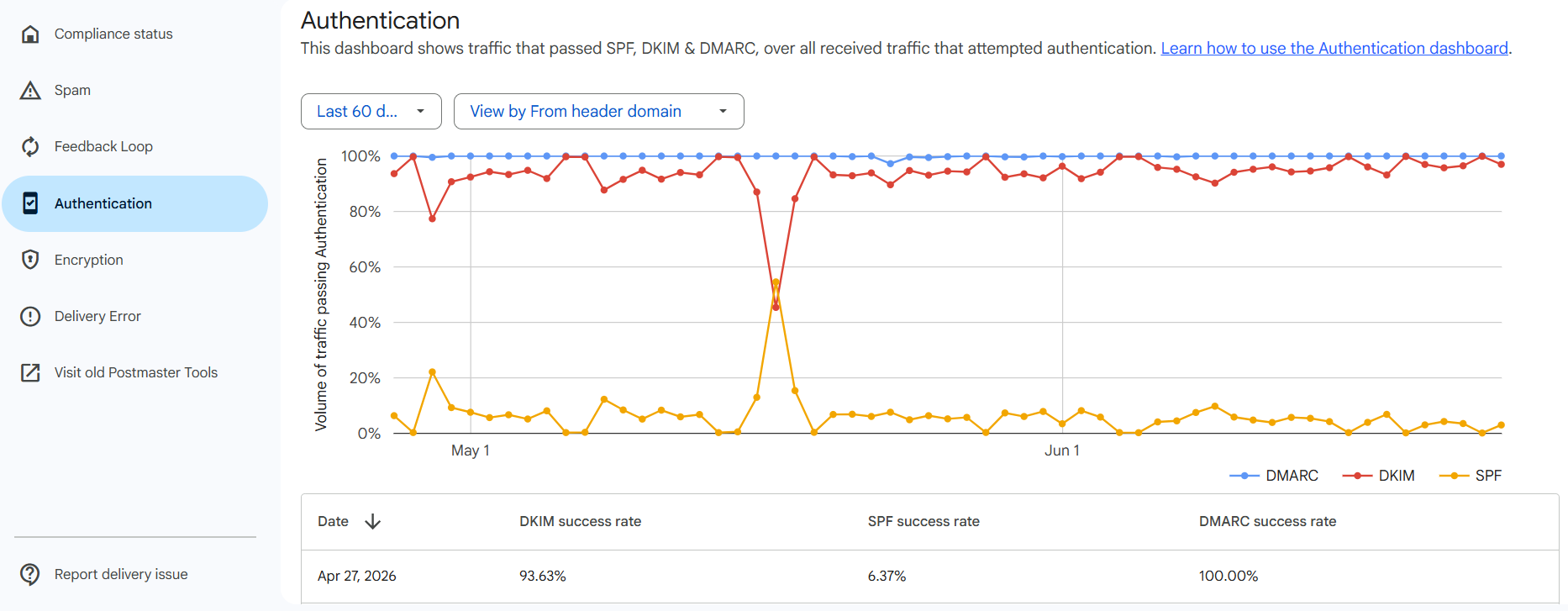
The Authentication dashboard shows the percentage of email that passes SPF, DKIM, and DMARC authentication. Separate SPF, DKIM, and DMARC success rates are shown for each day.
Encryption
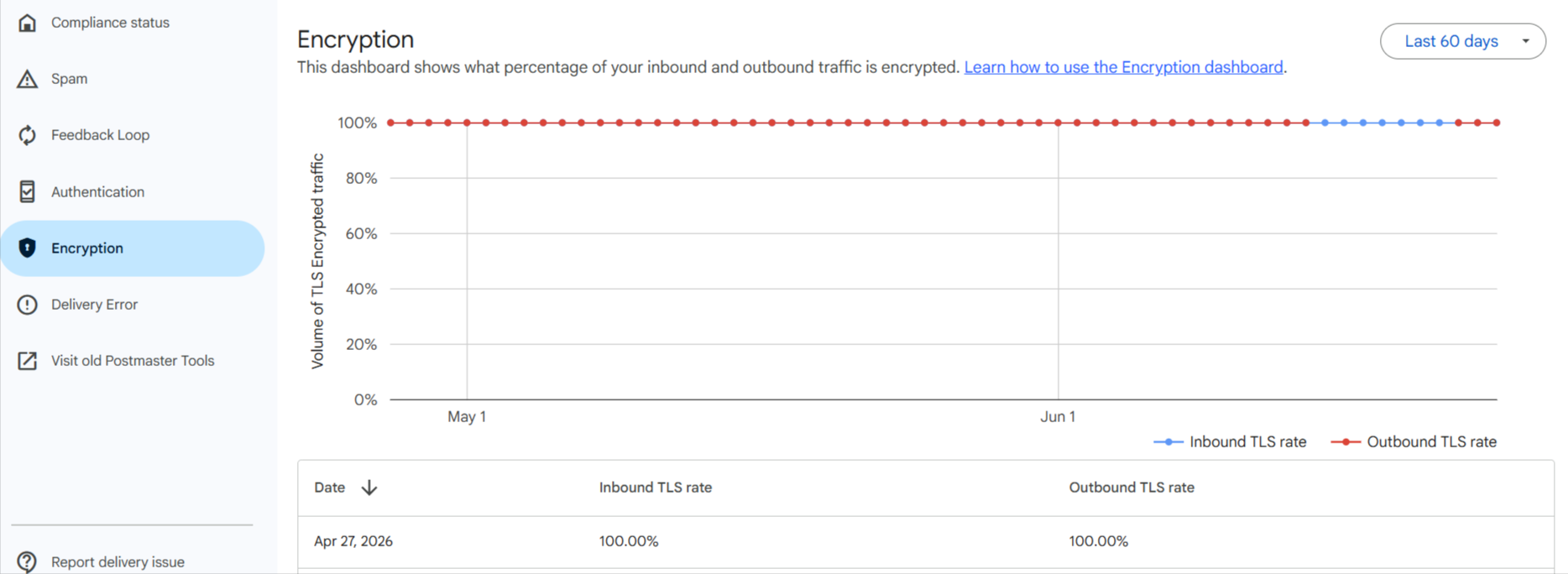
The Encryption dashboard shows the percentage of inbound and outbound traffic encrypted with TLS (Transport Layer Security). The dashboard reports inbound TLS rate and outbound TLS rate.
Delivery Error
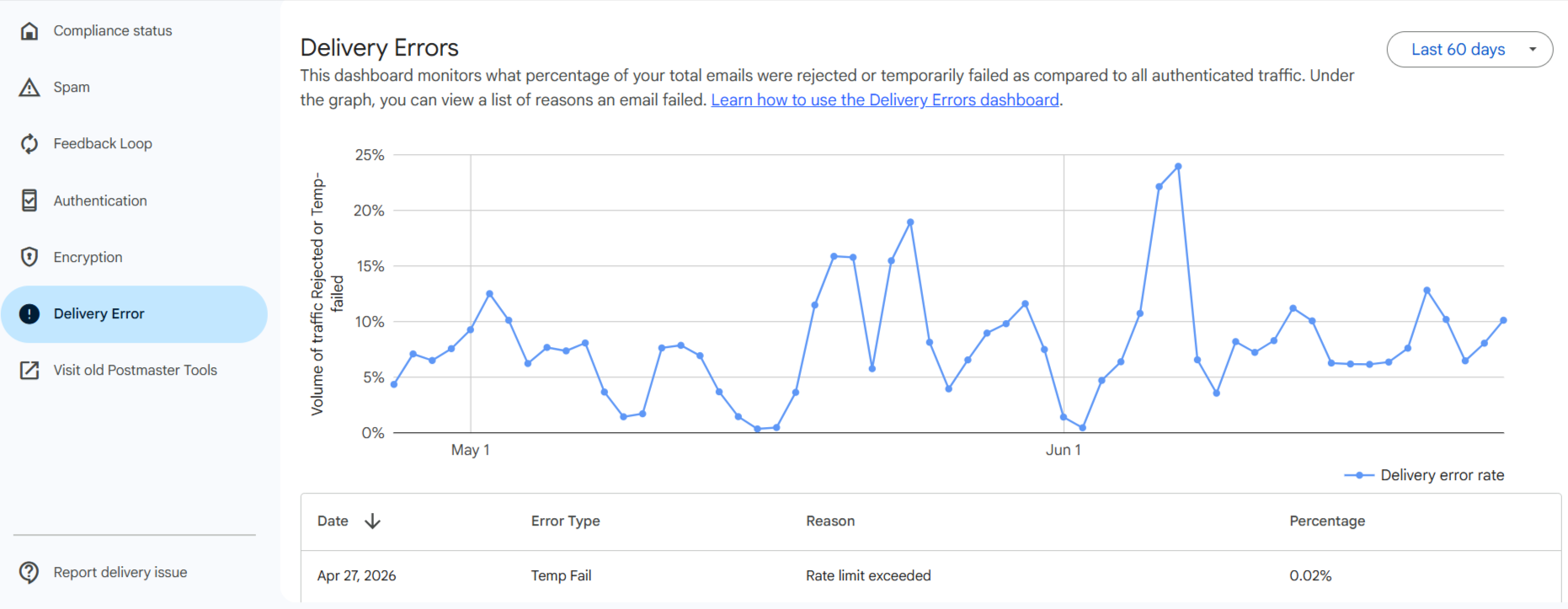
The Delivery Error dashboard shows the percentage of authenticated messages that Gmail rejected or temporarily failed to accept. The table below the graph groups the reasons by Error Type:
- Temp Fail — for example, Rate limit exceeded or Suspected spam. These are temporary SMTP
4.x.xerrors; the system may retry delivery. - Reject — for example, Bad or unsupported attachment or Email content is possibly spammy. These are permanent SMTP
5.x.xerrors.
A sharp increase in delivery errors is often associated with a sudden increase in send volume or an infrastructure issue. Reduce the sending rate and review the reasons listed in the table.
NoteA moderate, steady level of Temp Fail errors (like Rate limit exceeded) is normal at high sending volumes — Gmail throttles delivery pace, not just content. Treat it as a signal to investigate only when the rate spikes sharply on the graph or coincides with a drop in Compliance status or a rise in the Spam dashboard — that combination points to a real reputation issue with the IP/domain rather than routine pacing.
Common Post-Audit Issues
After a domain/DNS audit, a few recurring findings tend to affect Postmaster metrics:
- SPF TTL too small. A low TTL (below
3600) on the SPF record can cause frequent re-lookups and inconsistent resolution, which shows up as fluctuating Authentication results. Set the TTL to3600or higher. - DMARC misalignment. If the
Fromdomain doesn't align with the domains authenticated by SPF/DKIM, DMARC can fail even when SPF and DKIM individually pass — this lowers the DMARC authentication compliance status. See Email Domain Configuration for aligned setup. - Missing DKIM. Without a valid DKIM record, authentication rates drop and the domain is more exposed to spoofing, which can also affect Compliance status.
Subdomain Sender Strategy
If you send from more than one subdomain (for example, separate subdomains for marketing and transactional mail), use a separate sender for each subdomain rather than reusing the same sender/IP path across them. Reputation in Postmaster Tools is tracked per authenticated domain — mixing traffic from different subdomains under one sender makes it harder to isolate which subdomain is causing a reputation drop when you investigate an issue. Sending from the same address across subdomains is technically possible, but keeping senders separate simplifies diagnosis.
Legacy: Domain and IP Reputation
Domain reputation and IP reputation are available in the old version of Postmaster Tools through Visit old Postmaster Tools.
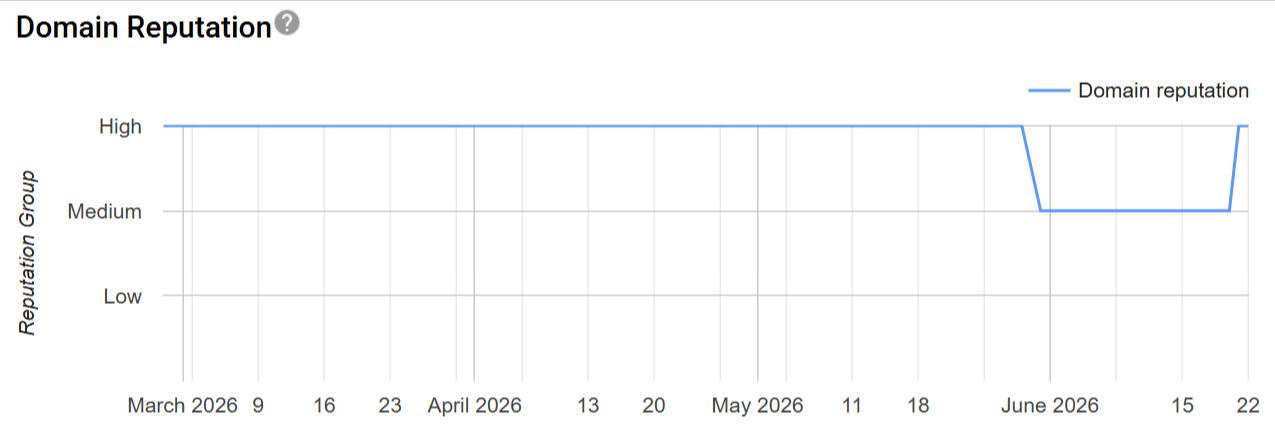
Domain reputation reflects your domain's reputation in Gmail. If it drops, review the campaigns sent during the affected period. A low reputation increases the risk that messages will be delivered to spam.
IP reputation reflects the reputation of the sending IP address:
- High — the IP has a strong sending history and messages are rarely marked as spam by Gmail.
- Medium — most email has fair deliverability, but a noticeable increase in spam can affect delivery.
- Low — email from the IP is likely to be marked as spam.
- Bad — email from the IP is almost always marked as spam or rejected.
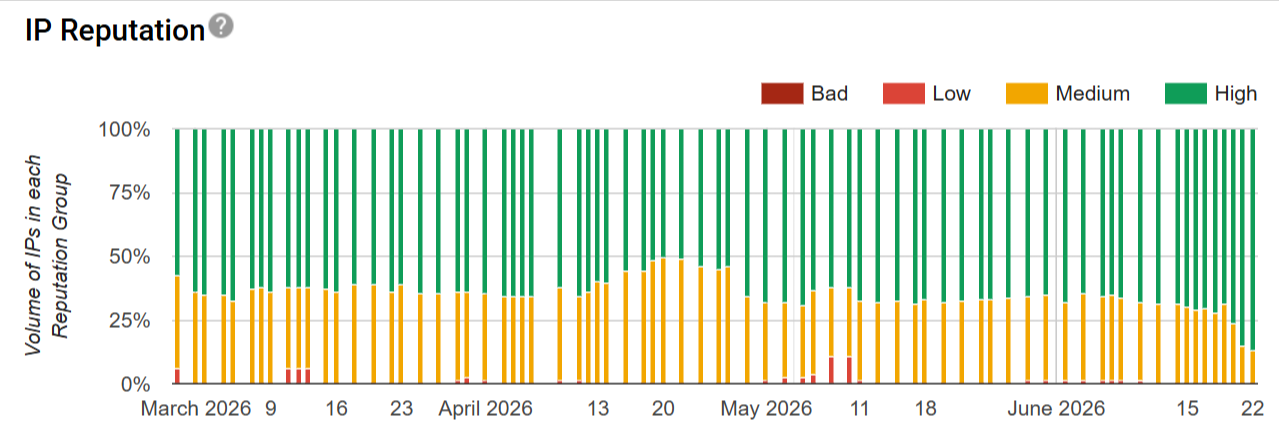
NoteBecause eSputnik sends from a shared IP pool, focus primarily on domain-level signals: Compliance status, spam rate, and authentication results. For more about domain reputation, see Domain Warm-up.
Updated about 2 months ago