
Testing Email Subject Lines
Test subject line variants using either of these two methods:
- Add alternative subject lines in a single message.
- Split the contact segment and send separate campaigns.
NotePer-subject analytics is available only for a bulk campaign of a message with several subject lines. For triggered emails sent from workflows, create two separate messages, split the traffic between them — for example, with the Split block — and compare their reports.
Method 1. Multiple Subject Lines in One Email
Before you start, create an email message or open an existing one in your account.
- Enter the primary subject line in the Subject field.
- Click + Add subject and enter an alternative subject line.
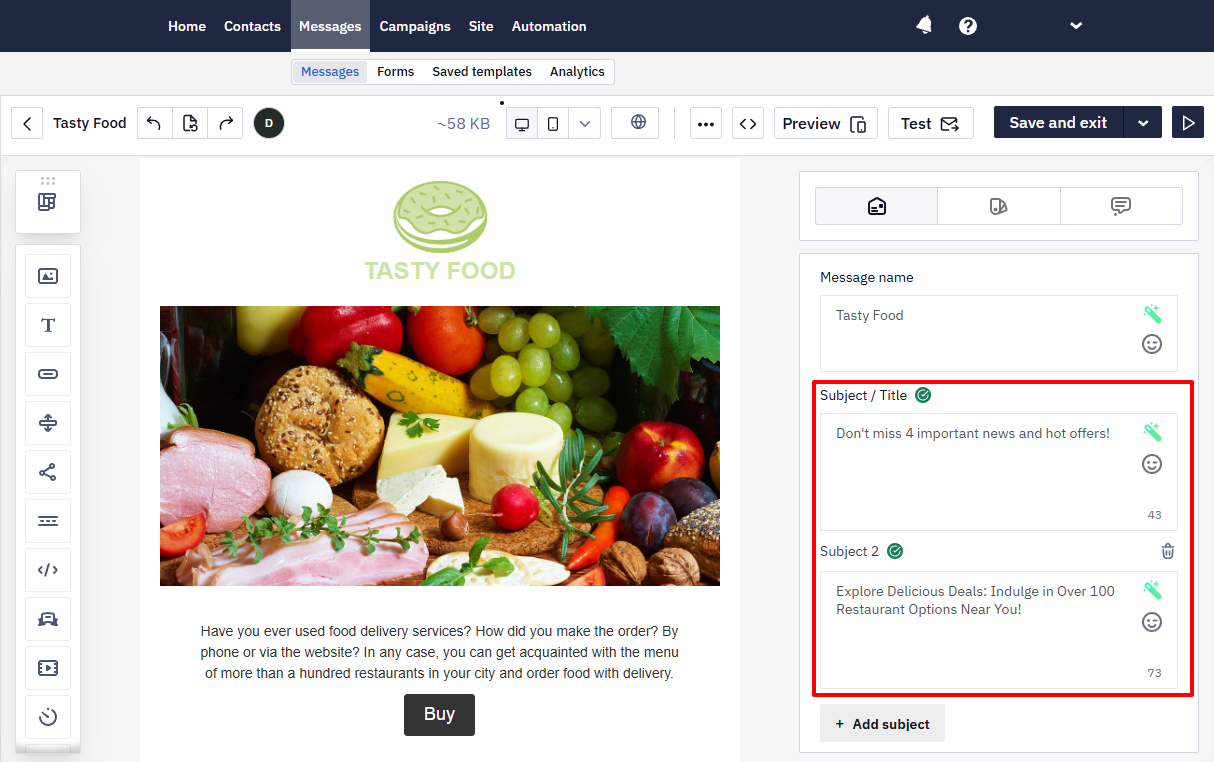
You can add an unlimited number of alternative subject lines.
When you send the campaign, the system randomly splits contacts into equal segments based on the number of subject lines. Adding a second subject line is therefore an A/B test of the subject: the variants are distributed among the recipients at the moment the campaign is sent.
As an alternative to the + Add subject button, you can set the variants with Velocity conditions directly in the Subject field. In that case the variant each contact receives is determined by your condition rather than by a random split.
Evaluating Test Results
- Go to Campaigns → Reports.
- Open the report.
- Open the Experiments tab.
Performance metrics appear for each subject line.
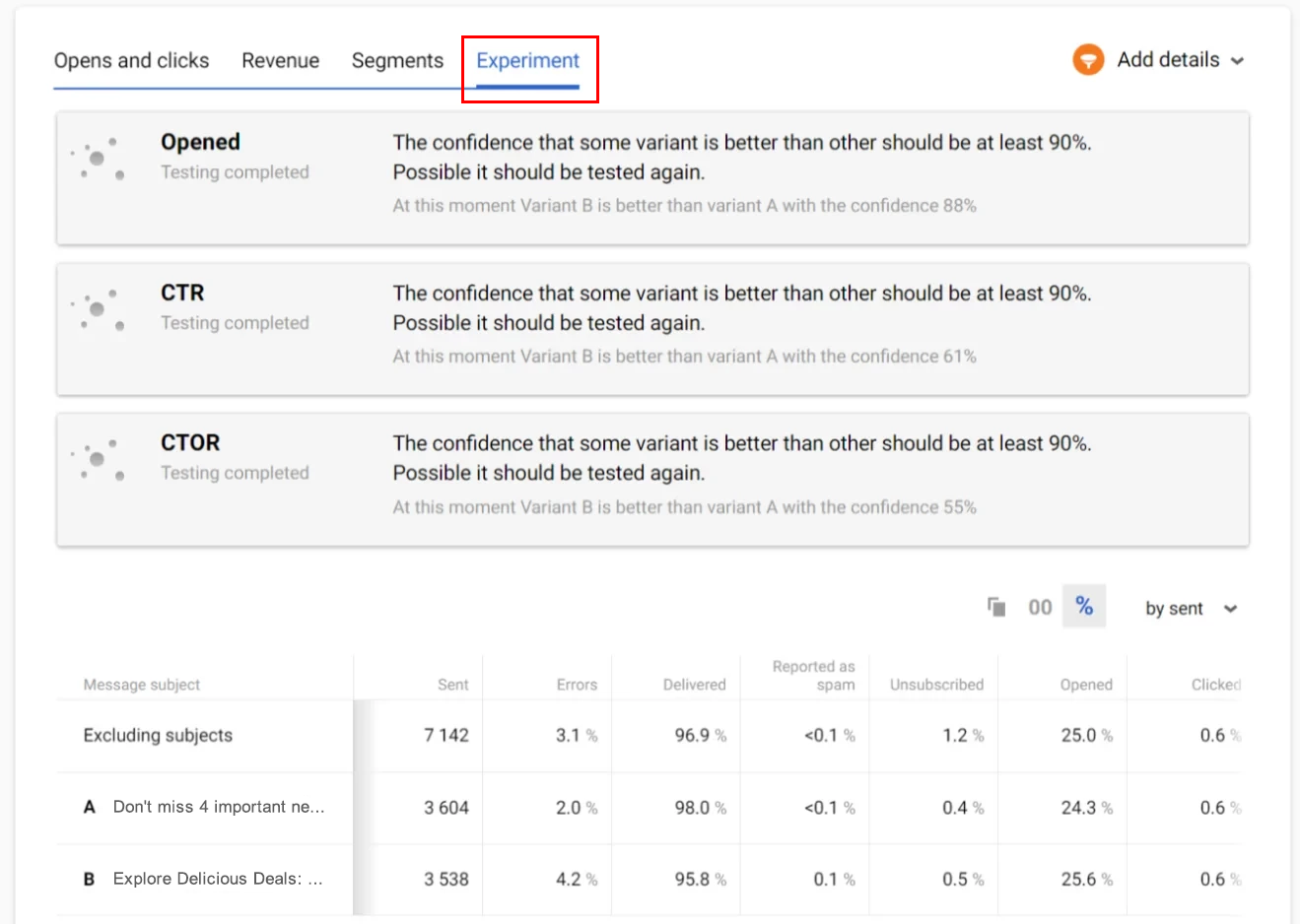
The larger the number of contacts in the campaign, the more accurate the test results.
NoteGoogle Analytics will collect statistics within one campaign without details by subjects. If you need to determine how many sales a particular subject made, use testing with a segment’s splitting.
Method 2. Testing by Splitting the Segment
Use this method if you need to evaluate not only opens but also conversions or sales for each subject line. Before you start, ensure you have an existing contact segment you want to target.
- Go to Contacts → Segments.
- Open the target segment and click Split segment.
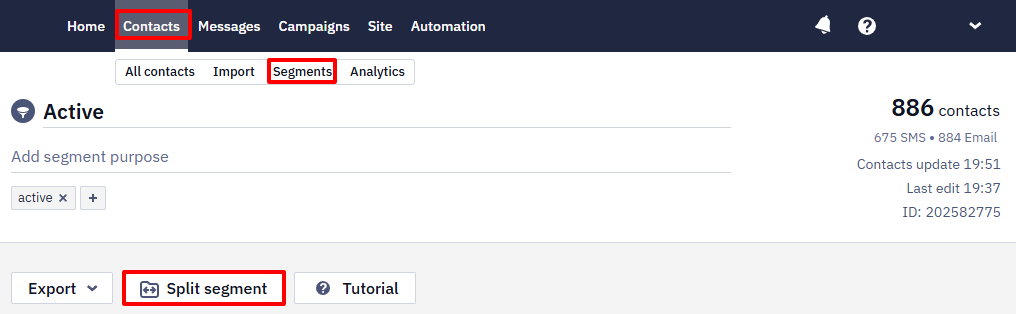
- Enter the number of parts (maximum — 8).
- Set the splitting by percentage or by number of contacts.
To create segments with an equal number of contacts, enable the Split evenly toggle.
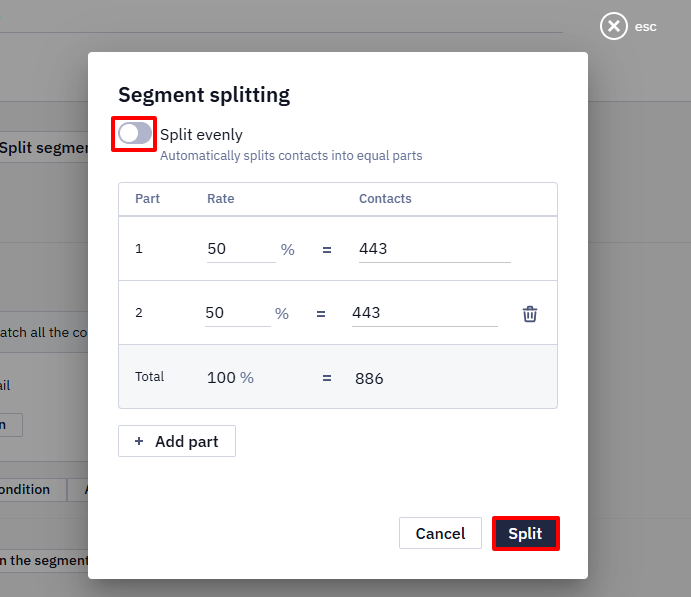
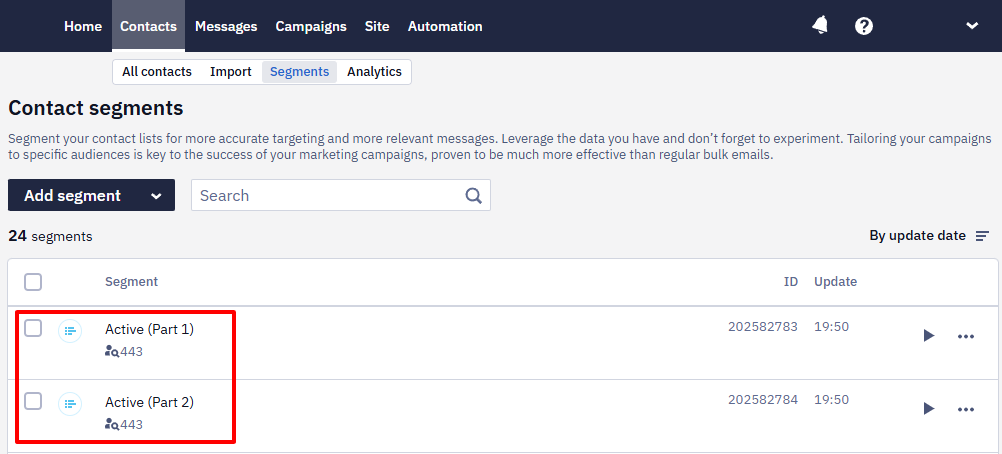
After you save the changes, the system creates new segments.
Running the Test
- Create several messages according to the number of segments.
- Keep the content the same and change only the subject line.
- Give the messages different names for accurate analysis in Google Analytics.
- Launch a separate campaign for each segment and select the corresponding message.
You will receive separate statistics for each subject line both in the system and in Google Analytics.
Updated 2 months ago