
Bulk Contact Uploading
You can carry out bulk contact uploading in two ways:
- Upload a CSV file — initial import of contacts and segments from other systems.
- Backend API request (server-to-server) — an alternative way to import volume and complicated contact lists, when your database contains more than several million contacts or includes more than several dozen fields.
Import duration is not fixed. Import jobs share processing capacity across accounts, so completion time depends on the current load and on how many additional fields must be created or updated. Contact imports run independently from campaign sending and message template editing, so you can continue these activities while an import is being processed.
Let’s consider the process of bulk contact uploading.
Contact Card and Additional Fields
Understanding contact cards and additional fields before uploading a contact list is crucial because these elements form the backbone of user data management.
A contact card is a user profile that contains user identifiers (external ID, email, phone number, mobile, and push tokens), activity data, and attributes stored in additional fields.
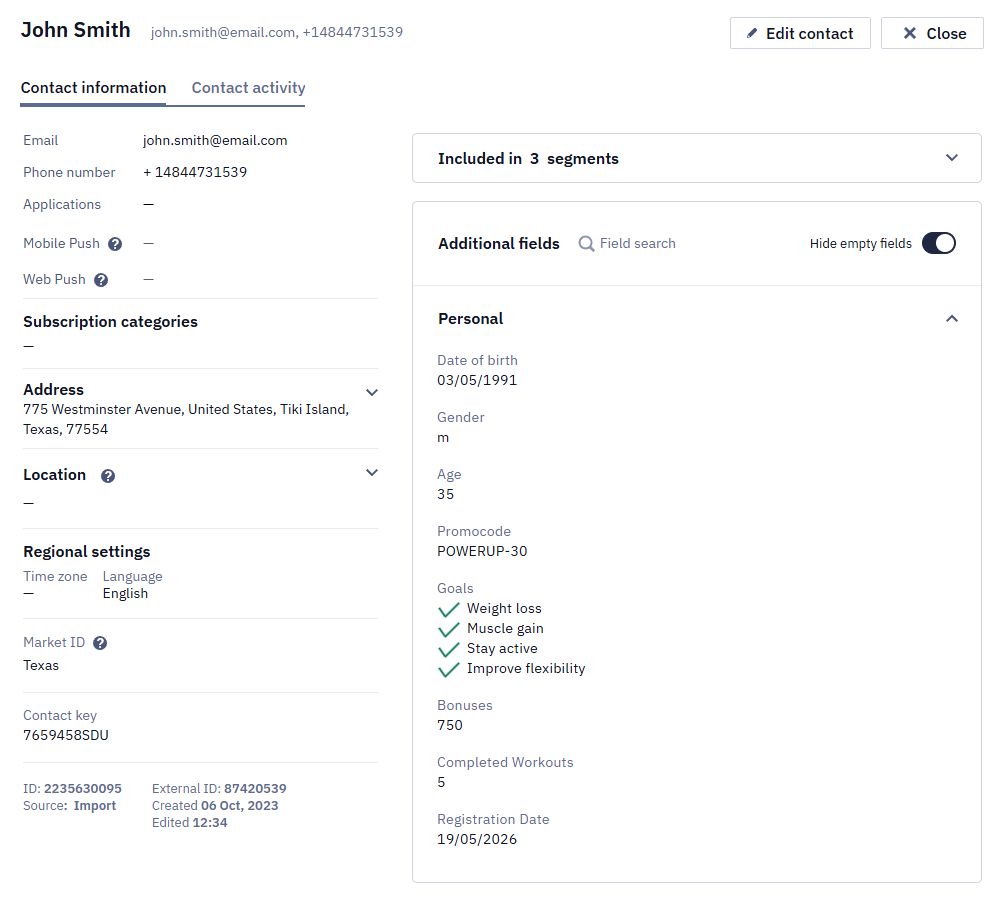
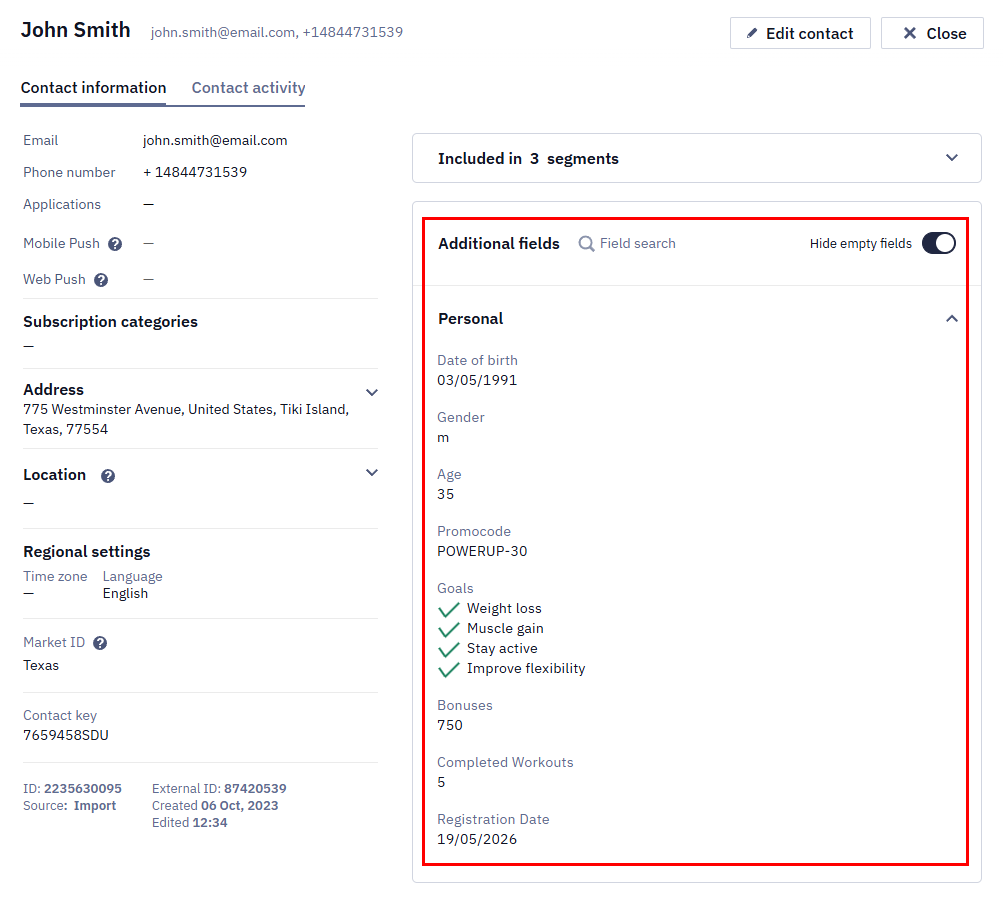
Attributes represent extended information about your users: the number of completed lessons, viewed product category, used promo code, plan type, and so on.
ImportantBefore sending specific contact data to eSputnik in any way, you must create corresponding additional fields in your account.
NoteUse an external ID as the primary contact identifier to prevent data duplication when creating and updating contacts.
File Uploading
You can upload a file in the CSV format in the Contacts → Import section.
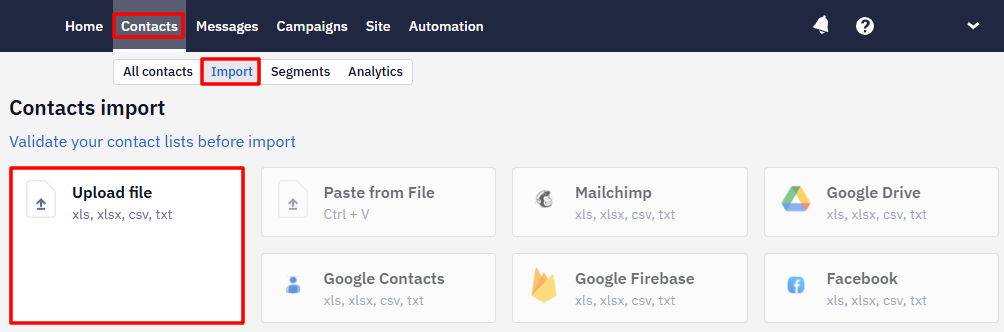
NoteThe file can also be downloaded in XLS, XLSX, and TXT formats.
The process of import is divided into three stages:
NoteIf contacts in your file are in the Deleted status, a plain re-import won't bring them back. In Import Parameters Settings, enable the Restore and update previously deleted contacts switcher before starting the import.
You can also import contacts via the Get Started section.
Backend API
The Add/update contacts API method is used for bulk asynchronous contact creation and updating. One request allows you to add or update up to 3000 contacts, which are added or updated in eSputnik within a few minutes.
Use the Add/update contacts method for initial imports and scheduled high-volume updates when changes can be processed asynchronously. For a single contact that must be updated immediately, use the Add/update a contact method.
Features:
- The response includes an
asyncSessionId, which you can use to get the import status and contact IDs using Get contact import status. - If the External ID in the request already belongs to another contact, the contact isn't updated: the method for a single contact returns the
Duplicated externalCustomerIderror, and the bulk method accepts the request, but the import status isERROR. - When updating the
mobilepushchannel, pass thedeviceobject with at least theosfield. Without it, the token may fail sending after the update. - If the request doesn't specify
contactFields, all contact fields are updated — including the ones you didn't send, which are written withnull. To update only some fields, list them incontactFields. customFieldsIDsworks the same way for custom fields: a field whose ID is in that array but which the contact record doesn't contain is cleared, while a field outside the array is left as it is. The Add/update a contact resource behaves differently: a custom field missing fromfieldskeeps its value even when its ID is listed incustomFieldsIDs.- To remove the email channel using Add/update contacts, include
emailincontactFieldsand omit the email channel from the contact'schannelsarray. - In the same way, you can remove a mobile push token and keep the email: include
mobilepushincontactFieldsand omit themobilepushchannel from the contact'schannelsarray.
NoteThe API returns no explicit flag telling you that a contact is deleted — the response of the bulk method contains only the session identifier. The indirect signal is the
mappingfield of the import status: it lists only the contacts that were created or updated. IfrestoreDeletedisfalseand a contact from the request is missing frommapping, that contact exists in the account in the deleted state and was skipped. Send the same request with"restoreDeleted": trueto restore and update it.
Method type: POST. The description of the method, fields, and request body format are available here.
URL to send request: https://api.esputnik.com/api/v1/contacts
Batch Import vs. Individual Requests
When a scheduled sync updates many contacts every day, batch the changed contacts instead of sending one real-time request per contact. For example, a daily sync of 25,000 changed contacts would require 25,000 calls to the Add/update a contact method, but it can be sent as one CSV import job or split into bulk API batches of up to 3000 contacts per request.
To reduce API volume during a recurring contact sync:
- Export only contacts whose data changed since the previous sync.
- Include a stable identifier, such as an external ID, so existing contact cards are updated instead of duplicated. If your system can issue a new ID for the same person — for example, on every pass through a funnel — don't send that ID and deduplicate by email instead.
- Add only the fields, groups, and subscription data that need to be created or updated.
- Upload the changes as a file import or send them through the Add/update contacts bulk API method. For recurring updates from a data warehouse, you can also import contacts from BigQuery.
- Store the returned
asyncSessionIdand check the import status before treating the sync as completed.
| Requirement | Individual API requests | Batch import or bulk API |
|---|---|---|
| Best for | Immediate updates for one contact, such as a profile change or subscription update | Initial imports and scheduled high-volume updates, such as hourly or daily contact synchronization |
| Volume | One contact per request | One file import job or up to 3000 contacts per bulk API request |
| Processing | Synchronous: after a 200 response, the contact data is updated in eSputnik | Asynchronous: contacts are added or updated within a few minutes |
| API load | Grows linearly with the number of changed contacts | Reduces request count by grouping many contacts in one import or batch |
| Status tracking | Use the response from each contact request | Use asyncSessionId and the import status method |
| Recommended frequency | Use only when every contact update must be available immediately | Use for planned recurring syncs; split large updates into batches and monitor each import session |
For a one-off import of around 60,000 contacts via the bulk API, no special timing or throttling is needed — processing is asynchronous, so a larger batch simply takes longer to complete rather than requiring a different approach.
A marker such as Imported isn't a system contact status — it's an additional field you create yourself. Update such a field through the API by its ID in the fields array rather than by its name: an additional field is addressed by id and value only.
If your integration already knows which contacts changed in an external segment, update a contact field or group membership during the import instead of querying every segment back from eSputnik to find those changes.
An example of a request body:
{
  "contacts": [
    {
      "channels": [
        {
          "type": "email",
          "value": "[email protected]"
        },
        {
          "type": "sms",
          "value": "380942583691"
        },
        {
          "type": "mobilepush",
          "value": "8900-7654-6456-9876-0011",
          "device": {
            "appId": "83b77a49-fc28-409b-aeaa-68c9d544ab9d",
            "deviceModel": "iPhone 13",
            "os": "iOS",
            "appVersion": "4.1.6"
          }
        }
      ],
      "firstName": "John",
      "lastName": "Smith",
      "address": {
        "town": "London",
        "region": "West",
        "address": "First str. 1",
        "postcode": "12345"
      },
      "fields": [
        {
          "id": 12345,
          "value": "..."
        }
      ]
    }
  ],
  "dedupeOn": "email",
  "customFieldsIDs": [
    12345
  ],
  "groupNames": [
    "Customers"
  ],
  "groupNamesExclude": [
    "Subscribers"
  ],
  "restoreDeleted": false,
  "eventKeyForNewContacts": "newContact"
}
Updated about 1 month ago