
Adding a Hidden Preheader
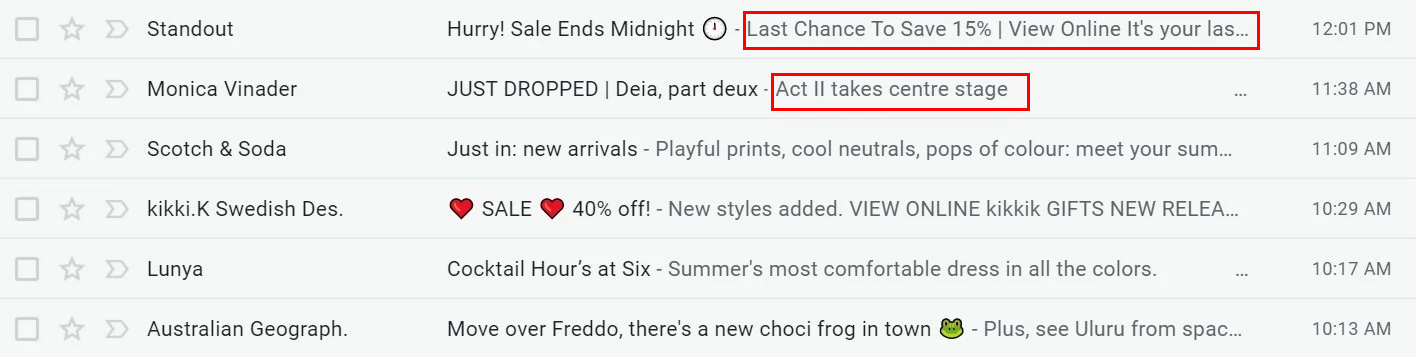
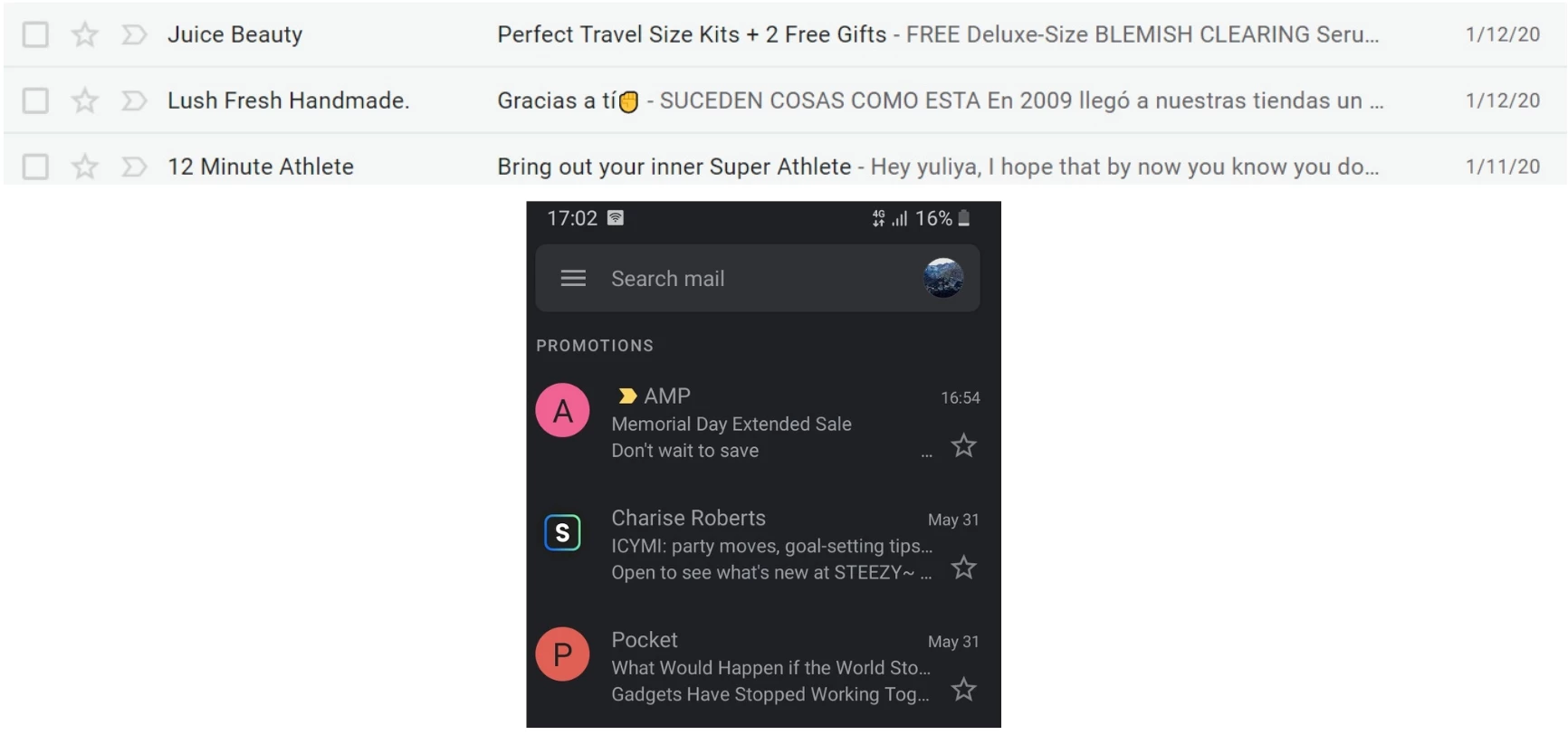
A hidden preheader is the text that appears after the email subject line or when the user hovers over the subject in the inbox.
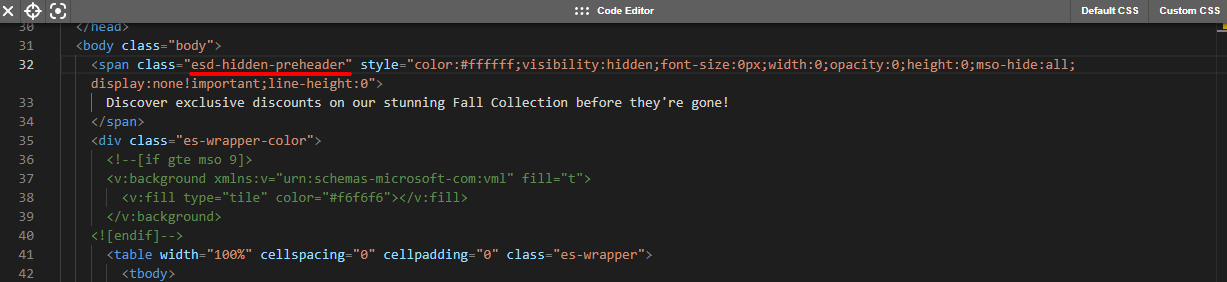
In the HTML code of an email created in the eSputnik editor, the hidden preheader is marked with the class esd-hidden-preheader. You can inspect this class to verify the preheader is correctly embedded.
By default, email clients use the first line of the message as the preheader. A hidden preheader allows you to specify the exact text that will appear next to the email subject.
If the preheader is not configured, make sure that the opening text of the email looks appealing and is clear to the reader.
Purpose of the Preheader
The preheader helps you to:
- explain the message content;
- highlight the value of the offer;
- complement the subject line when it lacks characters (especially important on mobile devices, where inboxes show about 40 characters).
By default, email clients may display any fragment of the email body as preview text. To make your subject line more engaging, set a hidden preheader manually.
Configuring the Preheader
Before you begin, open the eSputnik email editor and ensure you have edit access to the email you want to modify.
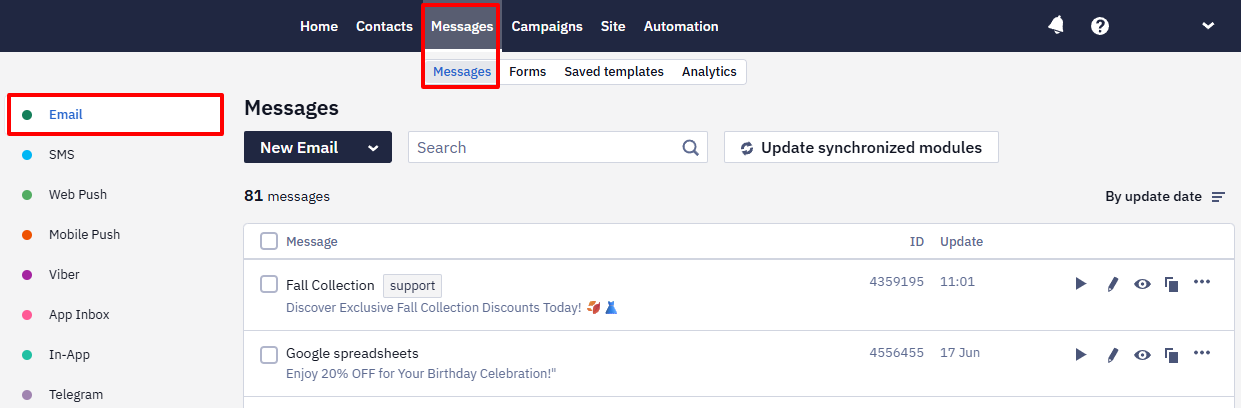
- Open an existing email or create a new one. (Messages → Messages → Email).
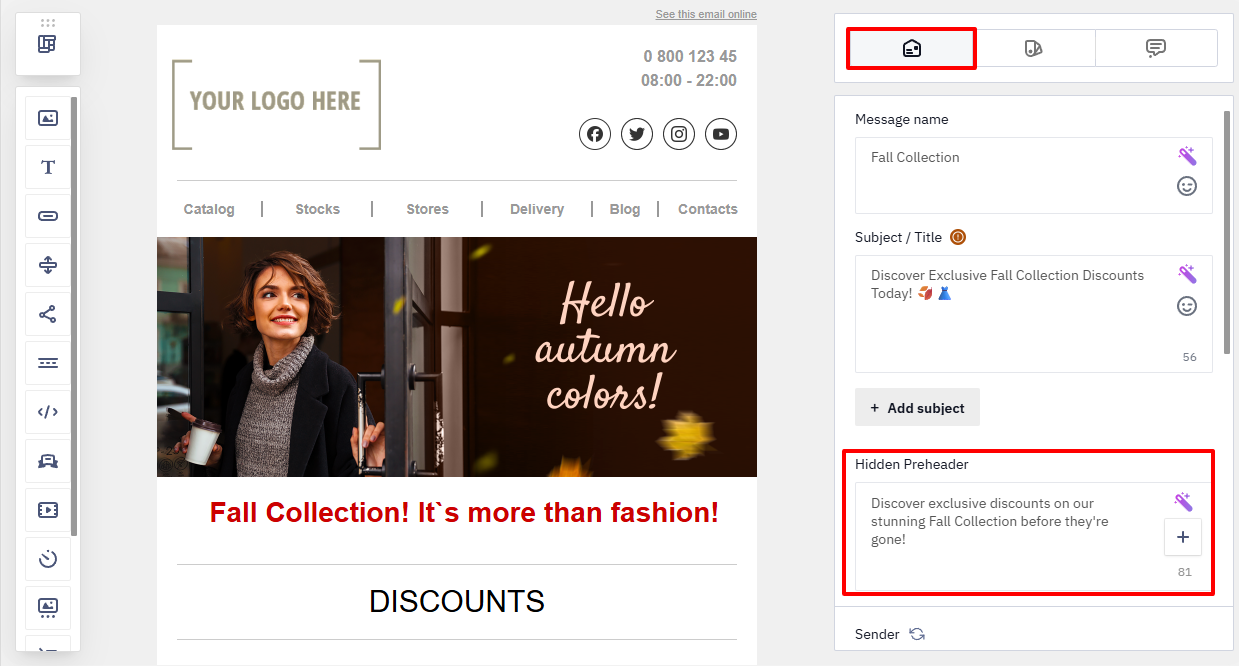
- Select the Message settings tab at the top of the editor, then enter your preheader text in the Hidden preheader input field.
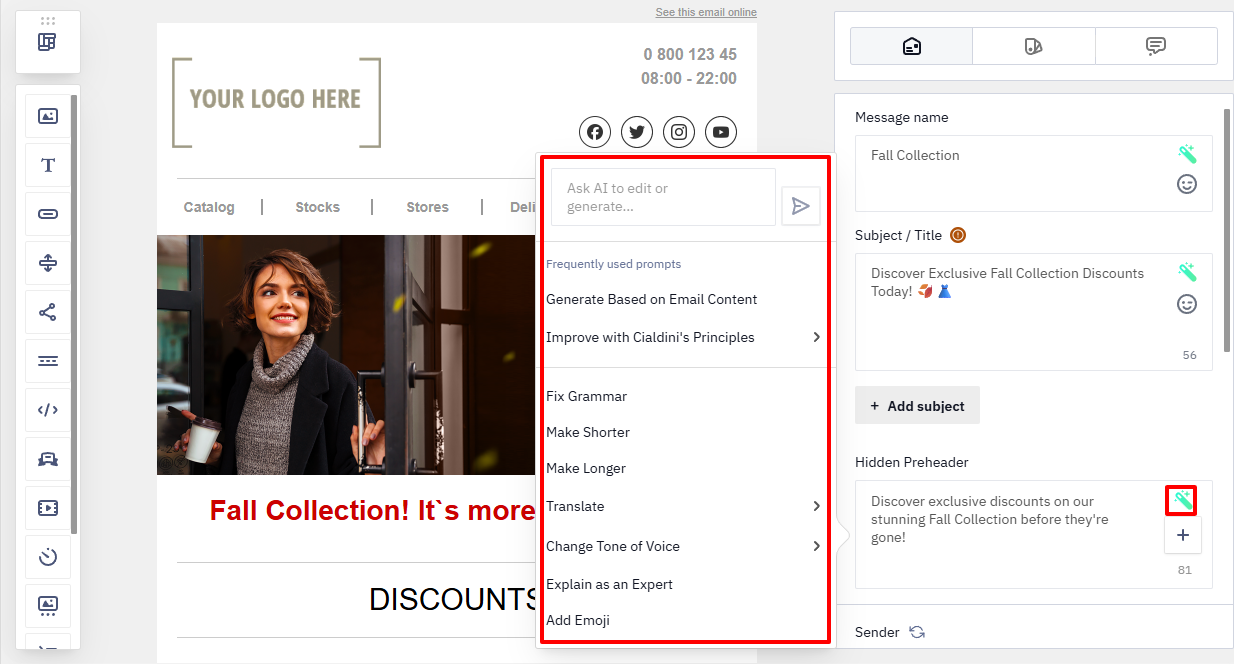
- To optimize the text with AI, click the Improve with AI icon and select a text generation option.
Fill In with White Space Option
If you don’t add a hidden preheader or don’t fill it completely, some email clients may pull text from the email body into the message preview.
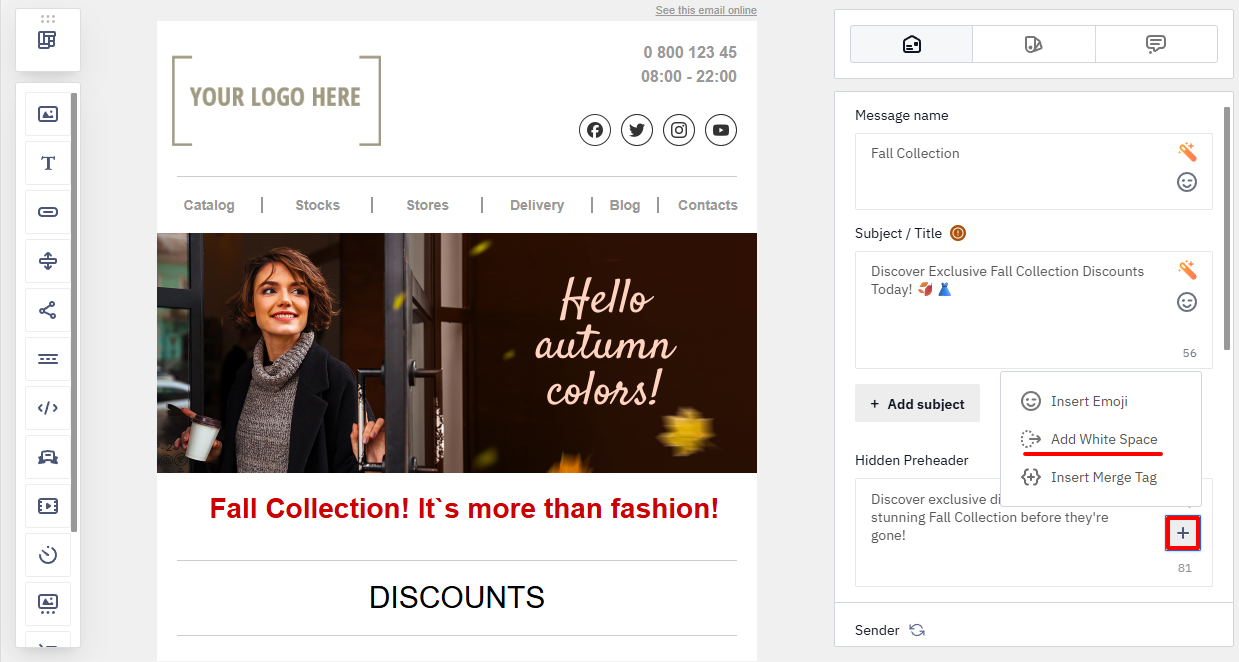
The Fill in with white space option adds invisible characters to the preheader so that no extra content appears and the preview displays correctly in the inbox.
Click Fill in with white space.
In the email HTML code, the system inserts the character combination  ͏ after the preheader text. This combination creates the required number of spaces.
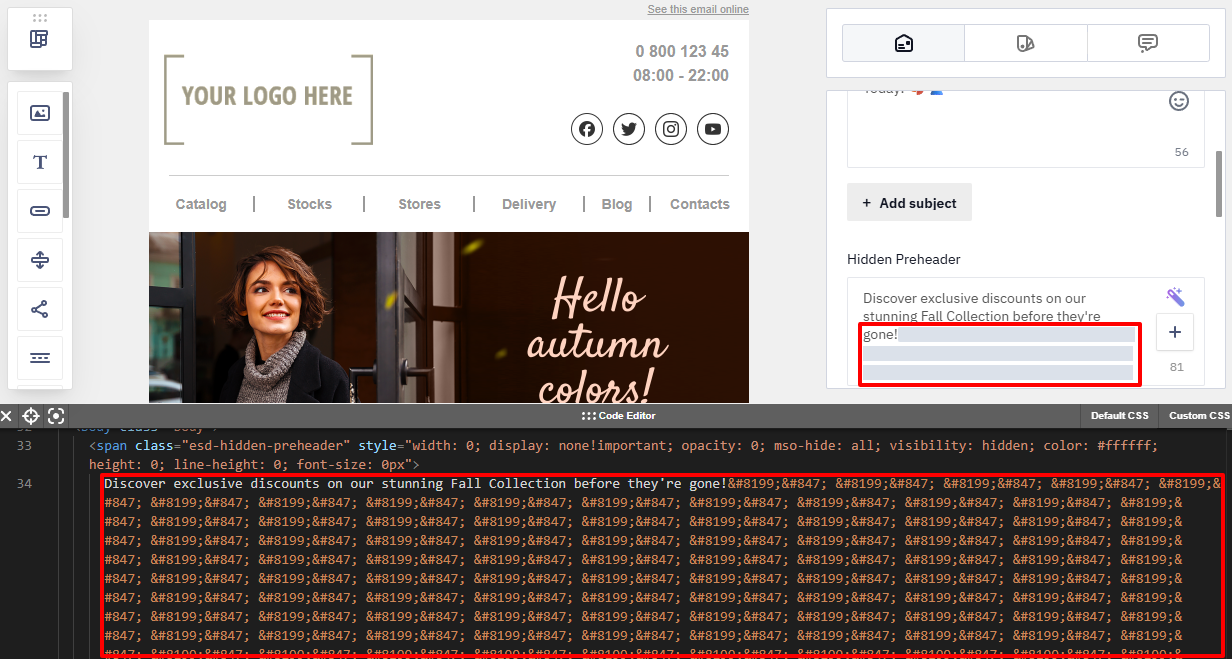
NoteBy default, the system adds a standard number of spaces sufficient to fill the visible preheader area. You can change the number of spaces directly in the HTML code if needed.
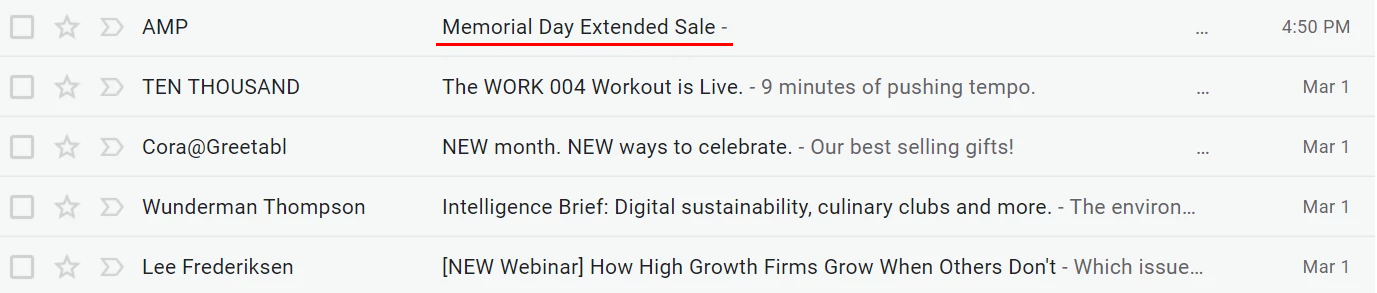
If you don’t set a preheader, enable Fill in with white space so that the recipient’s inbox shows only the subject line.
Testing the Result
Test the email in different email clients before sending.
Note
- Pay attention to how the subject line and preheader appear on mobile devices and desktop.
- In the desktop version of Gmail, only the first 100 characters of the email text are displayed.
Updated 3 months ago