
Creating a Gmail Promotions Annotation
Gmail Promotions annotations help highlight promotional emails in the Gmail Promotions tab by displaying deals, discount codes, expiration dates, logos, and banners directly in the inbox.
In eSputnik, you can create these annotations directly in the drag-and-drop editor using the Promotions Annotations feature.
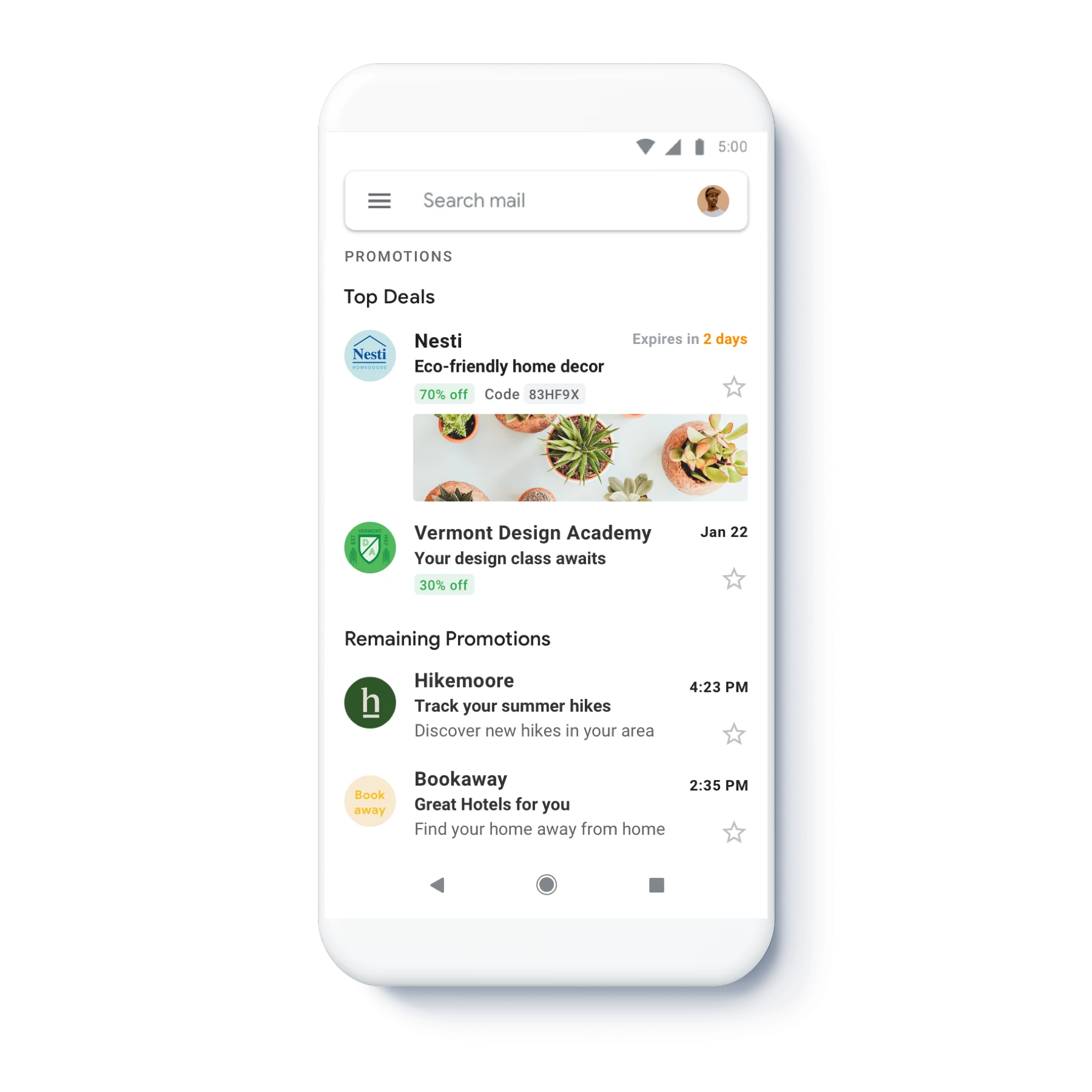
NotePromotions annotations are visible only in the Promotions tab and only on mobile devices. Whether an email lands in that tab at all is decided by Gmail's own classification — the Email annotations for Gmail toggle only adds annotations, it doesn't place the message in the tab. eSputnik supplies the data Gmail can use, but neither the tab placement nor the display of the annotation is guaranteed.
Preparing a Message
- Go to Messages → Messages → Email and create a new message or open an existing one.
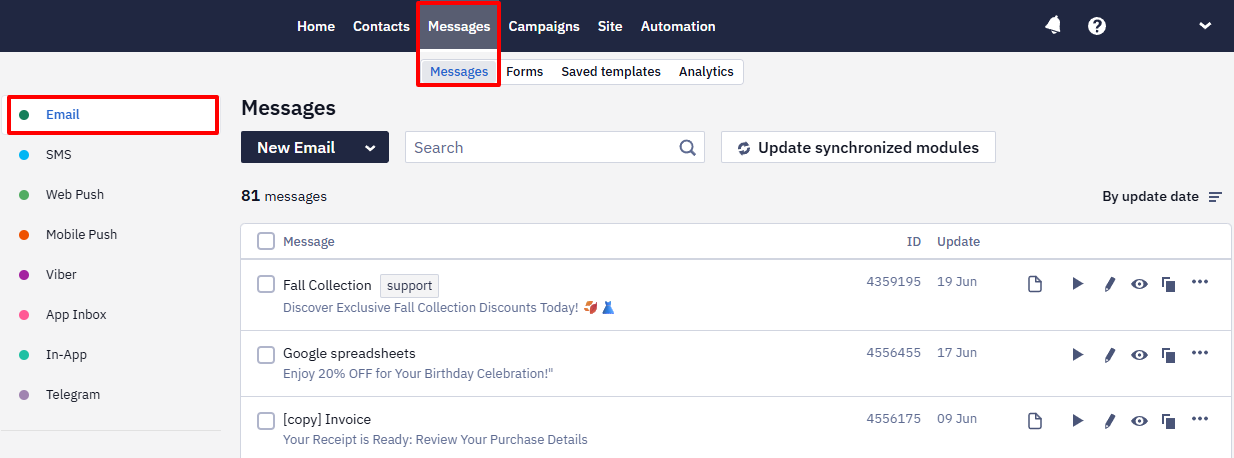
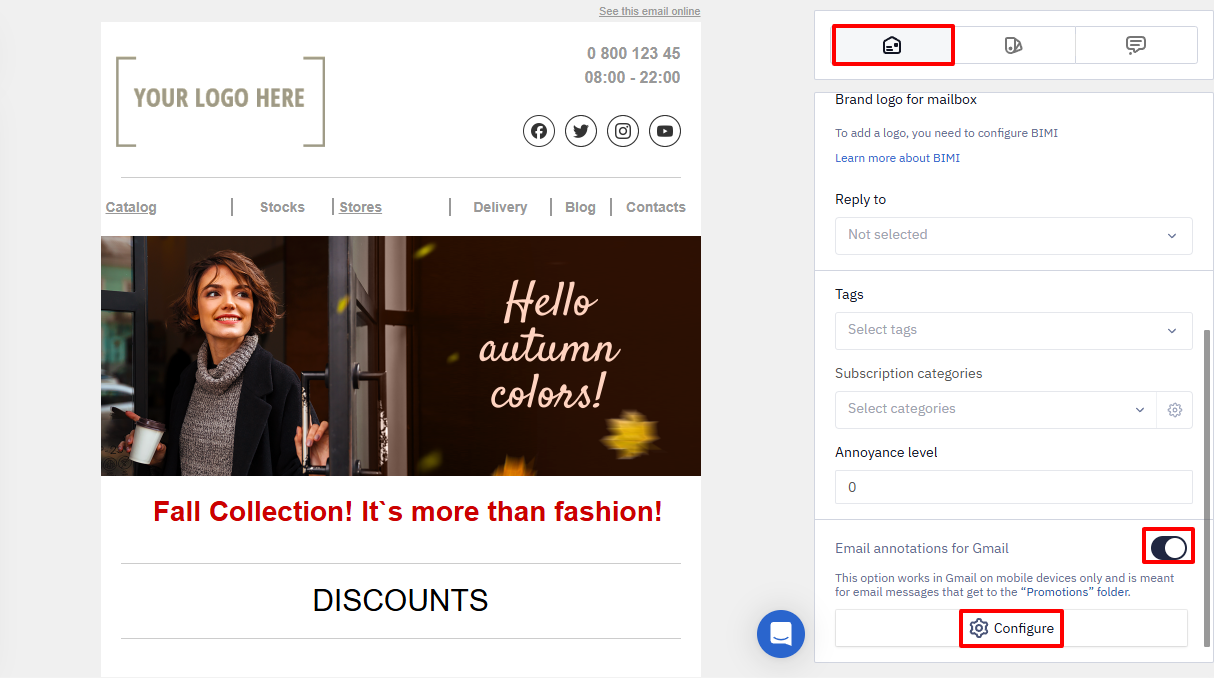
- Open the Message Settings tab and enable the Email Annotations for Gmail toggle.
- Click Configure.
Annotation types
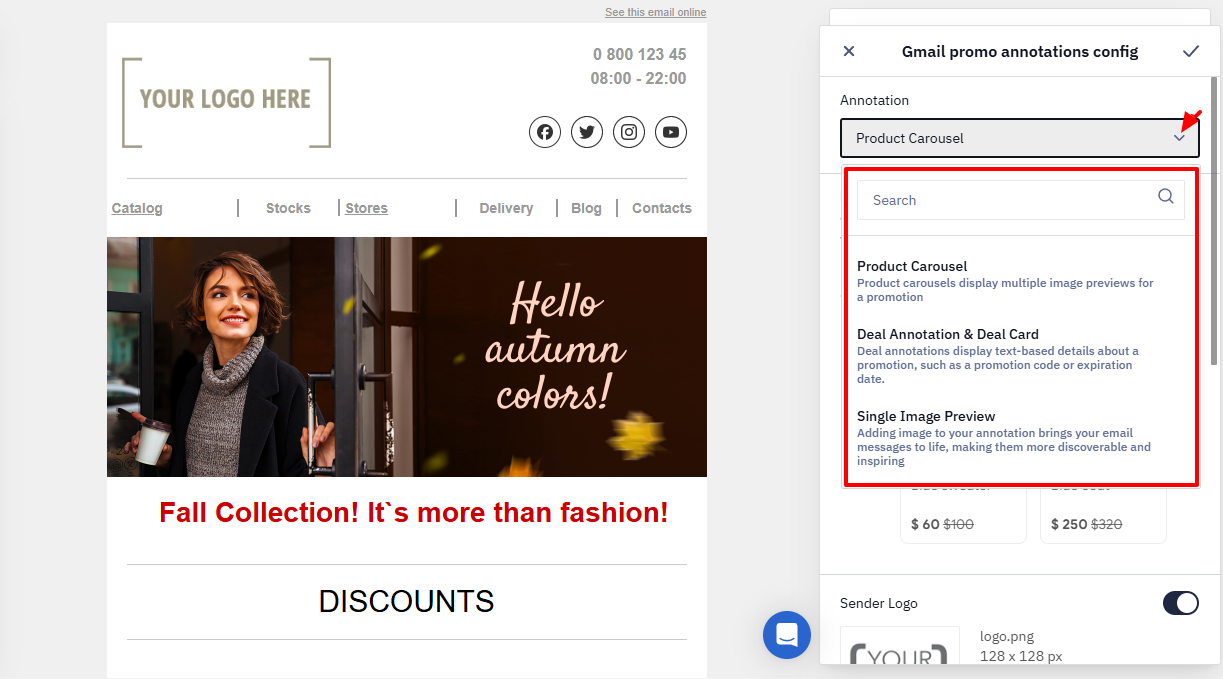
Select the type of annotation you want to use.
The system provides the following options:
- Product Carousel
- Deal Annotation
- Single Image Preview
Let’s review each type in more detail.
Product Carousel
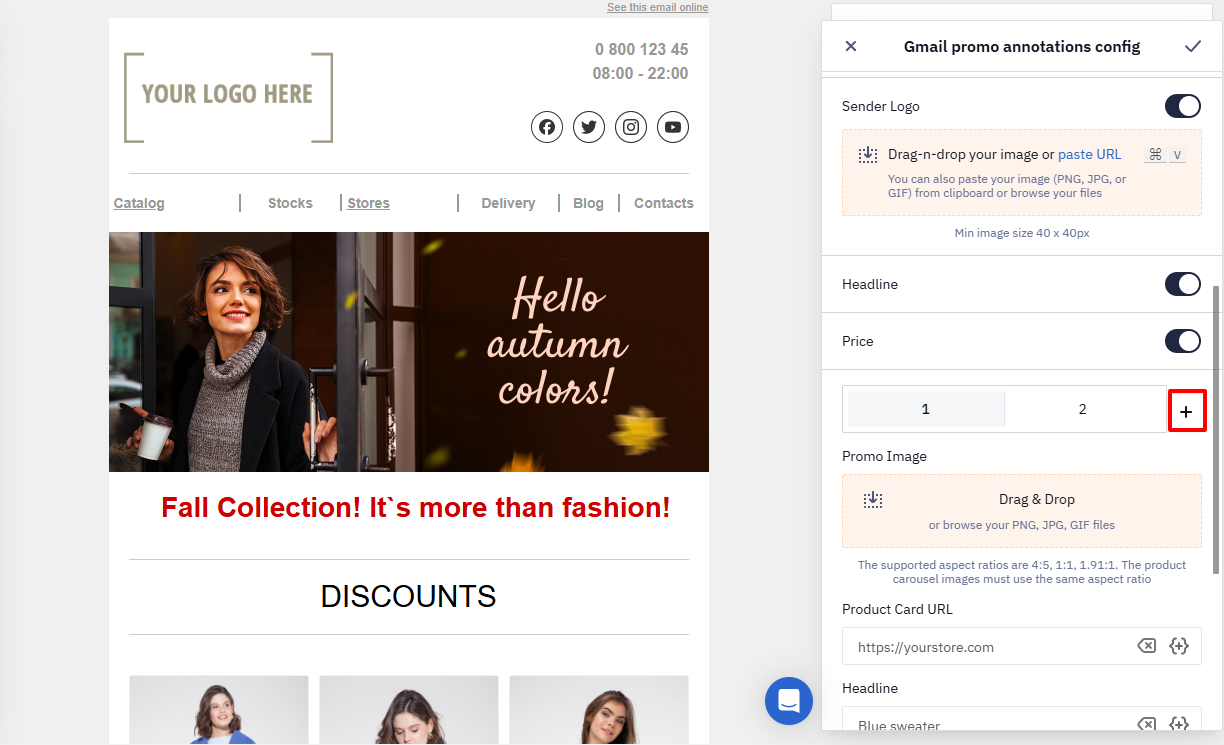
This format is suitable for displaying several products at once — with an image, price, and short description. By default, the carousel contains two slides, but you can add more.
To add a slide, click +. The maximum number of slides is 10.
Required parameters
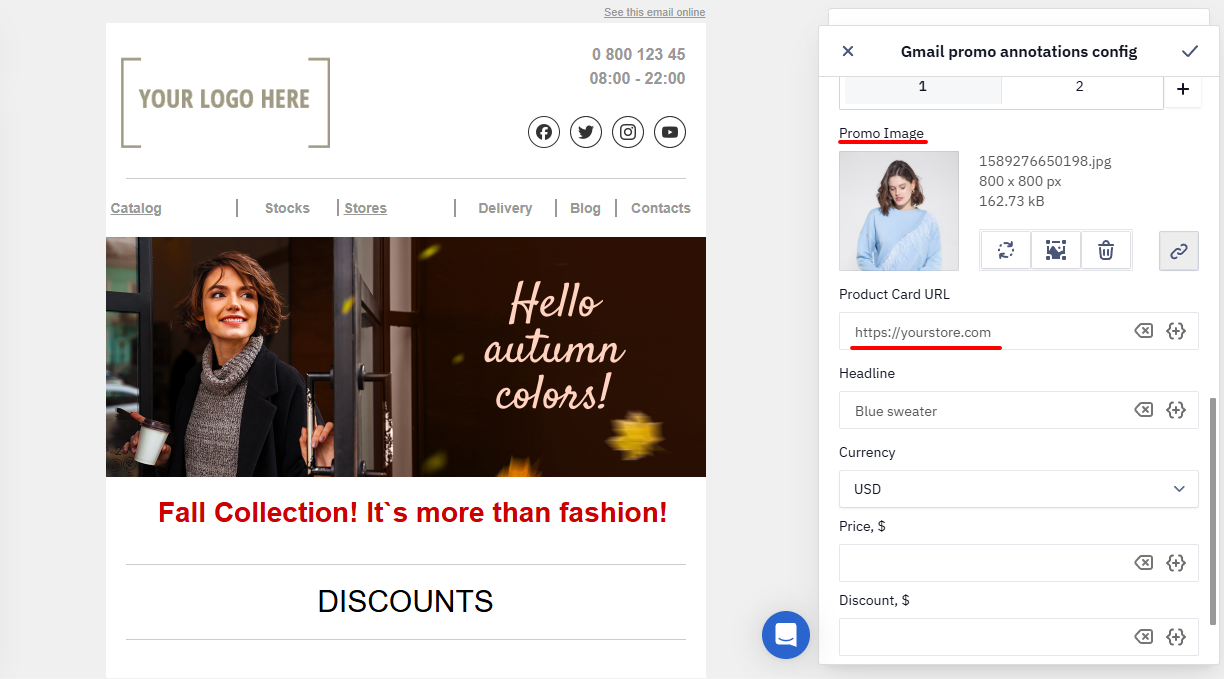
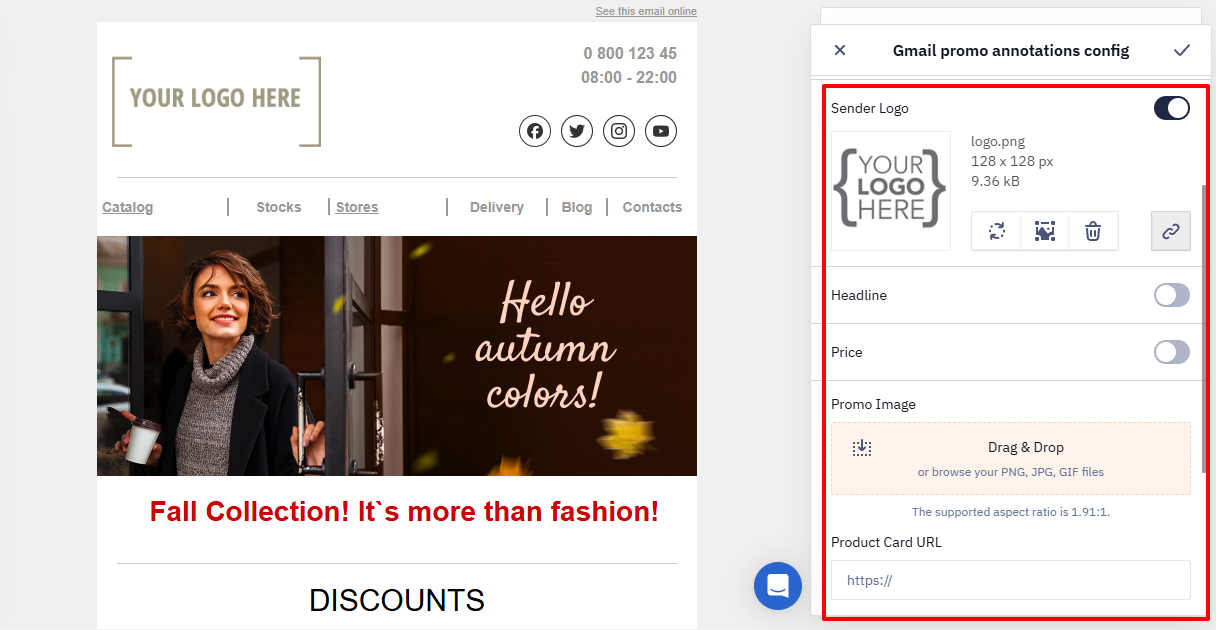
- Promo Image — the main image of the product.
Supported aspect ratios: 4:5, 1:1, 1.91:1. Images in a product carousel must use the same aspect ratio. Supported formats: JPG, PNG, GIF.
- Product Card URL — a link to the page with the detailed product description.
Optional parameters
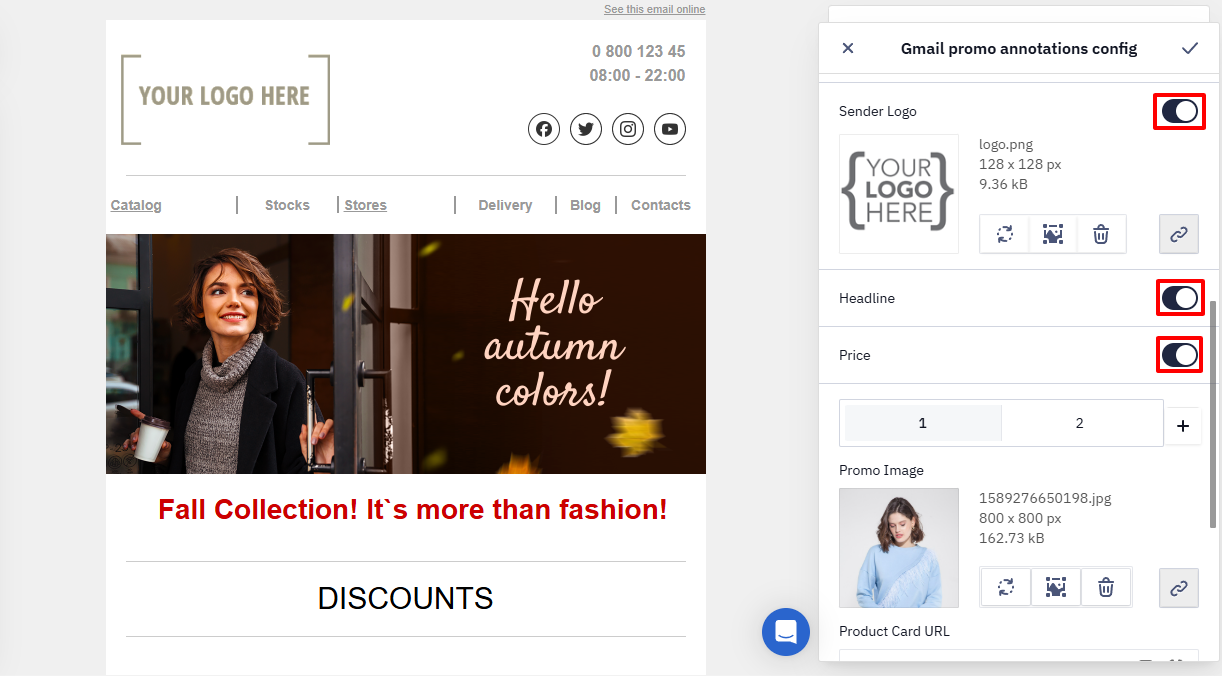
Enable the toggles to add additional elements:
- Sender logo — upload the brand or store logo.
- Headline — specify the product name for each slide separately.
- Price — select the currency and specify the main price and, if needed, the discounted price.
Deal Annotation
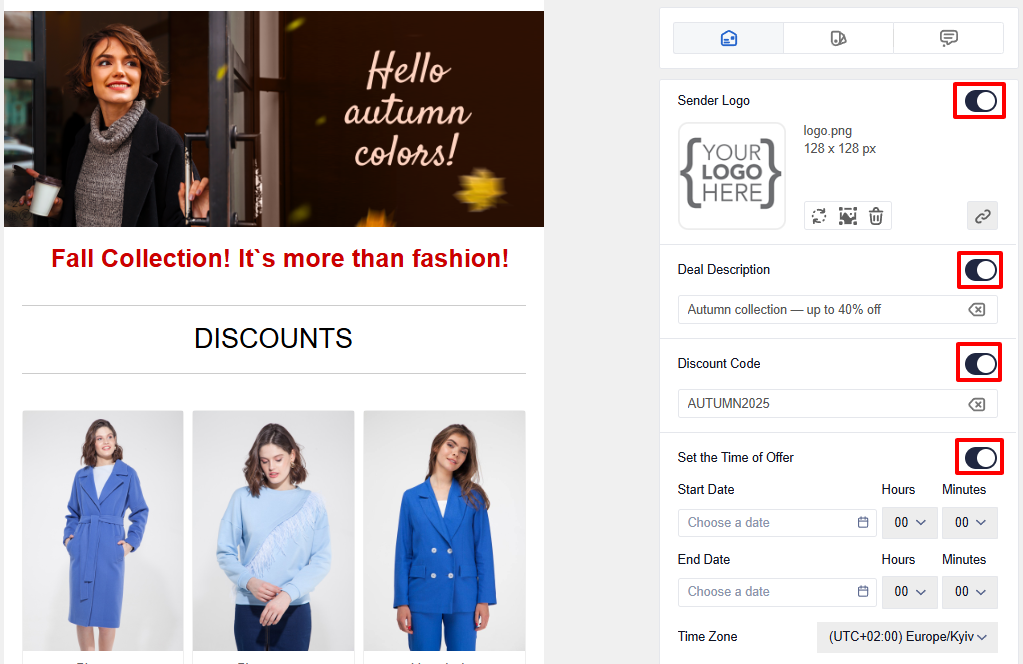
Suitable for short announcements of discounts or special offers. It may include the brand logo, deal description, discount code, and the offer period.
All parameters in this annotation type are optional. Enable those that match your campaign:
- Sender Logo
- Deal Description
- Discount Code
- Offer Period (start and end date) with Time zone
- Deal Card
Single Image Preview
This format is suitable for promoting a single product, campaign, or announcement with a large image preview. It helps make your email more noticeable in the Promotions tab and directs subscribers’ attention to one key message.
To configure annotation, specify the following parameters:
- Sender Logo
- Headline
- Price
- Promo Image
- Product Card URL
Saving the Changes
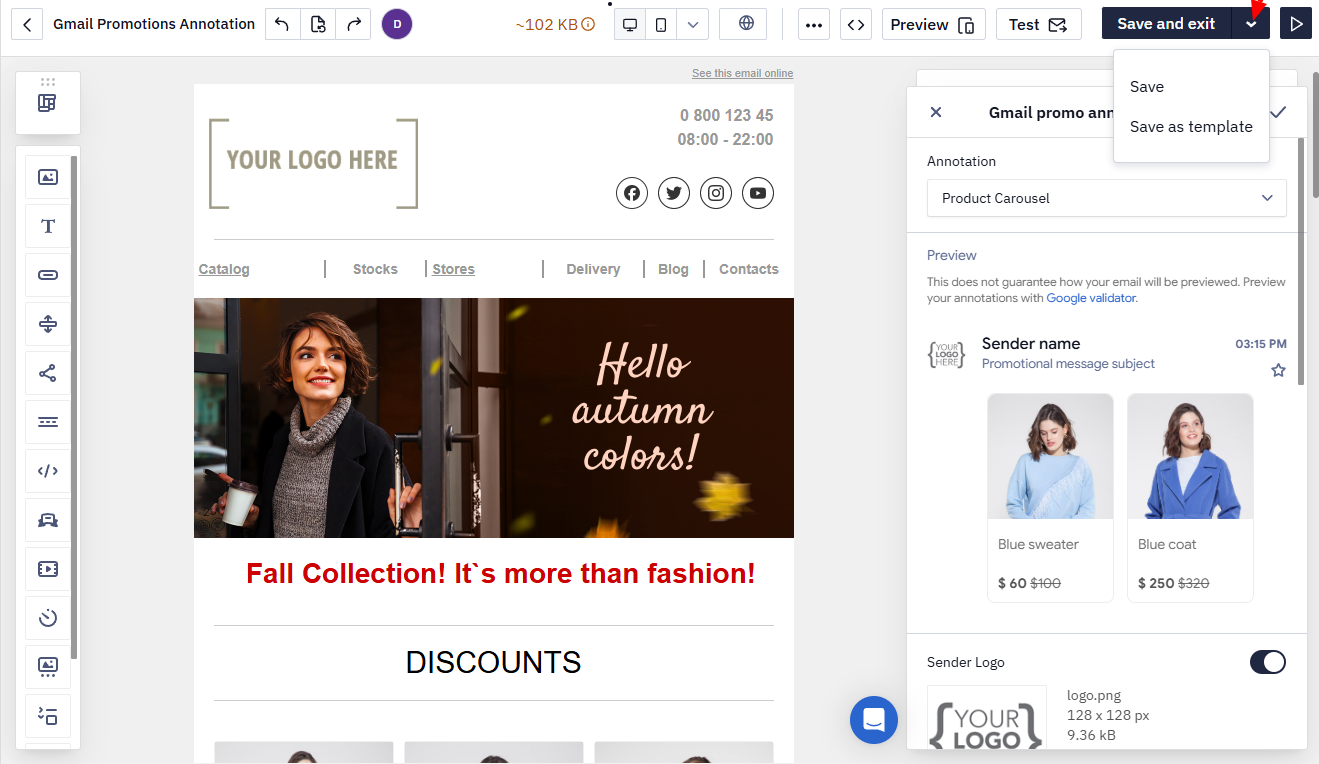
After configuring the annotation, save the changes to the email.
Gmail Recommendations
To help your email appear at the top of the Gmail Promotions tab, follow these recommendations:
- Test your emails
Create a Gmail test account, for example [email protected]. Gmail enables new features for such accounts earlier than for most users.
- Avoid duplicates
Do not use identical banners, subject lines, or promo codes. If you include a promo code in the Promotions annotation, it should also appear in the email itself.
- Optimize images
Follow the recommended image sizes to ensure the offer displays correctly in the Promotions tab list.
Updated 2 months ago