
Manage Translations
The Manage translations feature lets you work with language versions of email messages outside the editor.
You can work with translations using:
- local
xlsxandcsvfiles; - Google Sheets.
NoteThe Manage translations feature is available only if the message contains at least two language versions.
Export Texts for Translation
- Open the email message in the editor.
- On the Message management panel, click the language switcher.
- Select Manage translations.
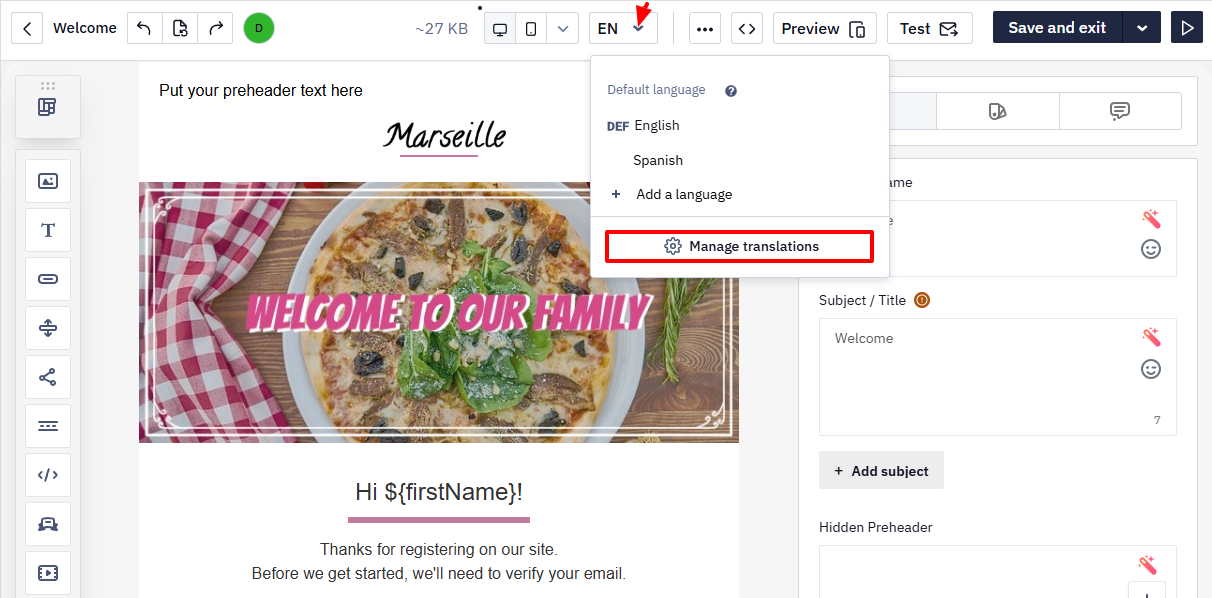
- Choose the export option.
Export to Google Sheets
- Click Export to Google Drive.
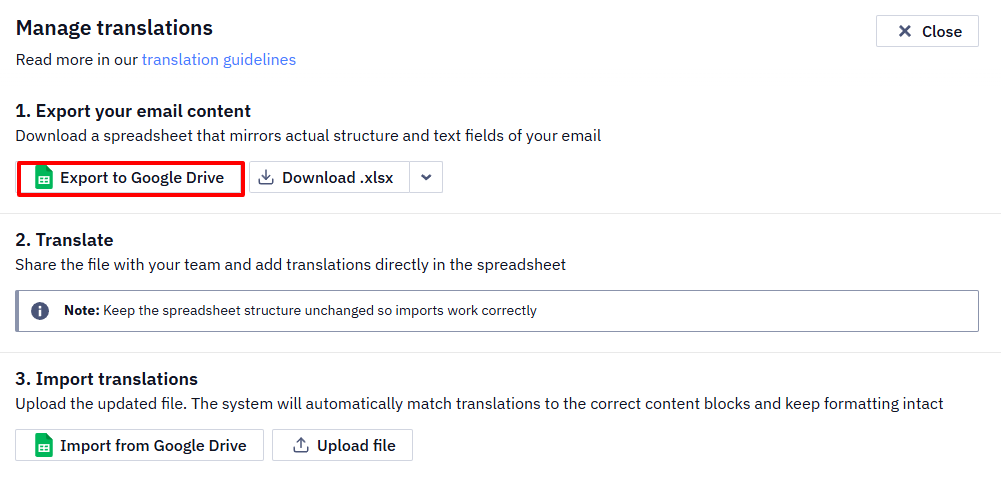
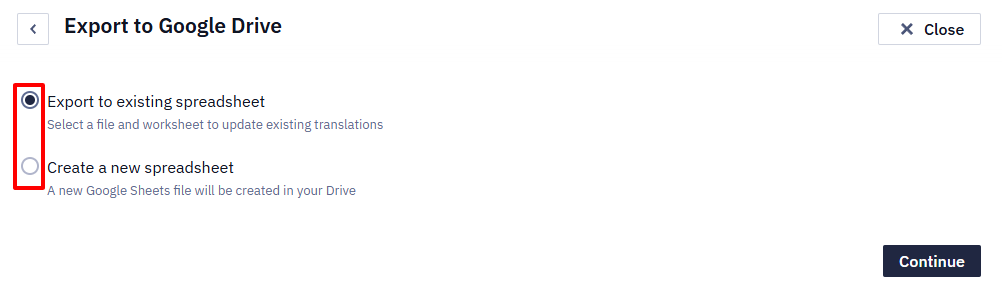
- Choose the export option:
- To an existing spreadsheet — updates translations in an existing Google Spreadsheet.
- To a new spreadsheet — creates a new Google Spreadsheet in Google Drive.
NoteWhen working with Google Drive for the first time, add a Google account and grant the required
There is no bulk export of message texts in the interface. To pull them out — for a translation agency, for example — use the API methods that return a message: Get email message, Get mobile push message and their counterparts for other channels. Pass langcode to get a particular language version.
To upload the translated text back into the message, use Add/update translated Email message and its counterparts for other channels. from is required there and isn't inherited from the base message: a request without it returns 400 From must be set. The value must be one of the account's registered senders, in the "Name" <address> format — any other value returns 400 interface … doesn't exist.
A message whose sender is a dynamic expression can still get a language version here: pass "template": true and leave from out — the localization is added to the existing message and no template is created. A base message with a dynamic sender, however, cannot be created through the API at all.
Updated 8 days ago