
Email Structure
To flexibly create emails that display correctly in all email clients (Gmail, Outlook, Apple Mail) and on different devices, the editor uses a four-level hierarchy: Stripe → Structure → Container → Block.
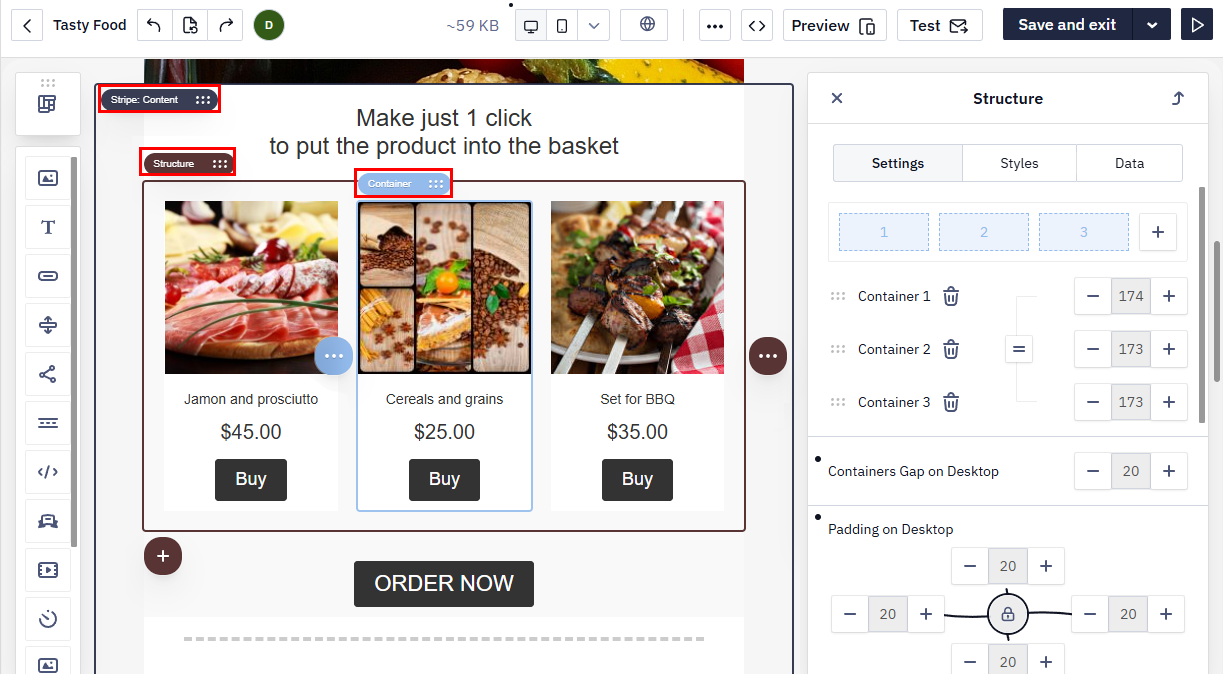
Stripes
Stripe is a top-level element that divides an email into horizontal sections and helps organize the main areas of the message:
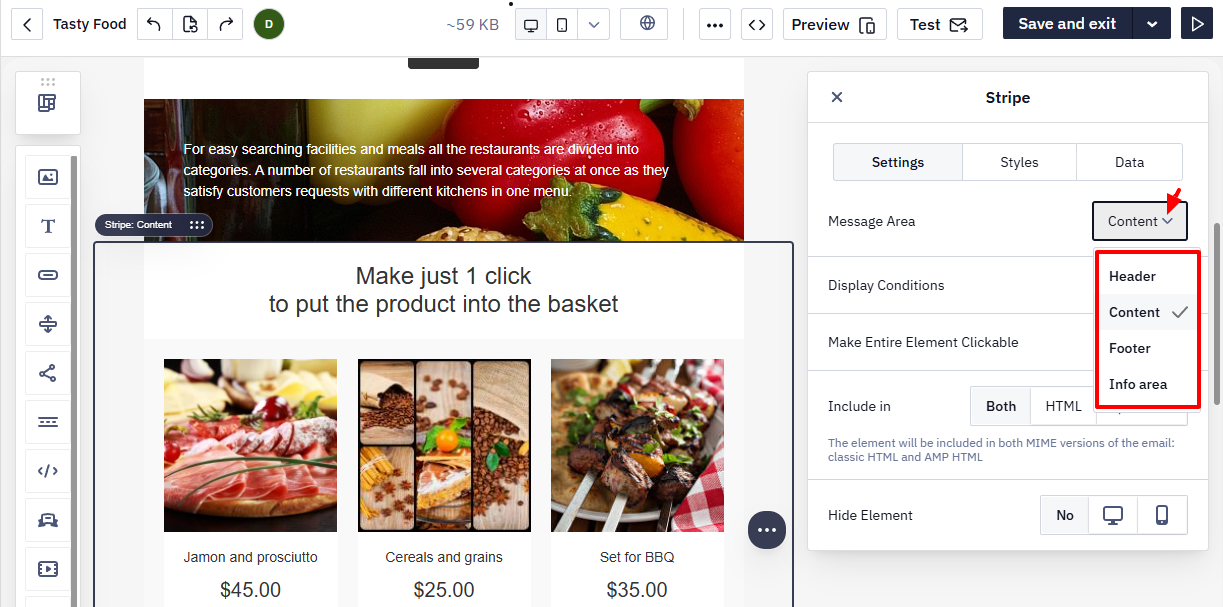
- Header — the top part of the email with a logo or navigation;
- Content — the main area containing text, images, buttons, and other blocks;
- Footer — the bottom section with contact information, social media links, and legal details;
- Info area — placed above the header or below the footer and contains service links (for example, view in browser or unsubscribe links).
When a contact opens the view-in-browser link, the web version shows a service panel above the email. Its language follows the reader's browser language when a translation for that language exists, and English otherwise.
Add the view-in-browser link in the settings of a text or a button: in the list of link types, open the tab with the Special links group and choose View in browser. If you paste a copied address of the web version as a regular Site link instead, the contact opens a version where the dynamic content, product blocks among them, is not substituted.
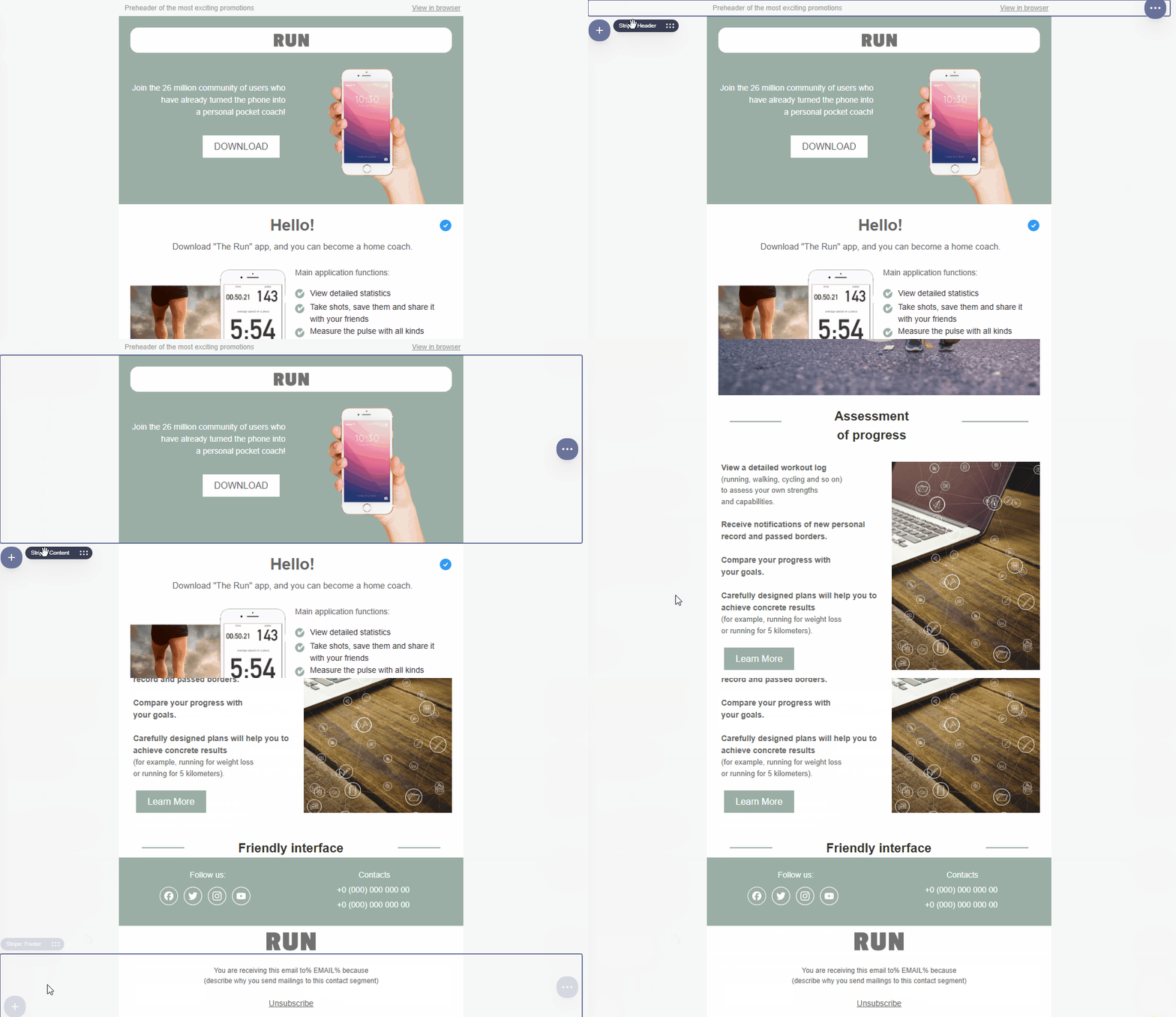
Structures
Structure is an element inside a Stripe that defines the number of containers in a horizontal row. Each structure controls how many columns appear side by side within that stripe.
To add a structure, hover over the space between existing structures within a stripe. Click the + icon that appears, then select the required column configuration.
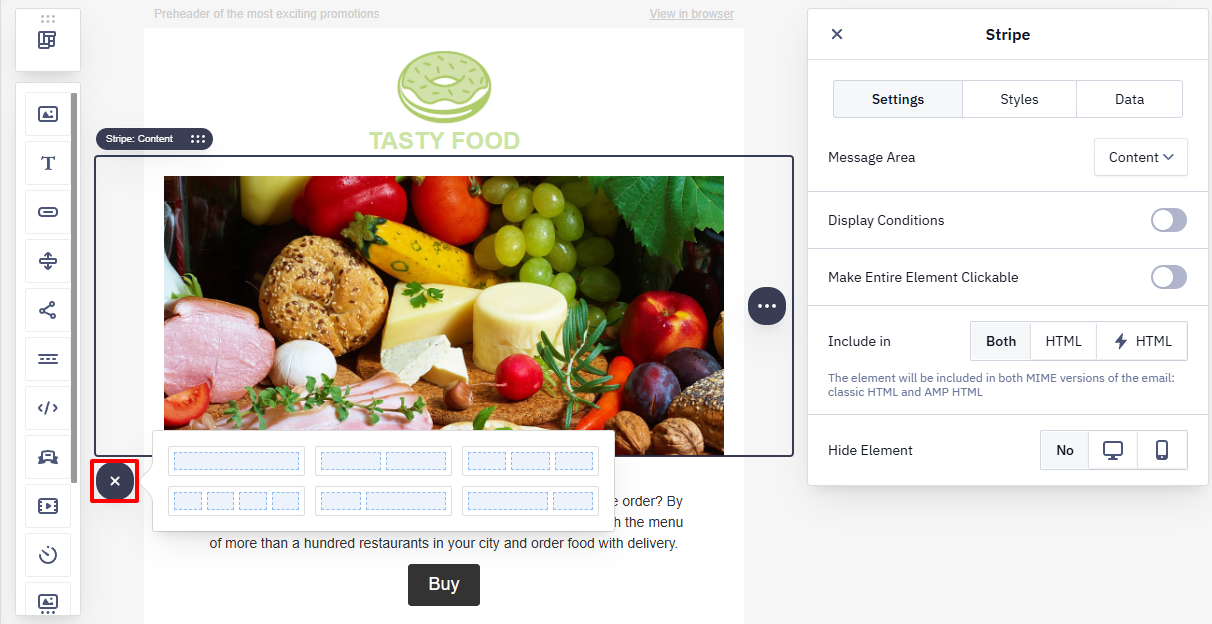
A structure can contain up to 11 containers in a row.
Avoid using separate Stripes for each Structure unless necessary. Each stripe adds to the HTML email size, and Gmail clips emails that exceed 100 KB, which can break layouts and hide content such as footers and unsubscribe links.
Containers
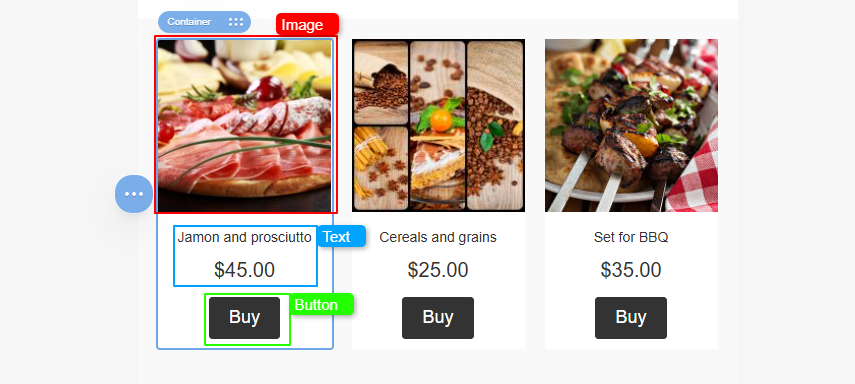
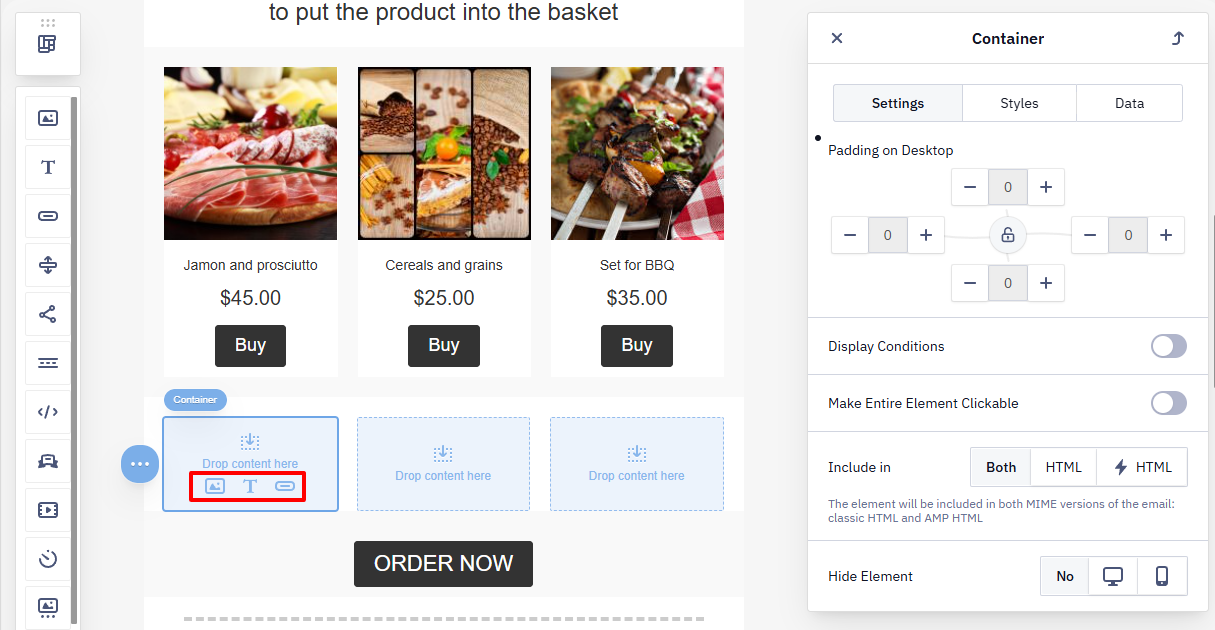
A Container groups content inside a Structure. Place blocks inside containers to build content elements such as product cards.
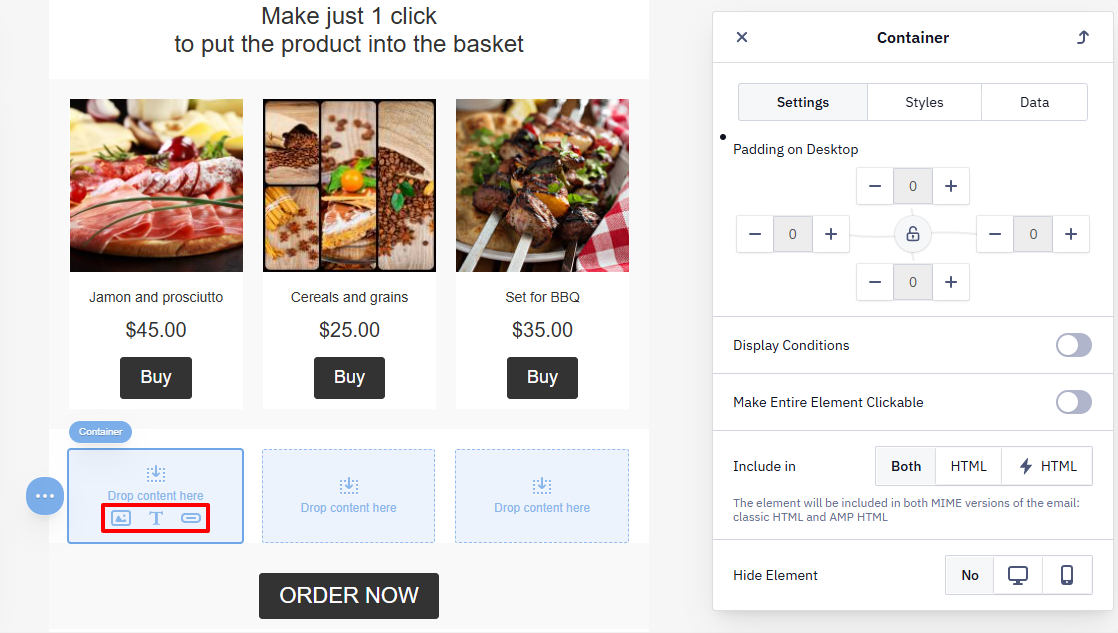
An empty container displays icons for adding basic blocks:
- image;
- text;
- button.
Element Settings
Stripes, Structures, and Containers share a unified set of tabs.
Settings Tab
This tab contains parameters that define the element’s behavior and display conditions in the email. Depending on the element type (Stripe, Structure, or Container), the available options may include common settings (shared by all elements) and element-specific ones.
Common settings:
- Padding (except for Stripe) — outer and inner spacing between structures and containers with blocks;
- Display Conditions — rules for showing or hiding the element after the email is sent;
- Include in — select the email version where the element appears (HTML, AMP HTML, or both);
- Hide element — hide the element in the desktop or mobile version of the email.
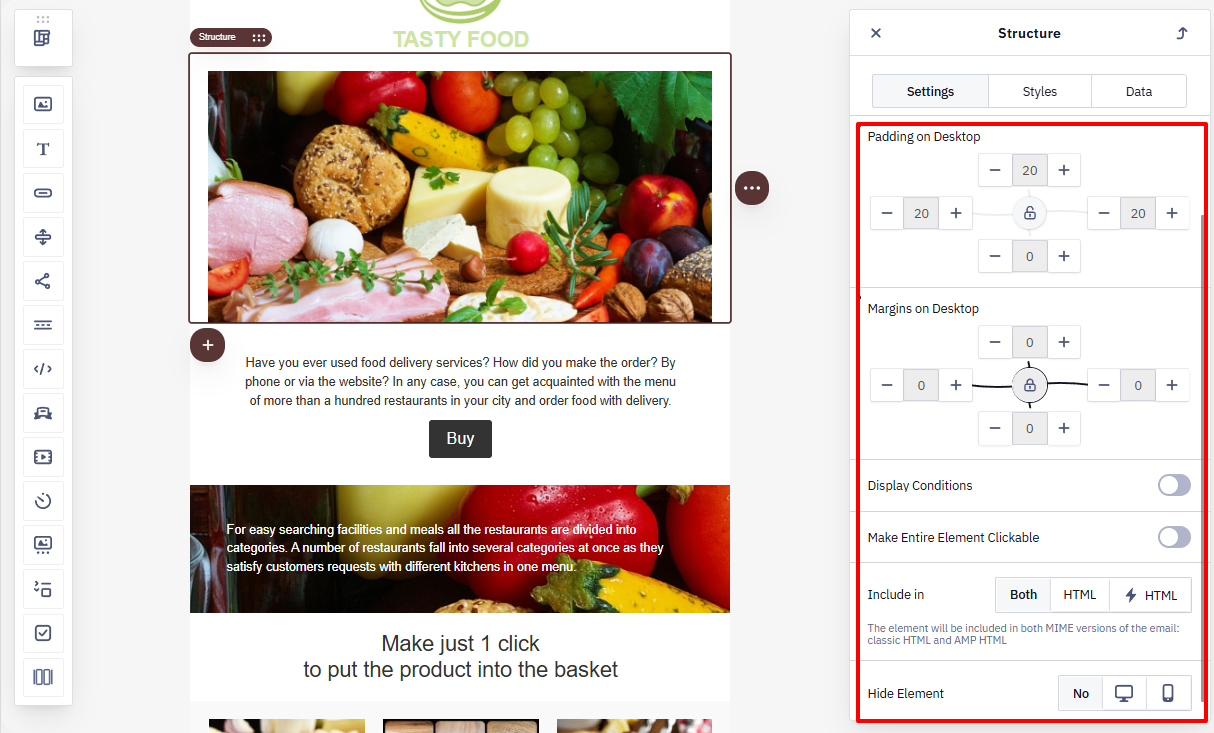
NoteSwitch the preview to Mobile (the device icon in the toolbar) before opening a structure or container's Settings tab to see mobile-specific controls — Containers Inversion, Padding on Mobile, and Margins on Mobile. These apply only to the mobile view and are separate from the default padding/margin settings shown in desktop preview.
Specific settings:
- Stripe — configure the email area (Header, Content, Footer, or Info area);
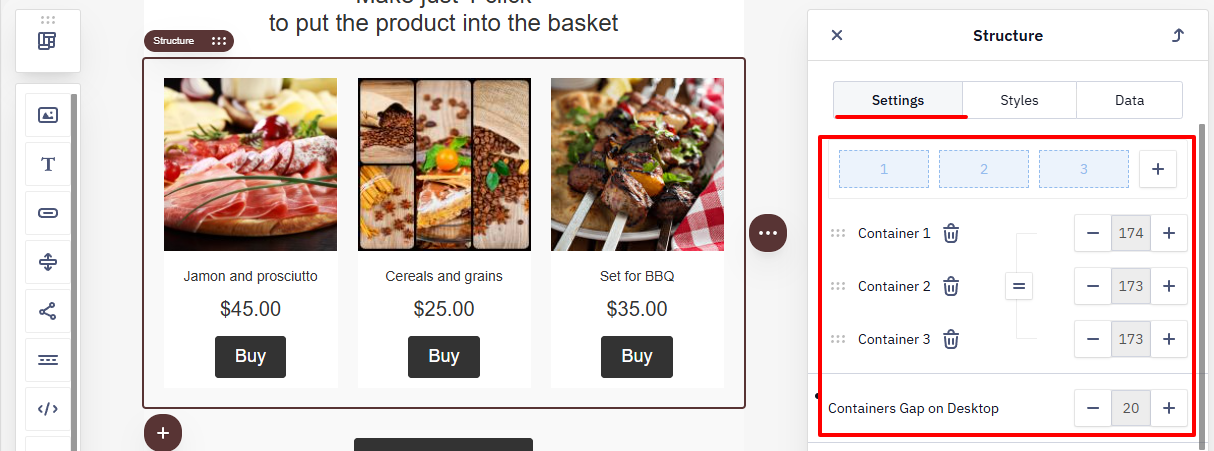
- Structure — set the number of containers, their width, and the spacing between them.
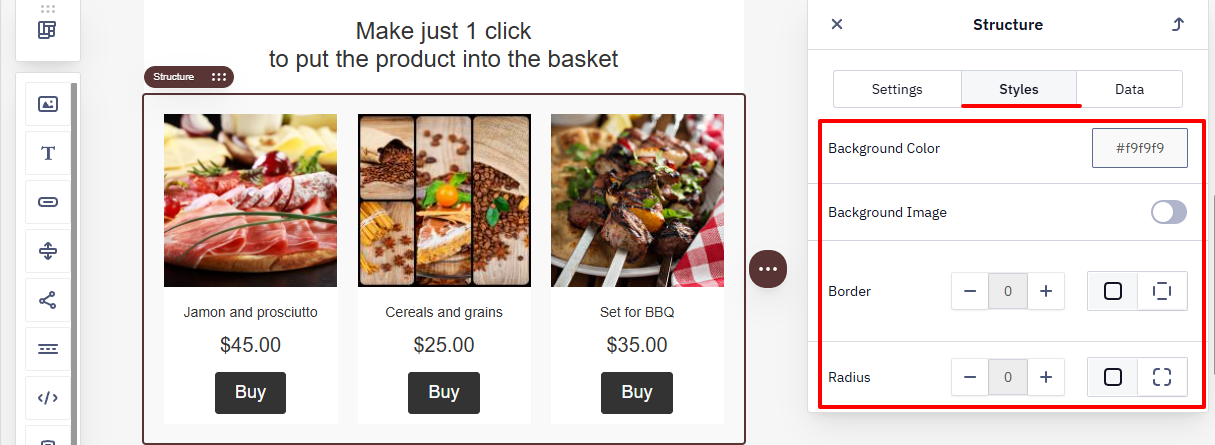
Styles Tab
Use this tab to customize the element’s appearance: colors, background, borders, and other visual settings.
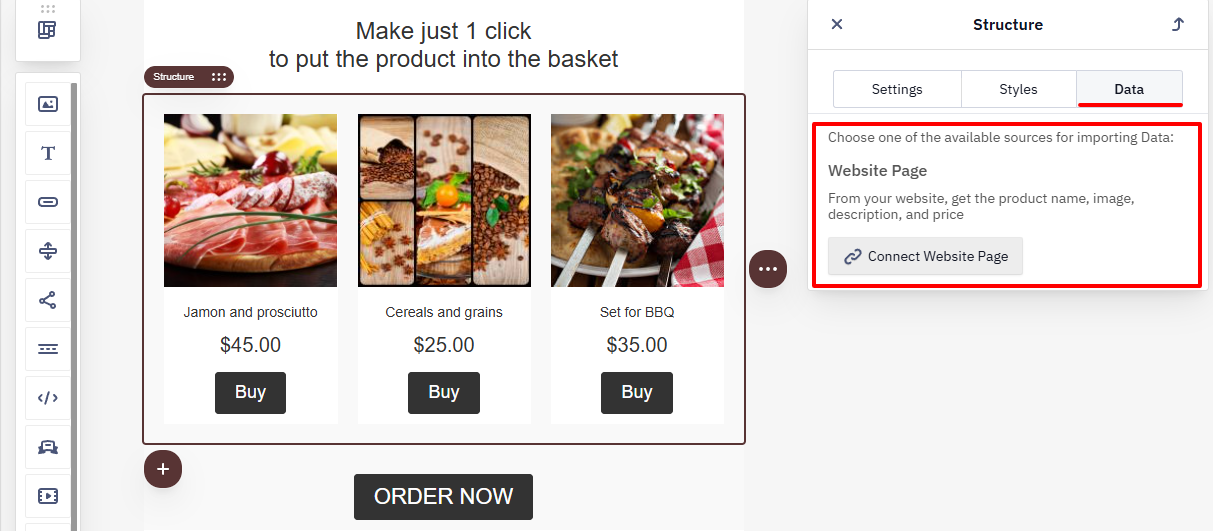
Data Tab
Use this tab to connect data sources and work with dynamic content (for example, data from a website).
Learn more about configuring smart containers >
Blocks
A Block is the smallest structural element of an email template. You place it inside a container, where it holds the content. Use a block to add text, images, buttons, videos, and other message elements.
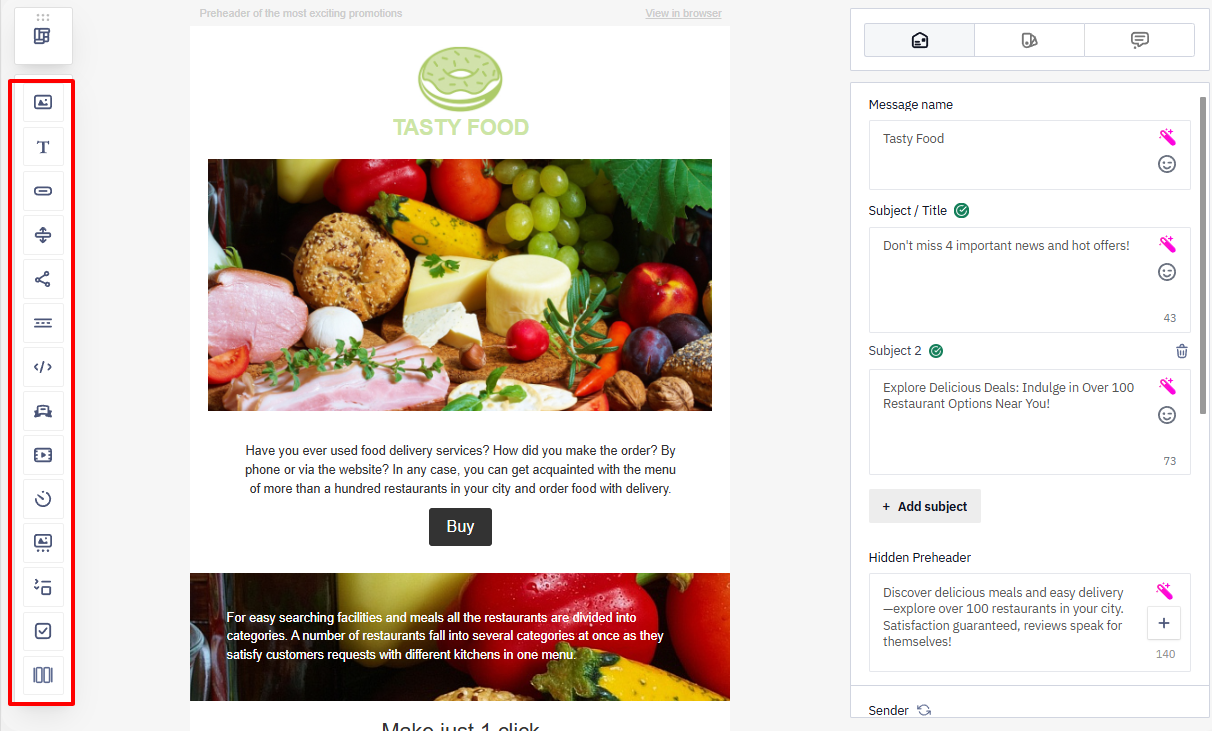
The editor’s side panel contains all available blocks.
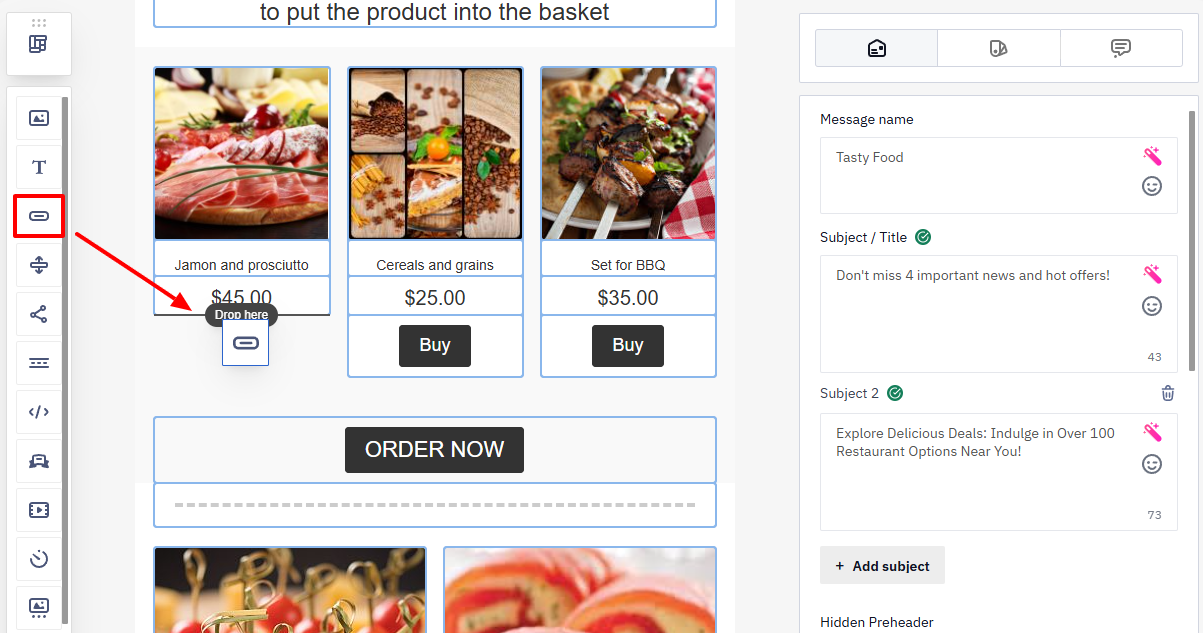
To add a block, drag it into a container.
NoteIf the container is empty, quick-add icons for basic blocks (image, text, button) appear inside it. Click the required icon to add a block without dragging it from the panel.
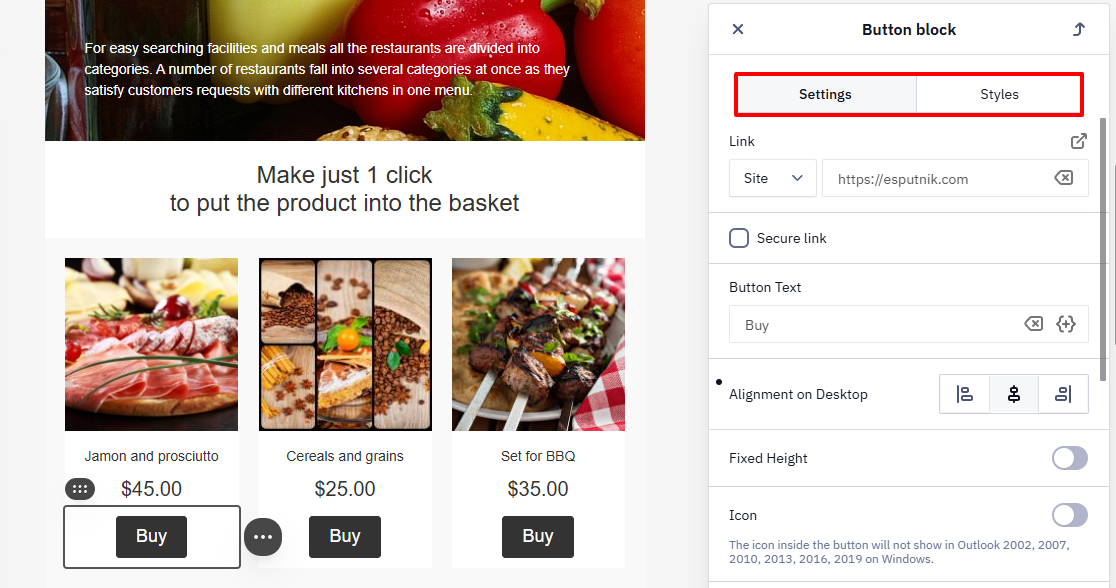
Click the block to open its settings, grouped into the following tabs:
- Settings — define the block’s behavior and display conditions in the email: links, spacing, alignment, display conditions, and more.
- Styles — control the appearance: colors, background, borders, and other visual properties.
The following sections describe each of these blocks in detail.
Image
Learn more about working with images >
Text
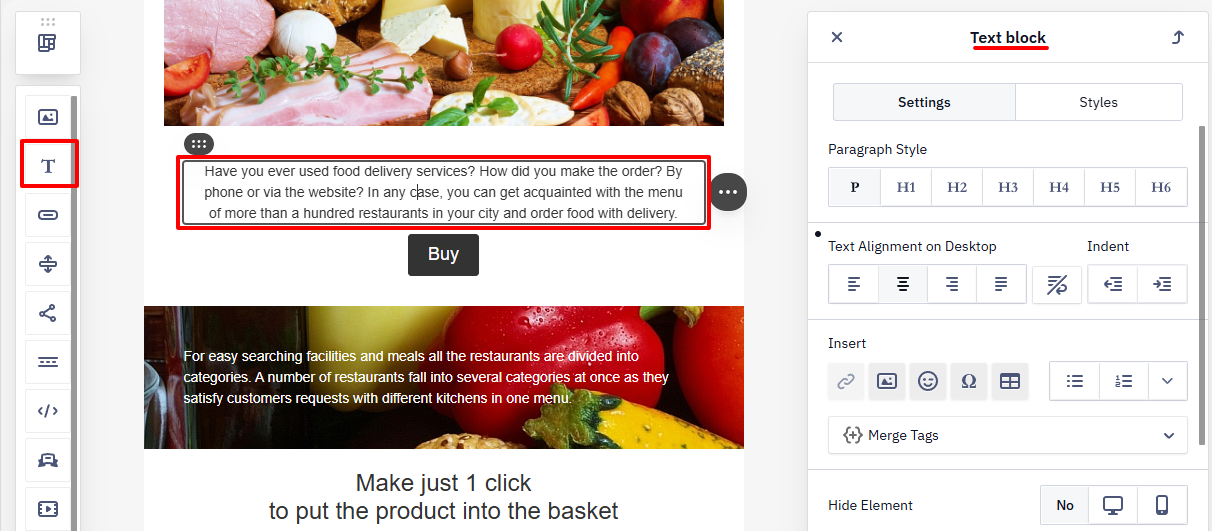
The text block includes a built-in editor for adjusting the font, background color, indents, and other properties. You can also use the AI text generator to create content.
Button
Learn more about creating a CTA button >
Spacer
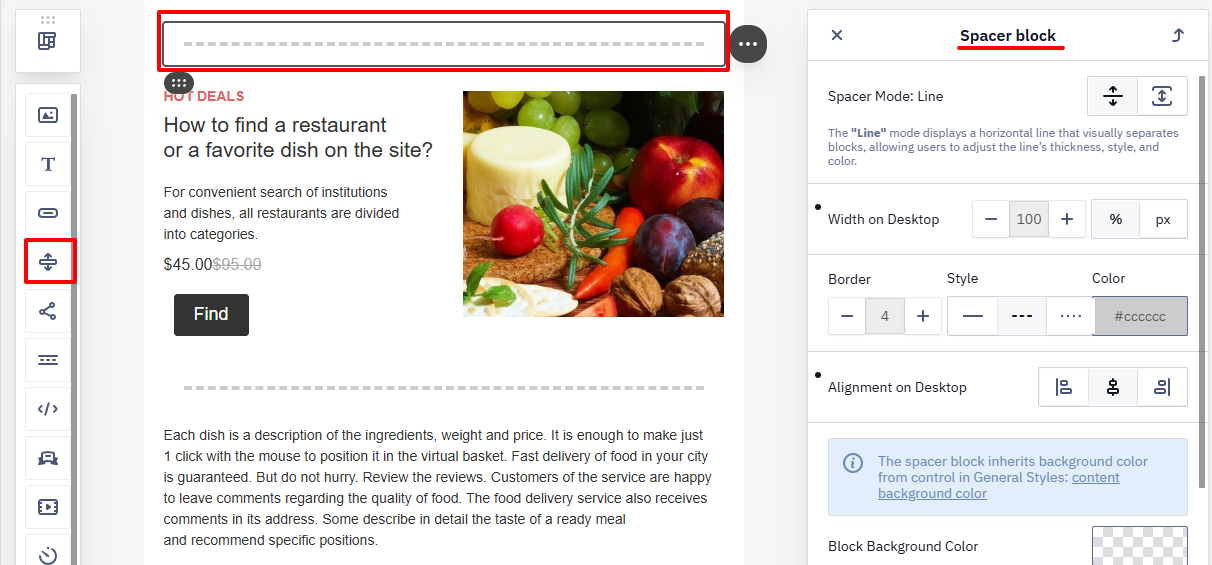
The spacer helps visually separate different content blocks. In the block settings, you can select the line type, color, adaptivity, etc.
Social Networks
Adds links to the brand’s social media pages — Facebook, Instagram, and others.
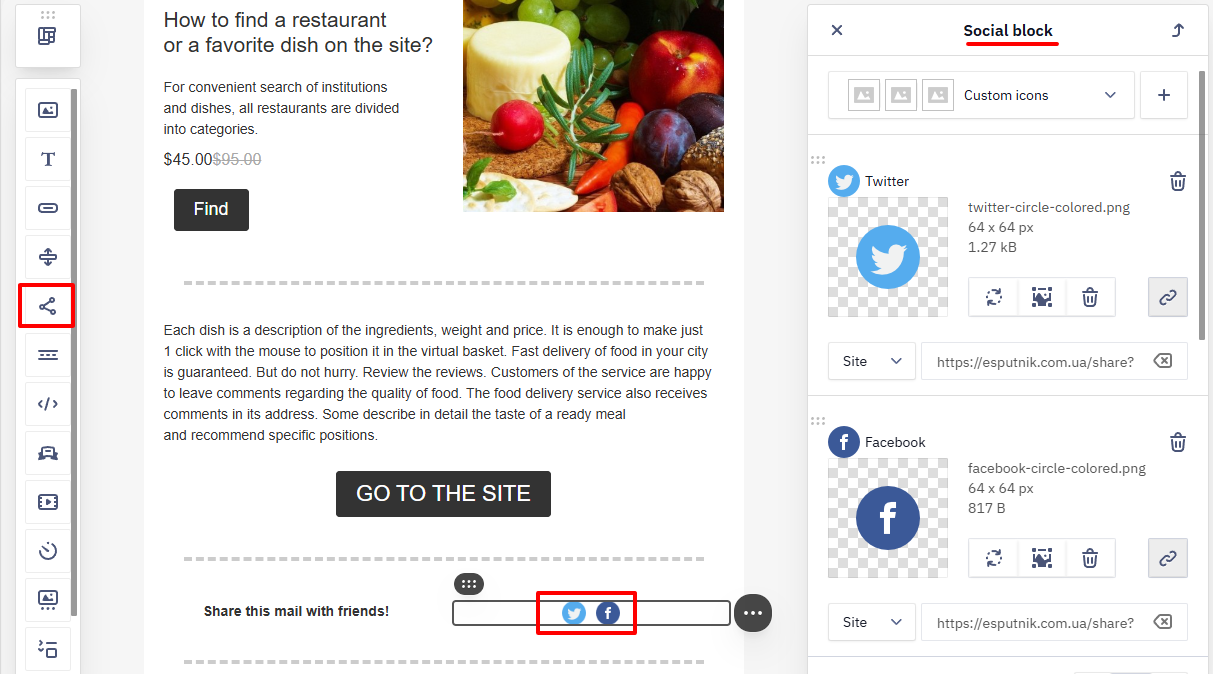
Block settings:
- Icon type — choose the display style of social media logos: colored or monochrome.
- Social networks list — add, disable, reorder, and enter links for Facebook, X, Instagram, YouTube, and others.
- Icon size — set the height and width of the icons in pixels.
- Space between icons — adjust the horizontal spacing between icons on large screens.
- Title and alt text — additional labels for accessibility and hover tooltips (can be enabled or disabled if needed).
Menu
The Menu block appears in almost every email and can be placed in the header or the footer. It offers an easy way to add small CTAs for subscribers who aren't interested in the current campaign offer but know what they want to find on the site. The menu block usually stays the same from campaign to campaign.
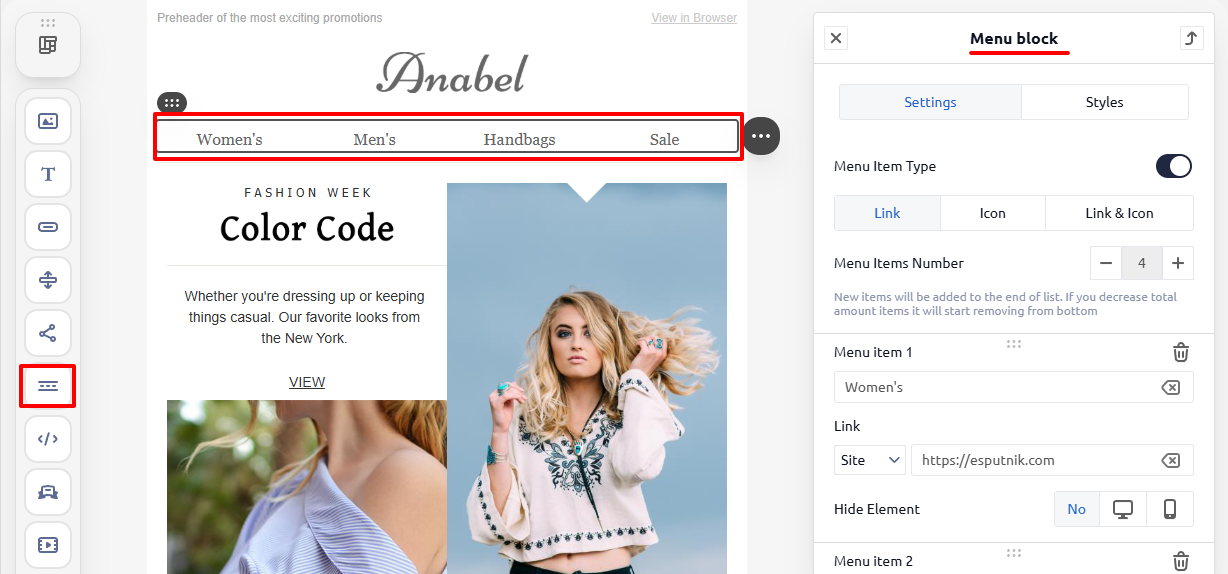
There are three menu types:
- links
- icons
- icons and links
HTML
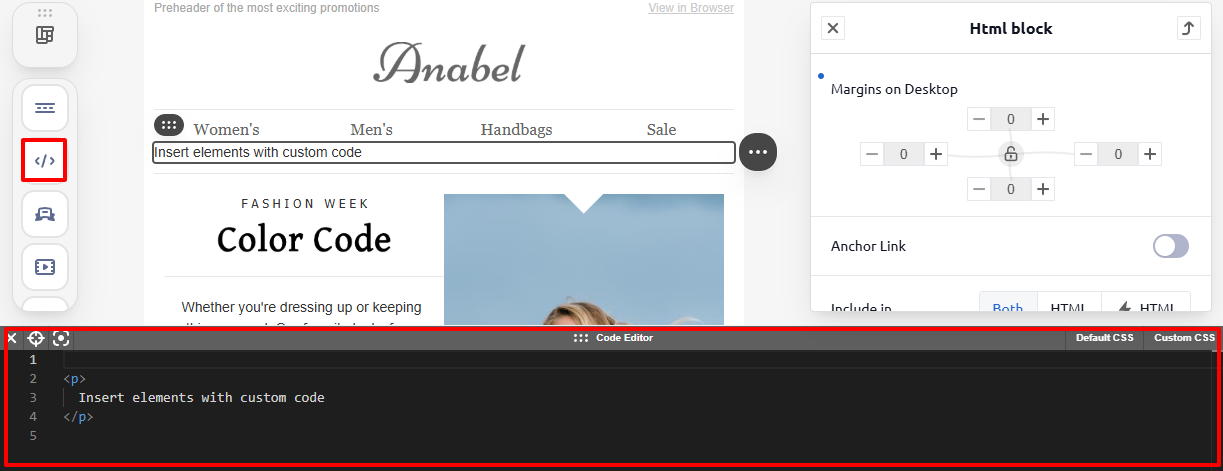
Use the HTML block to add your own HTML and CSS code. Within this block, only the image and link editing functions from the adaptive editor remain available — you need to configure responsiveness yourself.
Banner
Displays a large visual element for the main message of the email.
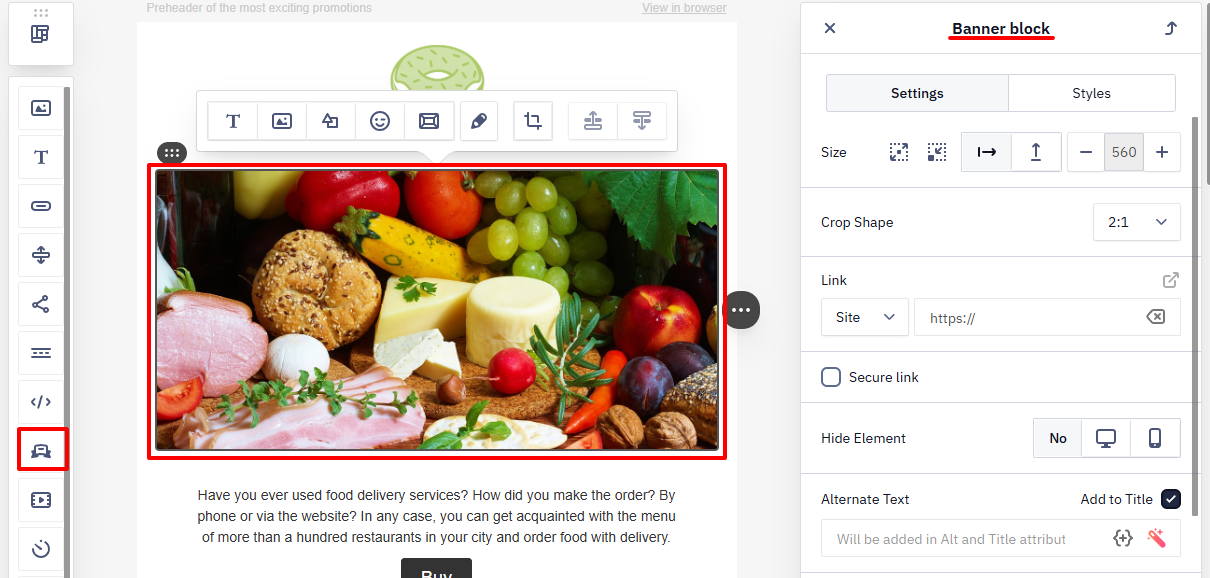
Image editing tools are available, similar to those in the Image block.
Video
The block displays videos from external platforms such as YouTube, Vimeo, or Instagram. The email shows a preview image with a Play button that opens the video page. This helps attract attention and increase engagement — for example, for product reviews, promo videos, or branded content.
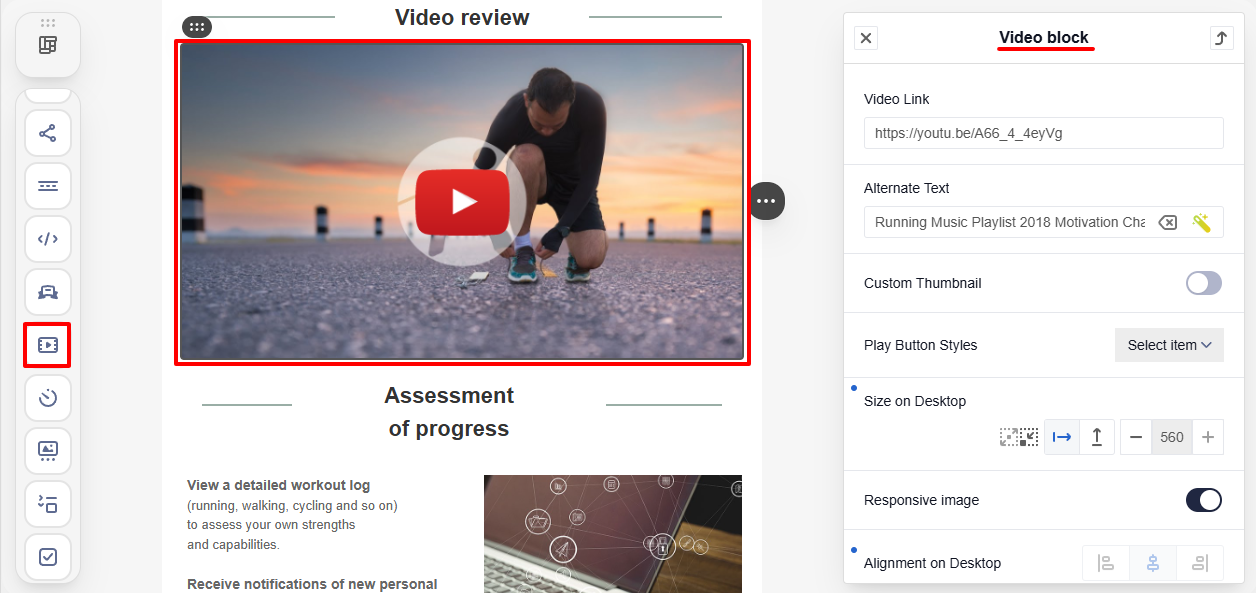
You can add a video link, configure alt text, use a custom preview image, and choose the play button style. Set the preview size for desktop in the block settings.
NoteMost email clients do not support video playback in emails. After clicking the play button, the video page will open on the service where it is hosted.
For a video hosted on your own server rather than YouTube, Vimeo, etc., you can embed a native HTML5 player (MP4/WEBM) using an HTML block instead of the Video block. Only a handful of clients (for example, Apple Mail and Outlook for Mac) render inline video, so pair the embedded player with a fallback preview image linking to the hosted video for clients that don't support it.
Timer
Learn more about creating a timer >
AMP Blocks
AMP technology lets you create emails that function like standalone web pages, so subscribers can perform actions directly in the email — such as browsing a product range or booking a meeting. See the following articles to configure AMP elements:
Columns
The Columns block allows you to populate a two-column frame inside a container or a smart container.
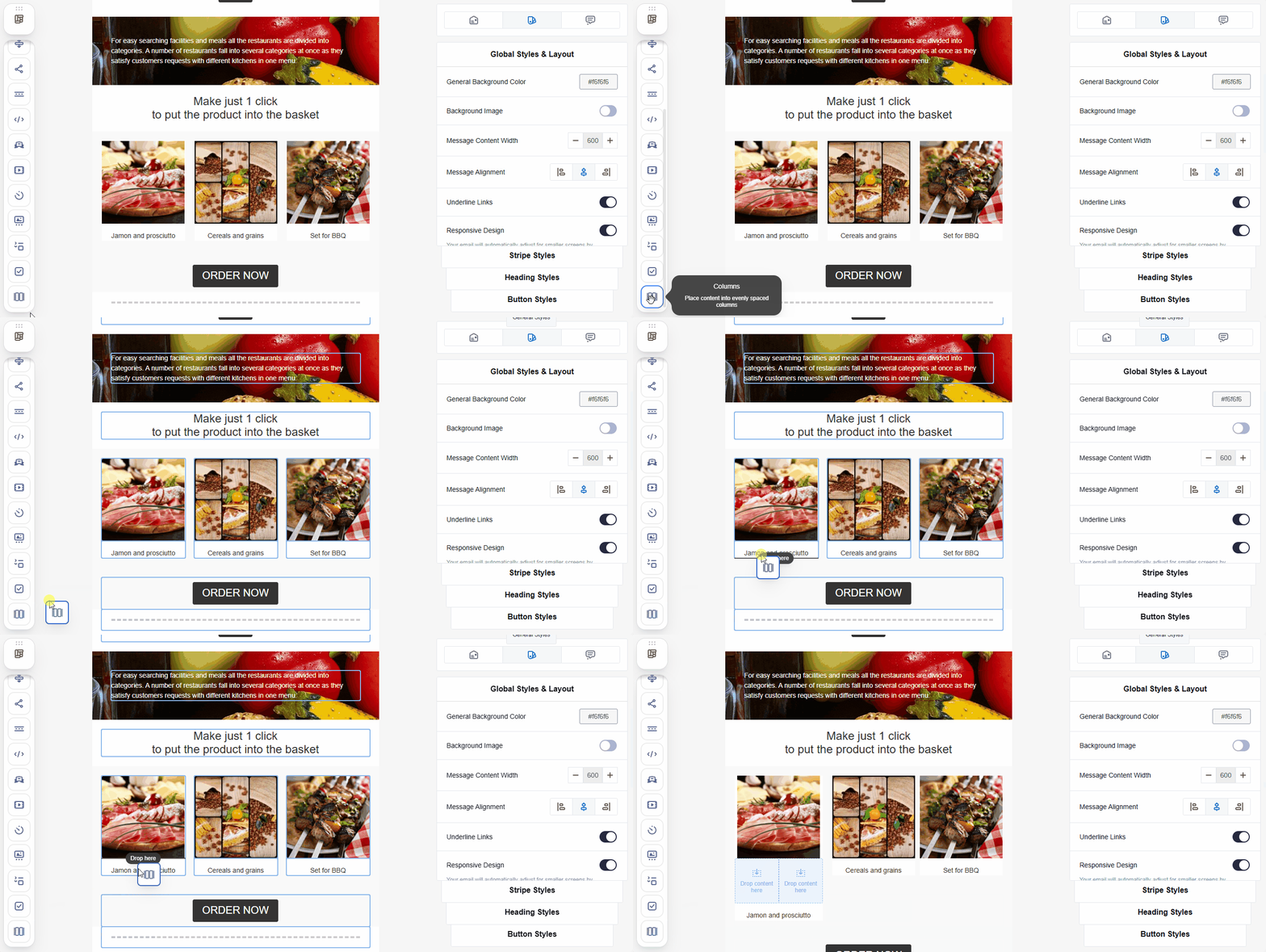
For example, use the block to place the Price and Button blocks horizontally inside the product block.
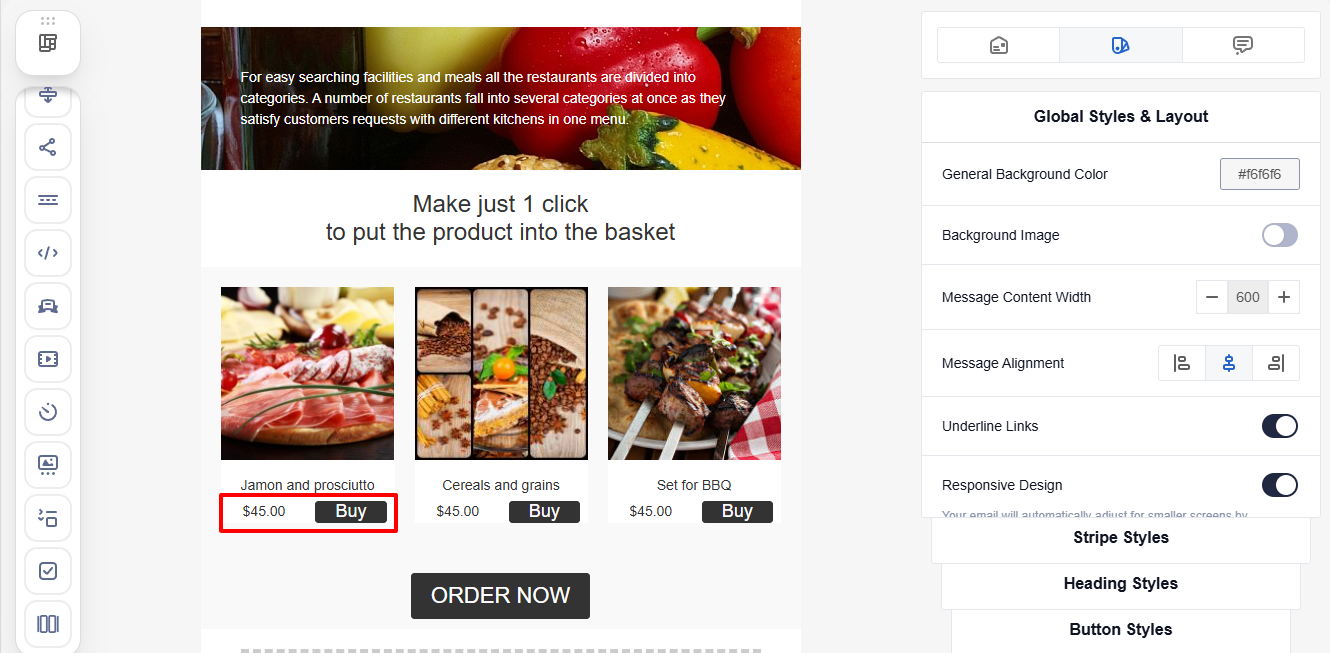
NoteThe columns have equal widths that cannot be changed.
Block settings:
- Background color
- Rounding corners
- Padding
Product Blocks
You can add personalized recommendations to your emails without writing code, using product blocks, which include:
- Products — displays recommendations;
- Price and Discount — for recommended offers;
- Columns — allows you to insert a two-column structure into any container (not just product blocks). The block is described above.
Navigation and Actions with Elements
To select an element, click it in the editor.
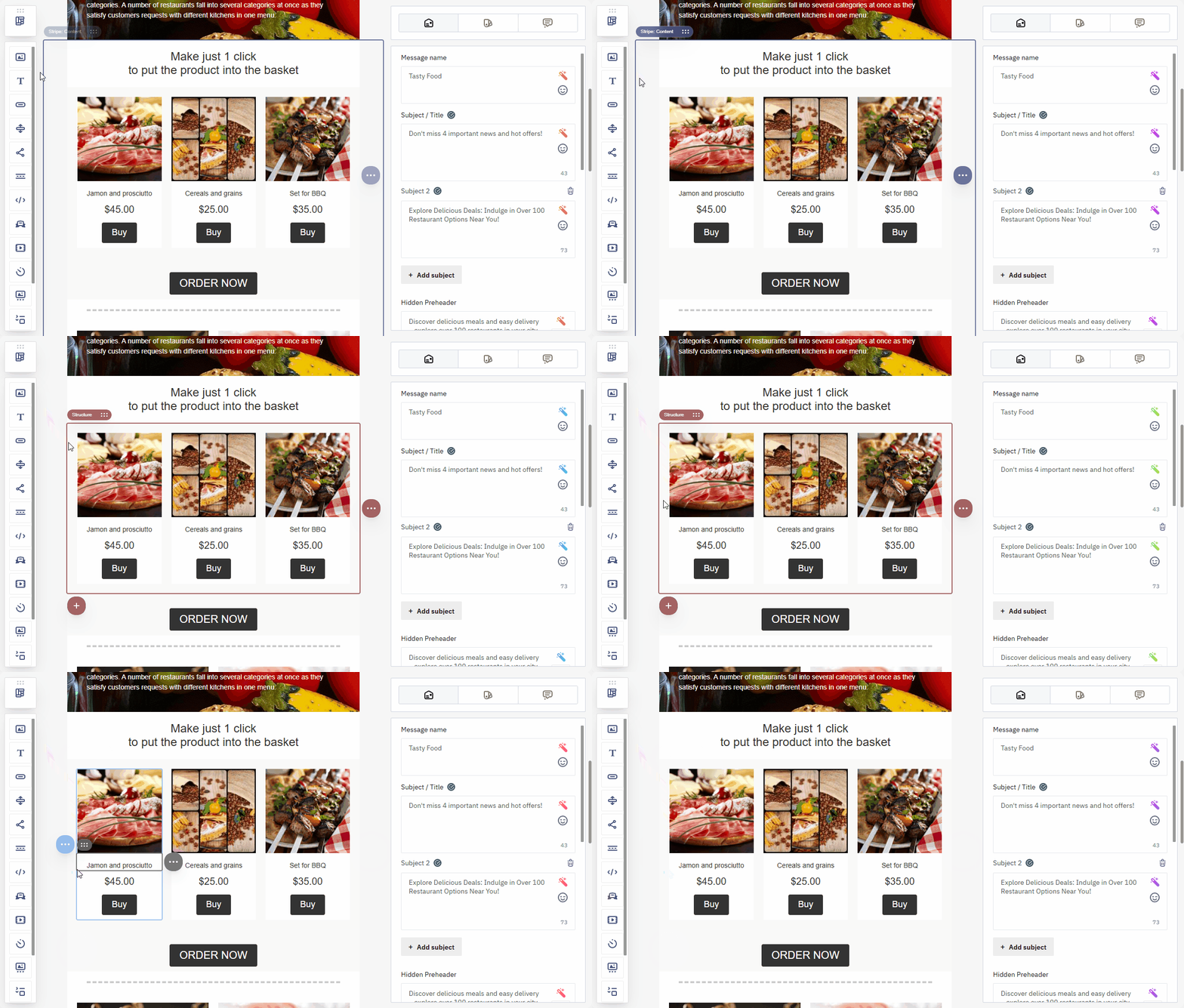
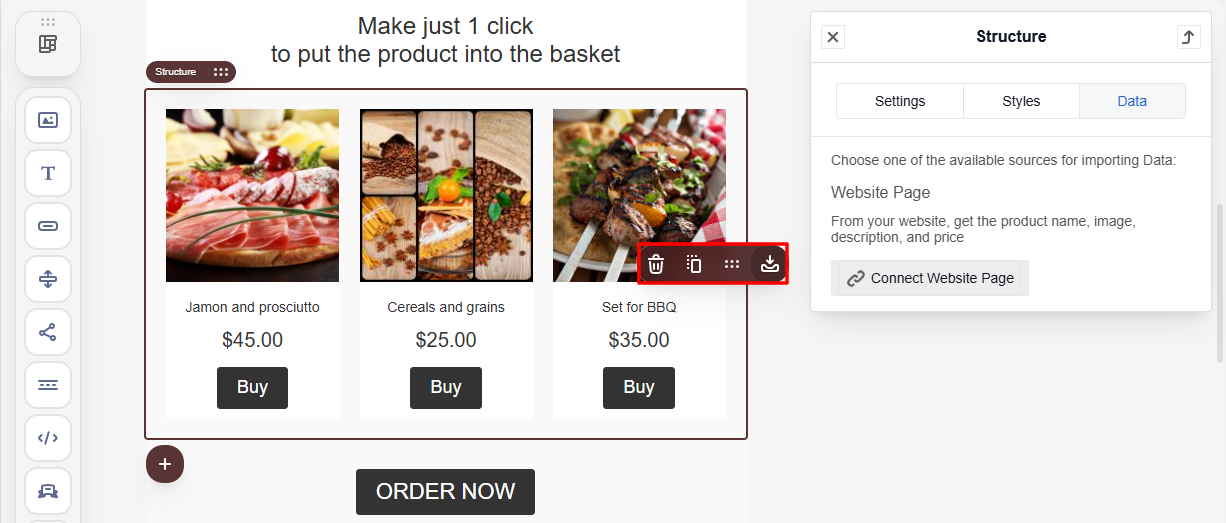
You can perform the following actions with any email element:
- save it as a module (except for Blocks);
- move it;
- duplicate it;
- delete it.
- Hover over the three-dot icon next to the required element.
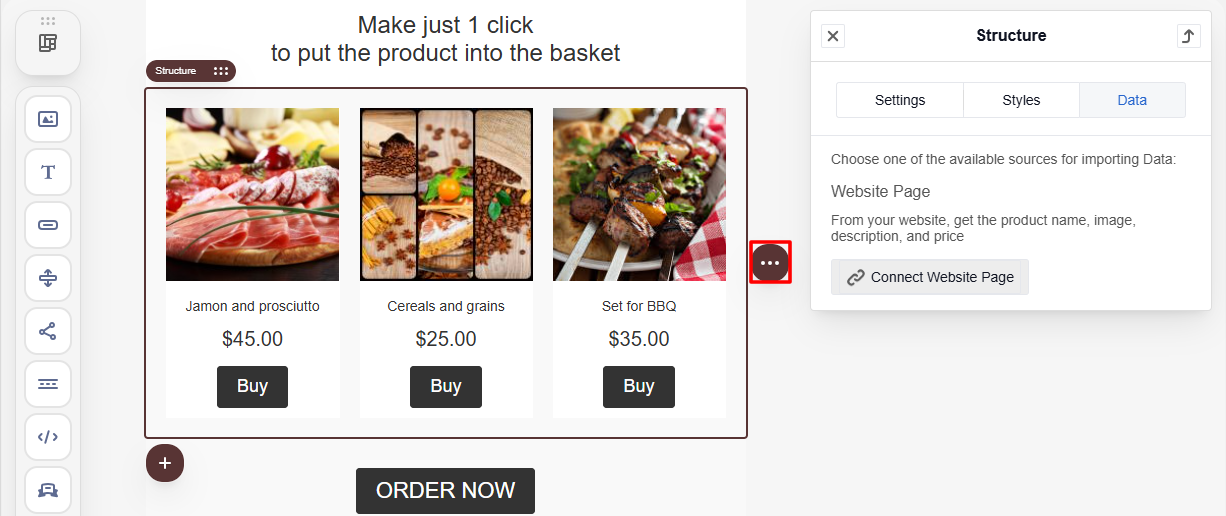
- Select the appropriate option from the context menu.
NoteA smart container has no separate delete action. To clear it instead of removing its blocks (image, text, price, and so on) one by one, select the container level — it appears as a highlighted frame around the whole container — and clear its content. The container itself remains in the template, but empty.
Updated 7 days ago