
Sending Orders via the API Resource Generate event
Order data is transmitted to our system via the resource Add orders that has a number of limitations:
- Fixed fields that are determined by the specification;
- Impossible to add custom fields;
- Order parameters cannot be used to build segments.
You can overcome them with the resource Generate event that can be used to replace or complement Add orders API method. By using it, you’ll be able to:
- Transmit more data with additional fields;
- Use segmentation by events and their parameters, for example, sort out contacts who bought a particular item within a week;
- Expand/receive RFM segmentation by order without additional usage of Add orders.
Custom order fields go in the additionalInfo object.
To save orders in the system, you need to set up segmentation by events as the event contains a contact identifier. It can be determined based on the default or conditional parameters.
An order sent with Generate event doesn't return the identifier of the created order — orderId — in the response. To get it, create the order with Add orders, and then supplement it and update its status with Generate event.
How to Use Generate event to Send Orders
The order is not saved unless the event includes identification parameters.
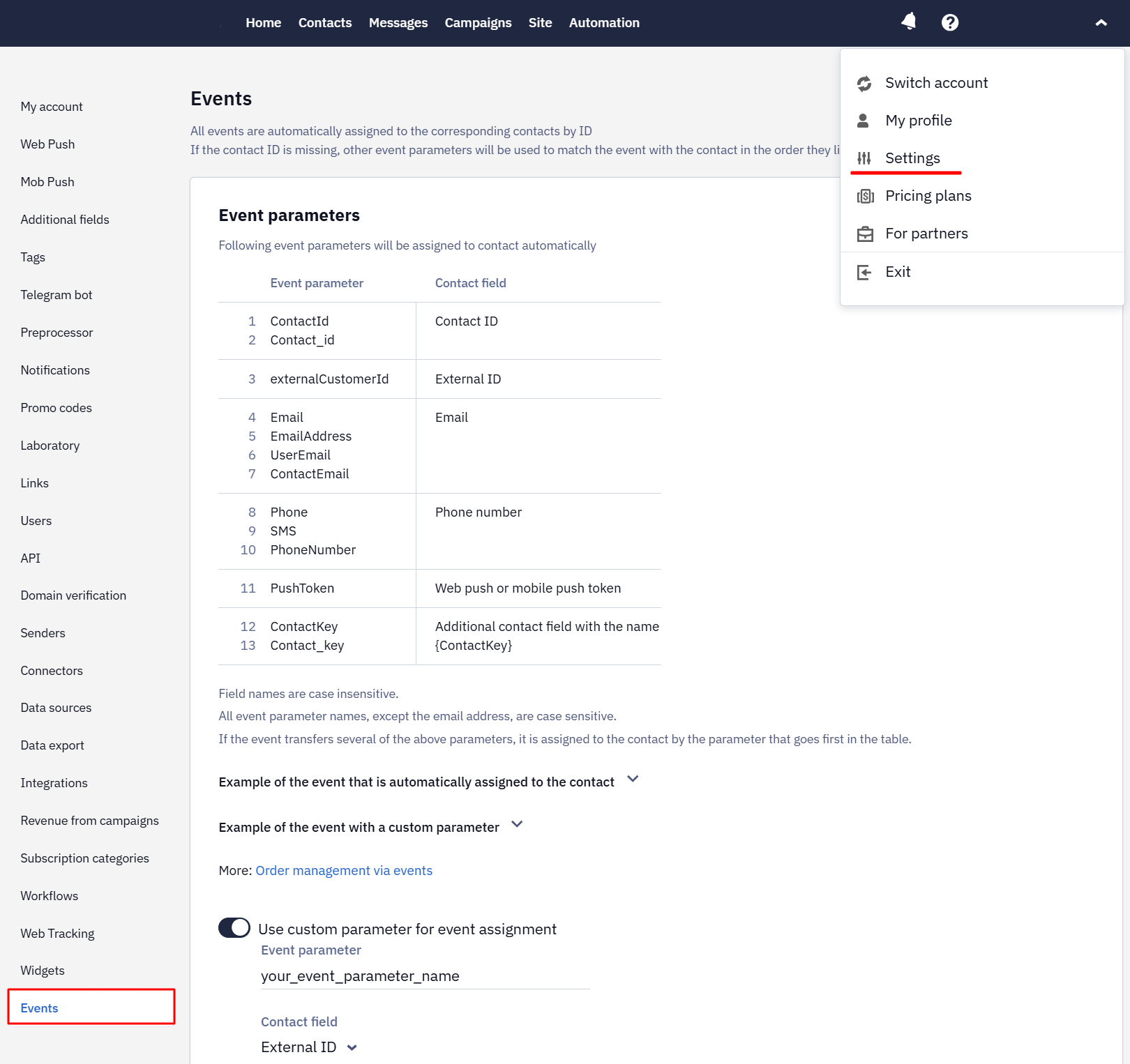
The system matches an event to a contact using the configured identification parameters. If no custom parameters are configured, the standard parameter names are used: contactId, externalCustomerId, email, and phone.
To send an order for a contact who is not yet in the database, use externalCustomerId.
| Identifier in the event | Contact in the database | Result |
|---|---|---|
externalCustomerId | No | The contact is created, and the order is linked to it |
contactId, externalCustomerId, email, or phone | Yes | The order is linked to the existing contact |
| Email or phone only | No | Neither the contact nor the order is created |
If the contact is not yet in the database and you only have their email address or phone number, add the contact first, then send the order.
Creating a Contact During an Email SendThere is an exception for events containing the email address of a contact who is not yet in the database. If such an event starts a workflow with an Email send, the contact is created during the send, and the order is linked to it.
In the sending block, set the Email field to the event parameter containing the address, for example
If both fields are empty, the workflow starts, but no email is sent and no contact is created.
Events are processed asynchronously, so the order and, if applicable, the new contact may not appear in the system immediately.
To send an order, specify the event type. Choose the type from the table below based on the order status.
| Event type | Description |
|---|---|
| orderCreated | Creates an order with the status indicated in the array. Valid statuses: INITIALIZED, IN_PROGRESS, DELIVERED, CANCELLED, ABANDONED_SHOPPING_CART. |
| orderUpdated | Updates the order |
| orderDelivered | Changes the order status to DELIVERED |
| orderCancelled | Changes the order status to CANCELLED |
Use these four names exactly as spelled. The order plus status names you see in the event history — orderIN_PROGRESS or orderCANCELLED, for example — are generated by the Add orders method and belong to that route. Sent here, such a name creates an event type of its own and leaves the order unchanged. To move an order to another status, send orderUpdated with the new status, or orderDelivered or orderCancelled.
orderCreated
To create an order, name the parameters as indicated in the documentation and fill in the required parameters. If any of the required parameters isn't filled, the event is ignored and the order will not be sent.
currency wasn't always validated in older integrations, but it is now required — without it the request is rejected with the currency must be specified error.
An order has two dates that can differ:
- the order date is the value of the
datefield from the request; - the order registration date is the moment the system received the event.
If you send orders retroactively or with a delay, the order registration date will be later than the order date. Keep this in mind when reconciling order data with reporting periods.
Once the order is linked to a contact, it appears in the Orders section.
${eventKey}— the order's uniqueness key, passed inexternalOrderId. Used as the order identifier;${orderId}— the order ID in the system; the workflow needs this parameter to run.
The contact ID must be one of the following:
${externalCustomerId}- external contact ID;${email}- contact's email address;${phone}- contact's phone number.
To substitute parameter values in messages, send the fields with event parameters as an array.
Order information is passed in the event parameters as a params array with the following required fields:
- externalOrderId;
- totalCost;
- status;
- date.
Additionally, you can specify a list of products in the items array. In this case, the following fields are required for each element of the array:
- externalItemId;
- quantity.
NoteThe total cost of the items in the order must match the
totalCostvalue (the total order amount). If an item is sold at a discount, pass the discounted price initems.cost.
Example:
{
  "eventTypeKey": "orderCreated",
  "keyValue": "380501234567",
  "params": {
    "phone": "380501234567",
    "externalOrderId": "12345679",
    "externalCustomerId": "AV13760",
    "totalCost": 258,
    "status": "INITIALIZED",
    "date": "2020-05-14T10:11:00+02:00",
    "currency": "UAH",
    "marketId": "Lviv_center_2",
    "items": [
      {
        "externalItemId": "200600",
        "name": "Super Device",
        "category": "devices",
        "quantity": 2,
        "cost": 129,
        "url": "http://example.com/item/200600",
        "imageUrl": "http://example.com/item/200600/image.png",
        "description": "High quality"
      }
    ]
  }
}
ImportantTo save the event assigned to the contact, you need to know what event parameter contains the identifier. By default, the system searches for the following parameters excluding the register:
ContactId,Contact_id,EmailAddress,UserEmail,ContactEmail,Phone,SMS,PhoneNumber,PushToken,ContactKey,Contact_key. All values, except for the email address, are mapped including the register.
| Field | Description |
|---|---|
| status | Can take one of the following values: INITIALIZED, IN_PROGRESS, DELIVERED, CANCELLED, ABANDONED_SHOPPING_CART. |
| date | The date format is YYYY-MM-ddTHH:mm:ss±hh:mm, according to ISO 8601. For example: 2020-05-14T10:11:00+02:00, where +02:00 indicates that the local time is 2 hours ahead of UTC. Note that some countries observe daylight saving time (DST), which may affect the offset. |
| items | Items from the order (optional). If you use this field, the required fields must be specified for the orderItem method. Pass items as an array, the way the example above does. We support nesting up to the second level inclusive. This means that if another array or object is passed in the items array, it will remain serialized (escaped). We do not ignore such data, but since it will be a string, it is impossible to work with it. |
| marketId | Optional parameter. If included, the system saves it with the order and updates the Market ID field in the contact profile. |
Line items come from the items parameter. A products parameter is stored with the event as an extra parameter, and the order is created with an empty item list.
Parameters are stored the way they arrive: an array stays an array in the event history, and a serialized string stays a string. In accounts whose integration sends items as an escaped string, the event history shows it escaped.
An order's date and the date of the event that delivered it are different values, and the order card shows both. The event date is always the time the event reached the system: passing the same event again updates the order but doesn't move that date.
In a message triggered by an order event, the product data is substituted from the order itself: the product feed is not used unless the message contains a block that queries a data source. A field left empty in the order stays empty in the message. To show a value the order has no field of its own for — an article number, for example — pass it in the item's description.
orderUpdated
- Updates the order that has the parameter
externalOrderIdfilled.
The Orders section holds one record per externalOrderId, while the event history holds every event the system received. Re-sending an order with the same externalOrderId updates the existing record and adds another event, so there are usually more events than orders.
- If the transmitted order doesn’t exist in the system, it’s created anyway.
- The parameters must be named as indicated in the documentation. If the order is to be created, the
orderCreatedrequirements apply.
orderDelivered
- Changes the order status to
DELIVERED. - If the order does not exist, it is ignored.
NoteOnly orders with the
DELIVEREDstatus are used to build the RFM table and calculate revenue from campaigns on the Report tab. Orders from web tracking are counted in the revenue visualization with any status.Exceptions are orders received from the mobile SDK, in which case the statuses
INITIALIZEDandDELIVEREDare taken into account by default in the revenue visualization. If necessary, theINITIALIZEDstatuses can be disabled — for this, contact our support service [email protected]
orderCancelled
- Changes the order status to
CANCELLED.
If new fields are needed for segmentation or workflows, resend the history as historical events or order updates with the same order identifiers. Before enabling active workflows, make sure the re-upload won't cause unwanted triggers.
- If the order does not exist, it is ignored.
Updated about 22 hours ago