
Creating an AMP Accordion
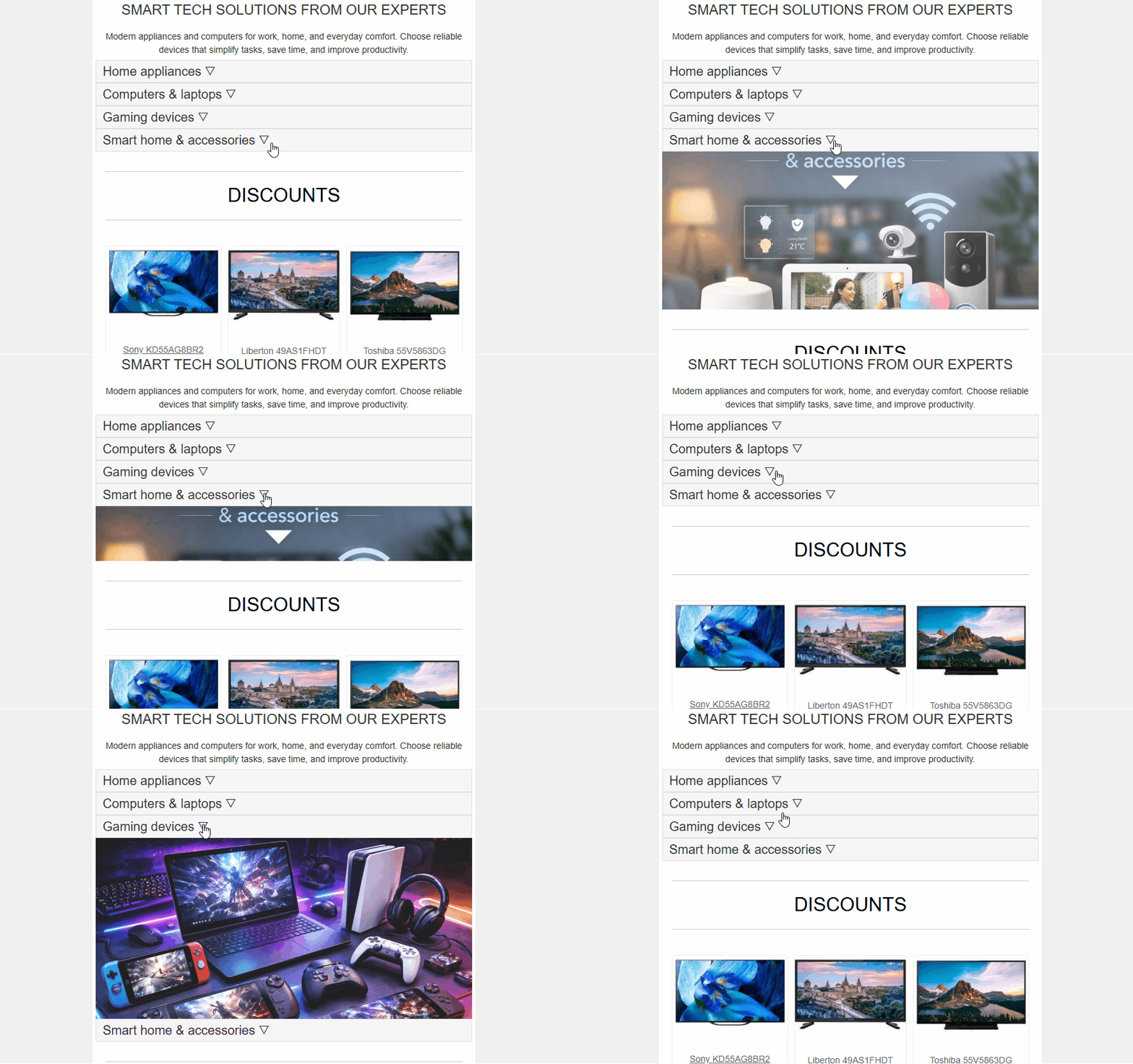
An Accordion is an interactive block that lets you expand or collapse parts of content inside an email.
Use it when you need to:
- reduce the amount of visible content;
- move additional information into expandable sections;
- show details only after user interaction.
ImportantTo send AMP-powered emails, you must first register with Google as a dynamic sender. This registration process requires you to submit your sending domain and a real AMP email sample to Google for review. Until approved, AMP content will not render for Gmail recipients.
Adding the Block
- Create a new email or open an existing one.
- Add the Accordion block to the template.
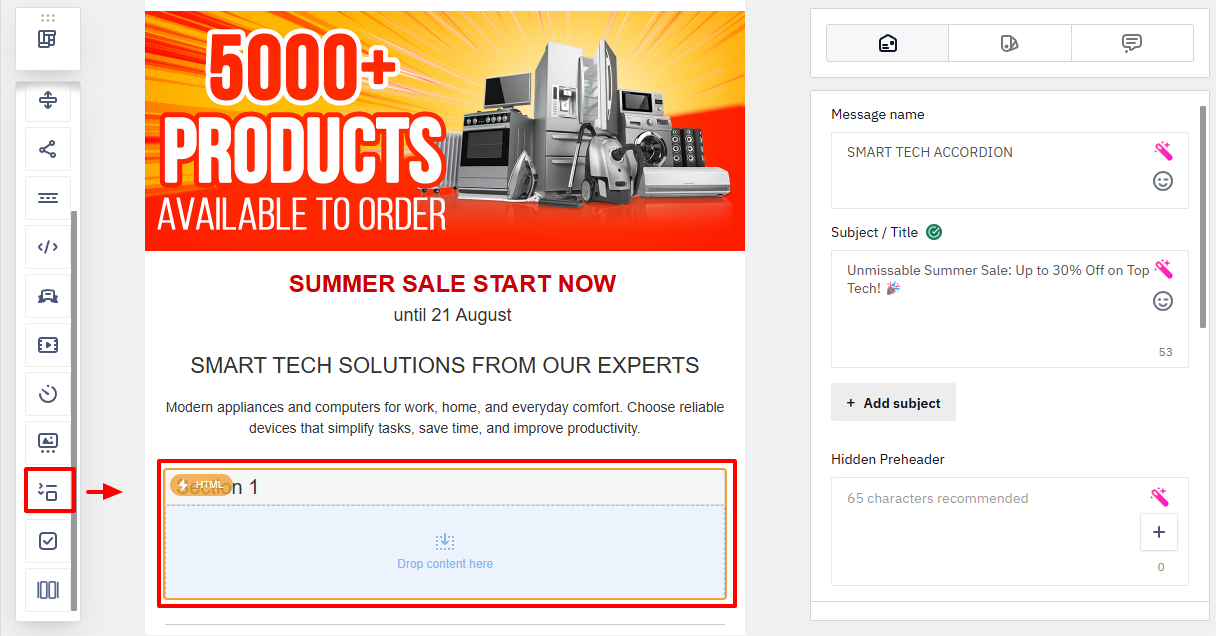
- Click the block to open its settings.
Adding Sections
By default, the accordion contains one section.
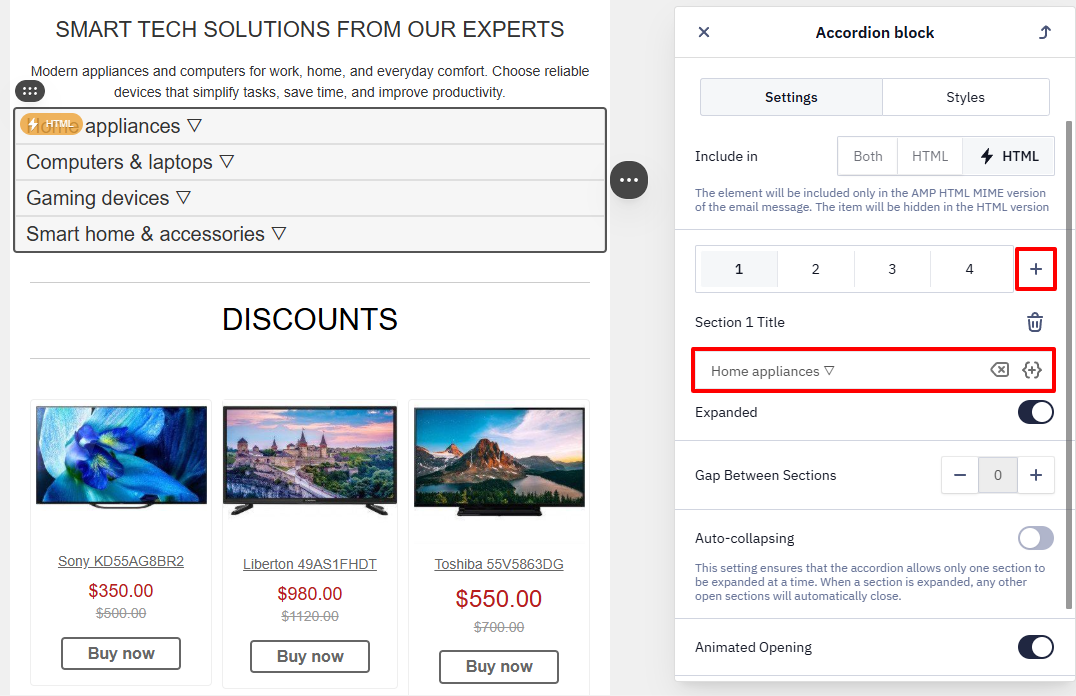
To add a new section:
- Click + and enter a Title.
- Click the content area of the section.
- Select a block to add.
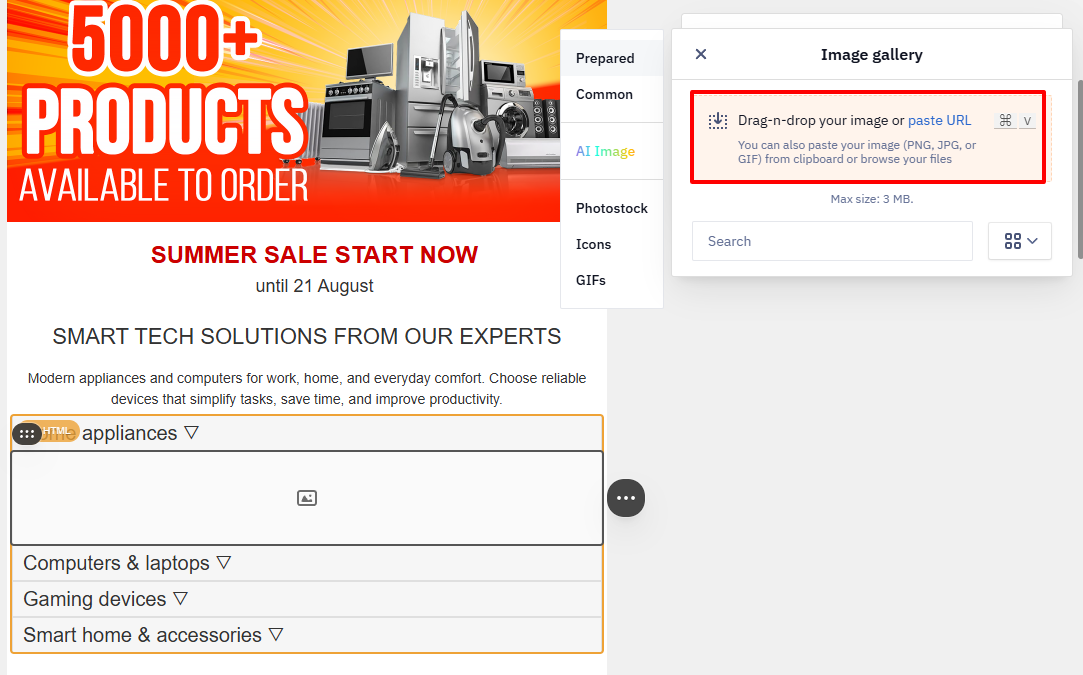
Let’s look at an example of an accordion with an image.
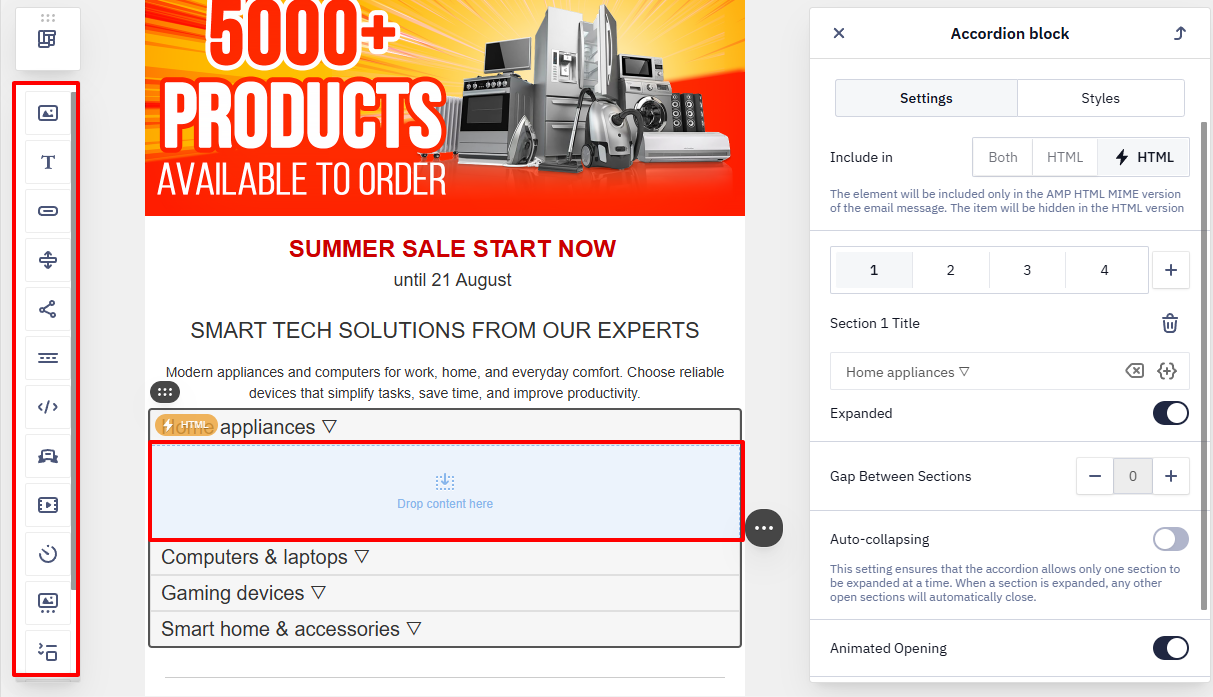
- Add an image — choose a file from the uploaded images or upload a new one.
RecommendationUse images of the same size. This helps:
- keep the layout clean;
- prevent content shifting;
- ensure smooth section expansion.
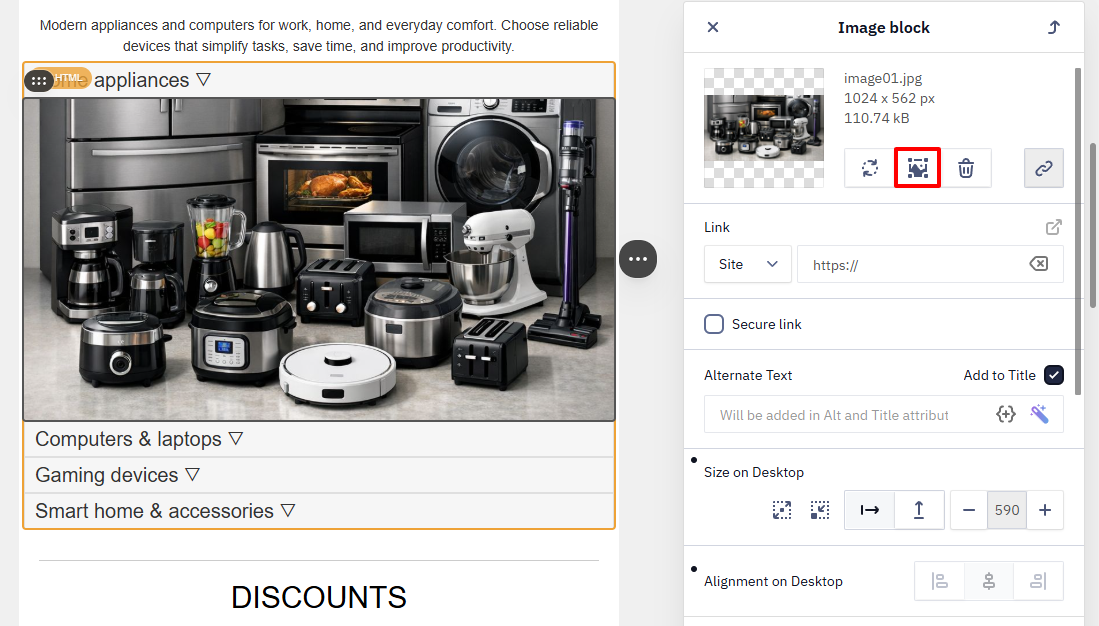
If images have different sizes, edit them in the built-in editor:
- change the scale;
- adjust proportions.
Accordion Settings
Settings Tab
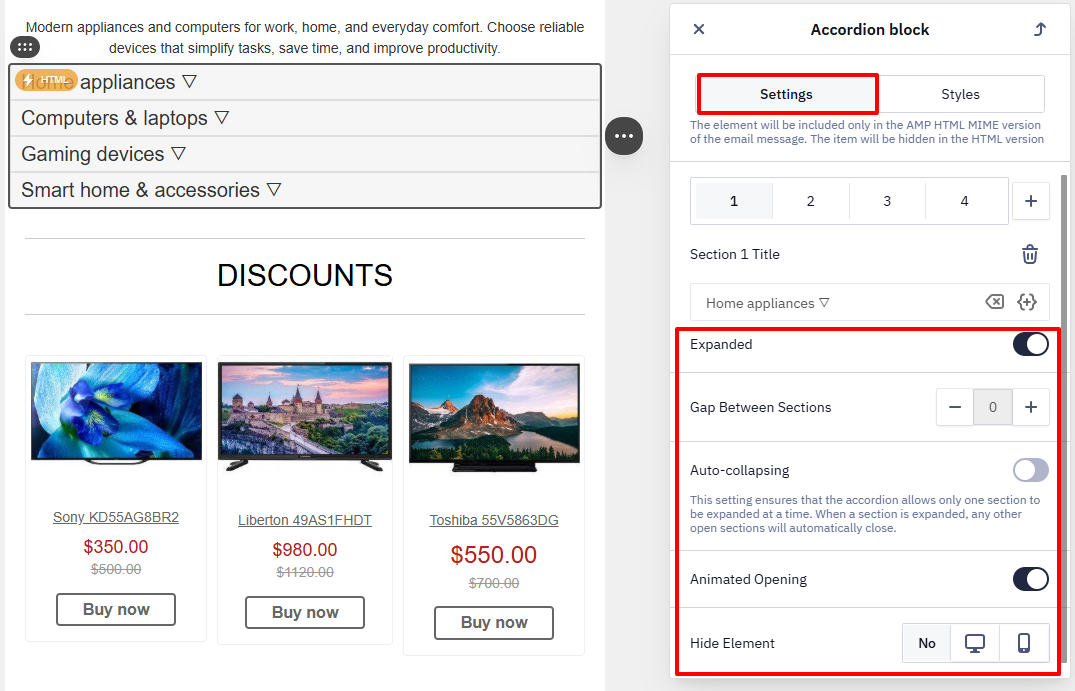
Controls how sections behave.
- Expanded. Defines whether a section appears expanded when the email opens. Configure this separately for each section
- Gap Between Sections. Sets the distance between section titles in pixels.
- Auto-collapsing. Allows only one section to remain open at a time. Opening a new section closes the previous one.
- Animated Opening. Adds a smooth opening and closing effect for sections.
Styles tab
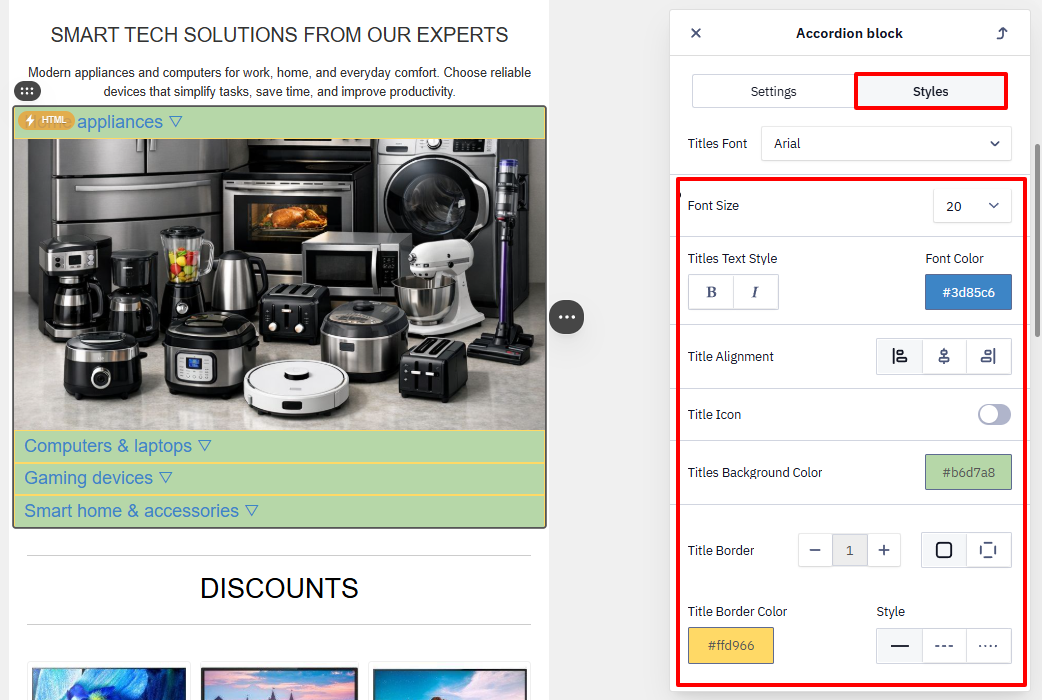
Contains visual settings for the accordion: font, colors, title alignment, background borders.
Creating an HTML Version for Clients Without AMP Support
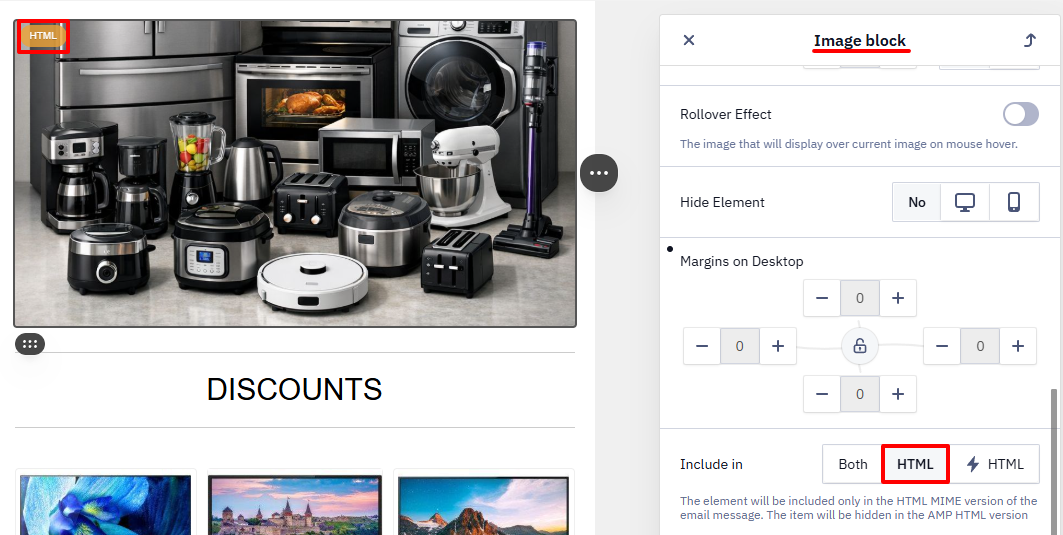
The AMP accordion appears only in clients that support AMPHTML, so create an alternative HTML version of the content. For example, use an Image block.
- Add an Image block.
- Enable the Include in HTML version option in the block settings.
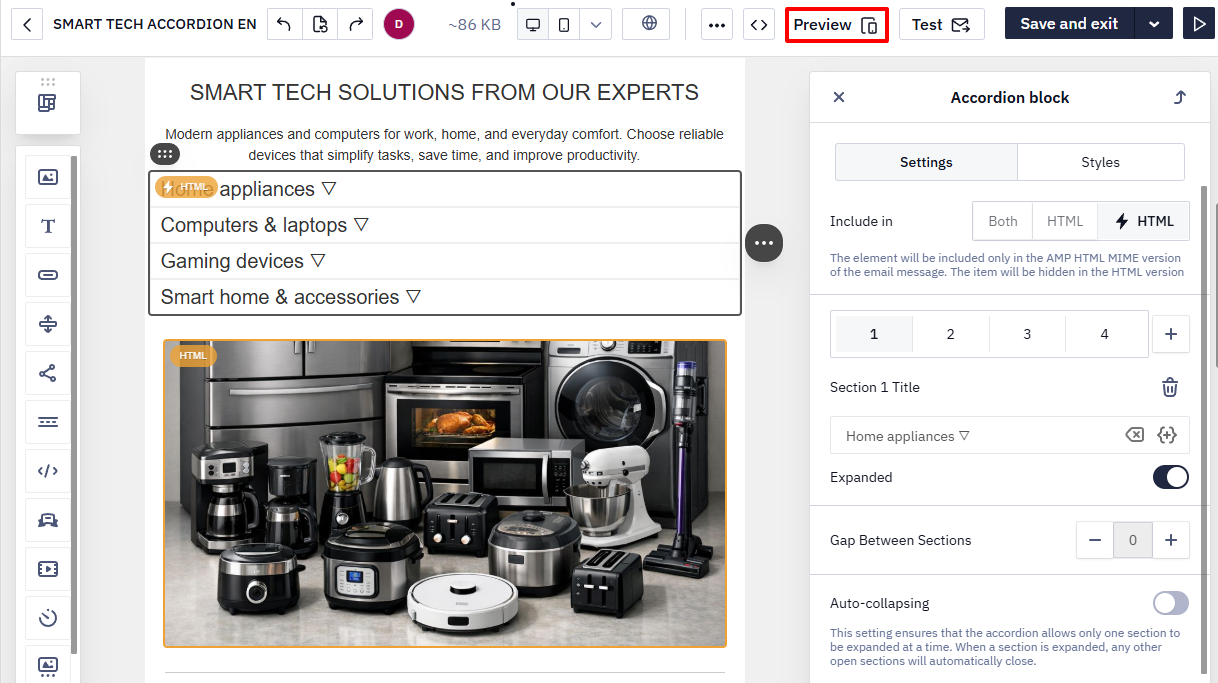
Preview
- Click Preview.
- Switch between the tabs:
- ⚡ HTML — the AMP-powered version
- HTML — the standard HTML fallback
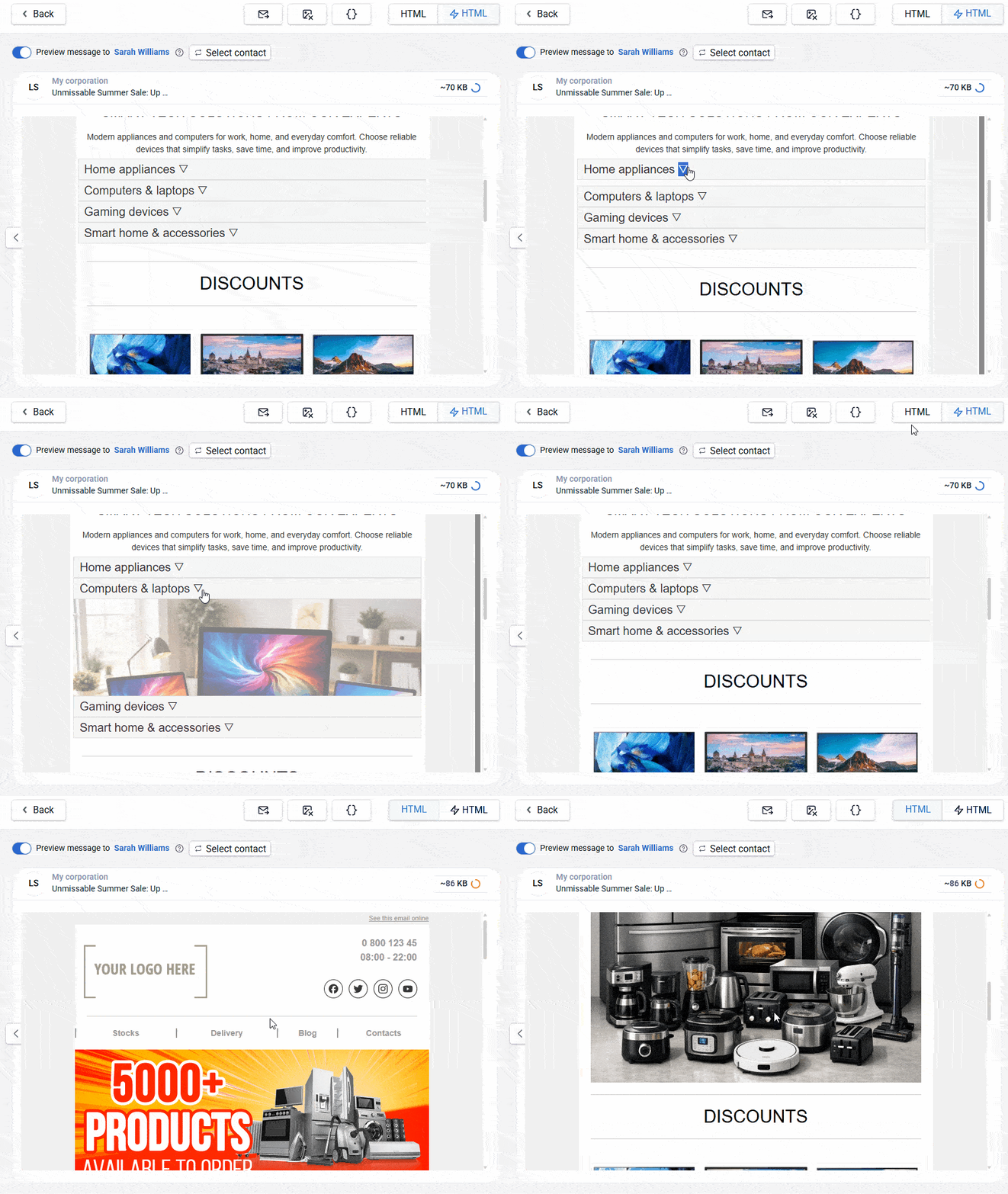
Check:
- whether the accordion works correctly;
- whether the HTML version appears properly.
Checking the AMP Email for Errors
In the preview window, click Errors to see the description.
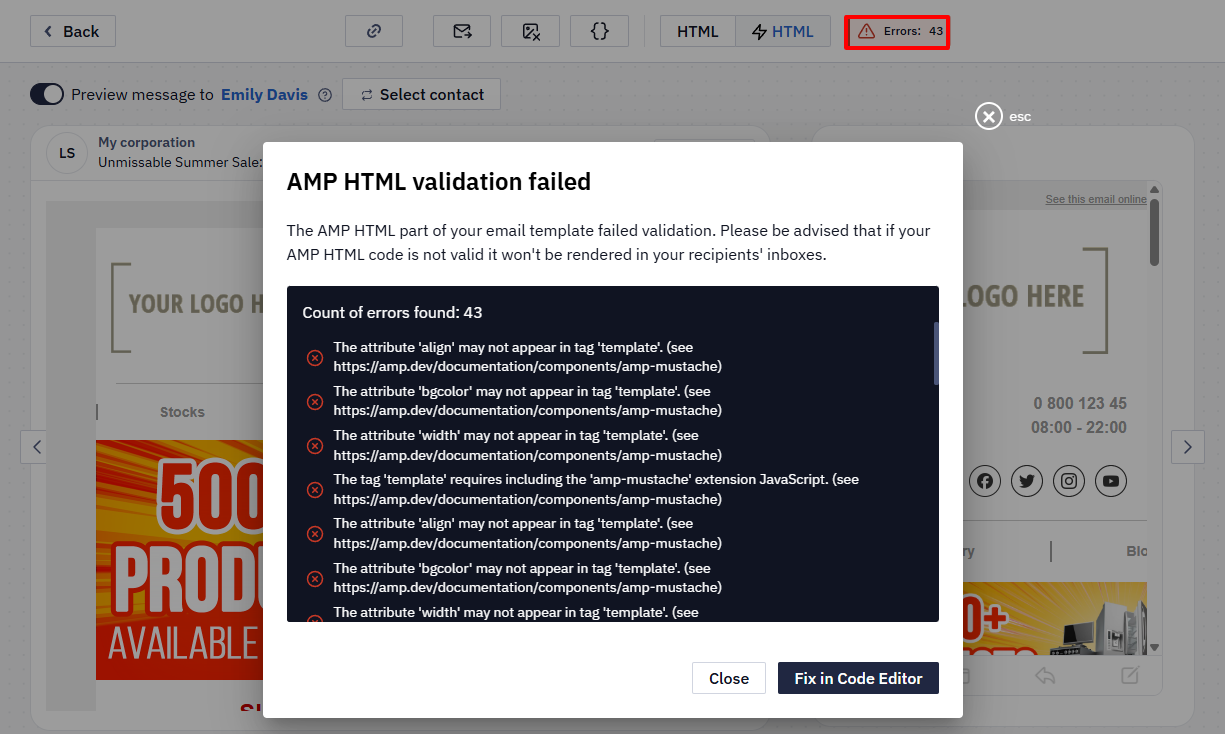
If necessary:
- fix the code in the editor;
- copy the code;
- or open it in Google Playground for validation.
Updated 3 months ago