
Launching a Workflow After a Contact Import
Use this feature if:
- Your website is not integrated with our system, and contacts are added via import;
- You don't have a website subscription form, but you have a contact list and want to launch messages for these contacts.
1. Creating a Workflow
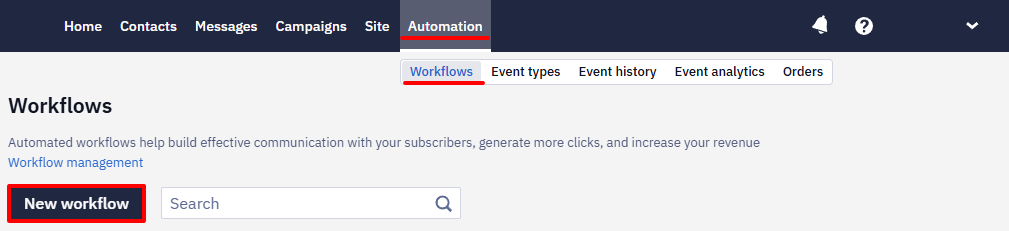
- Go to Automation → Workflows and click New workflow.
- Enter the workflow title and tags (optional). Build a chain of actions and add the following blocks:
- Start (will be added automatically);
- Message;
- End.
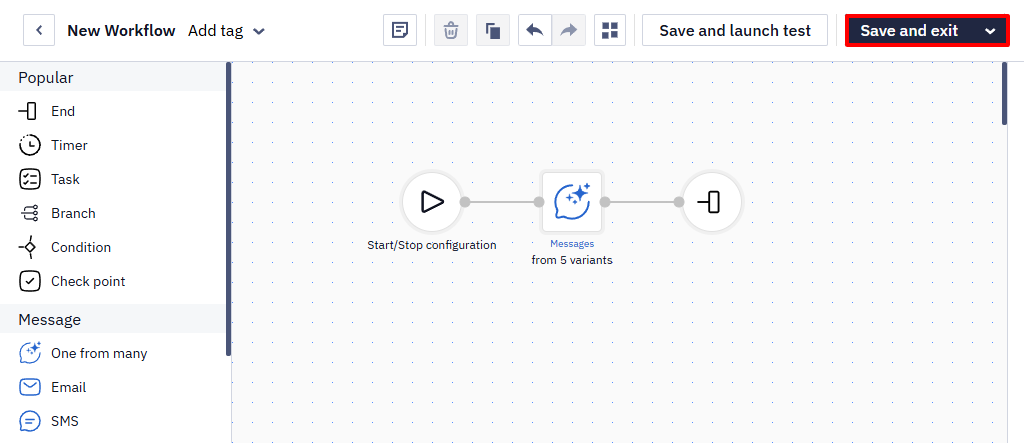
- Click Save and Exit.
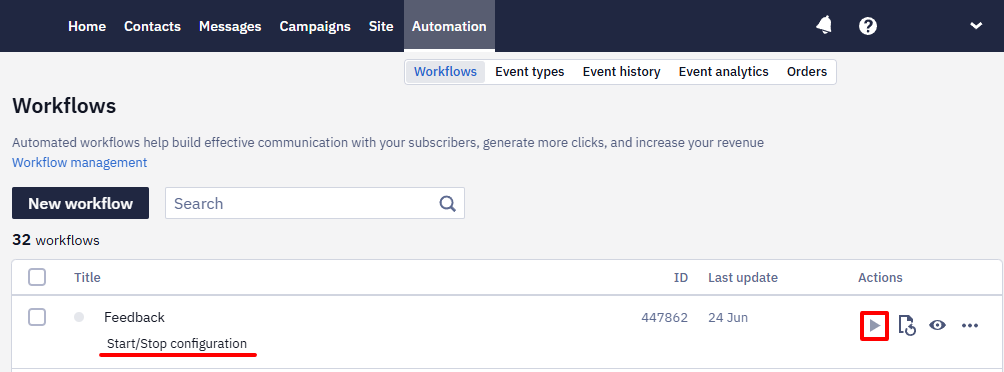
2. Contact Import
- Go to Contacts → Import and click on Upload File.
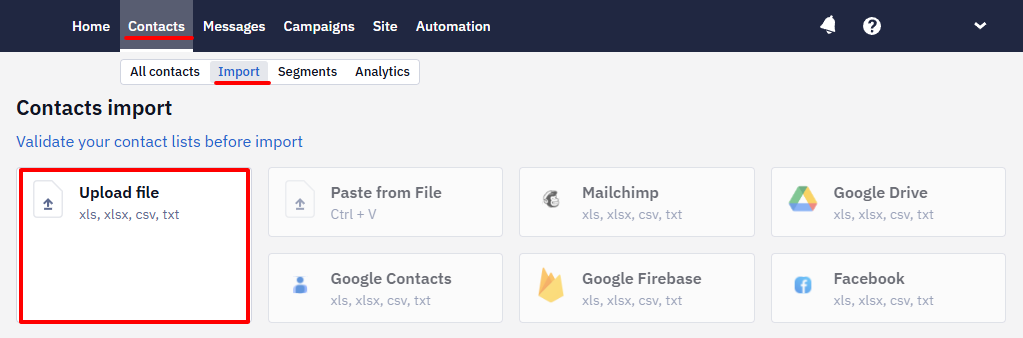
- Download the file, map contact fields,
- Enable the Launch a workflow after the import switcher in the Parameters, and select a workflow.
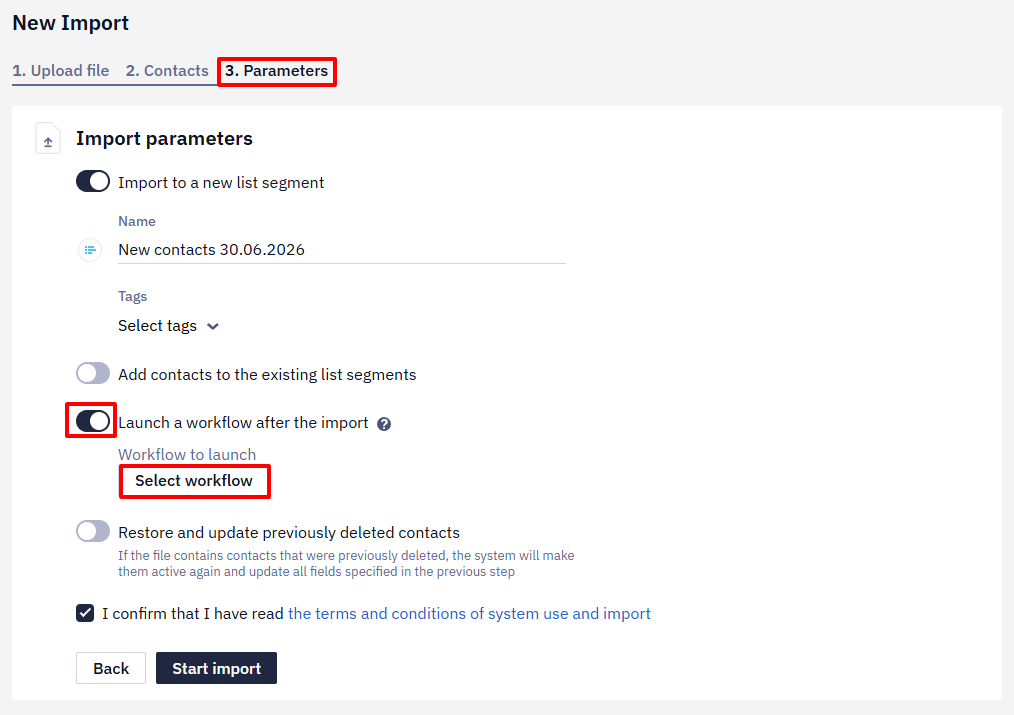
The workflow will be launched after the import is finished.
Troubleshooting
The workflow launch may fail if:
- Contacts from the imported file already exist in the system.
- Contacts have been deleted or restored from the previously deleted contacts.
- The message isn’t selected in the block settings.
To test the created workflow, import a test contact list including several contacts. Once you've made sure everything works correctly, download the main contact list.
Updated 3 months ago
Did this page help you?