
Dynamic Content Preview in Short-Form Messages
The preview in the message editor lets you check how the message will look for a specific contact before it is sent.
In the preview, you can:
- view the message with the data of any contact or of contacts from a selected segment;
- substitute data in JSON format: event parameters, external source data, and other values that the contact profile does not contain;
- check the number of SMS parts for a specific recipient.
Contact field variables, event parameters, and Velocity expressions are processed by the same rules as when the message is sent.
This article describes the preview in the SMS, Mobile Push, Web Push, Viber, Telegram, and App Inbox editors. For the email preview, see Preparation for Campaign Launch.
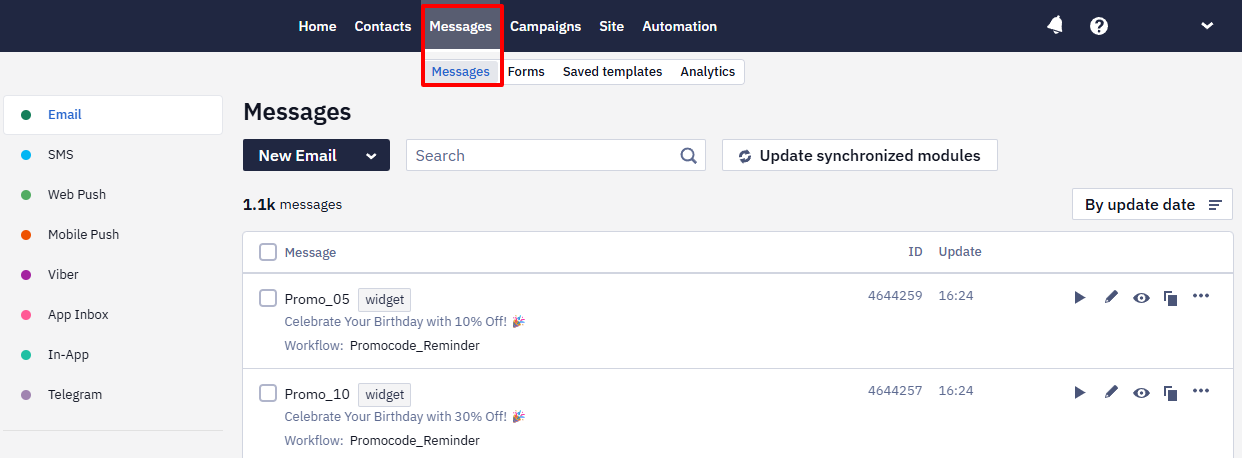
- Go to Messages → Messages and open the message.
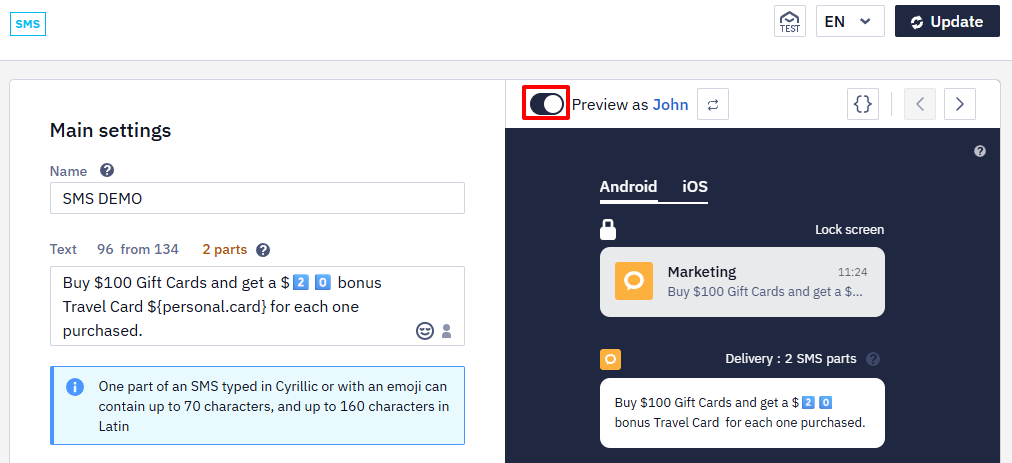
- Turn on the Preview as toggle.
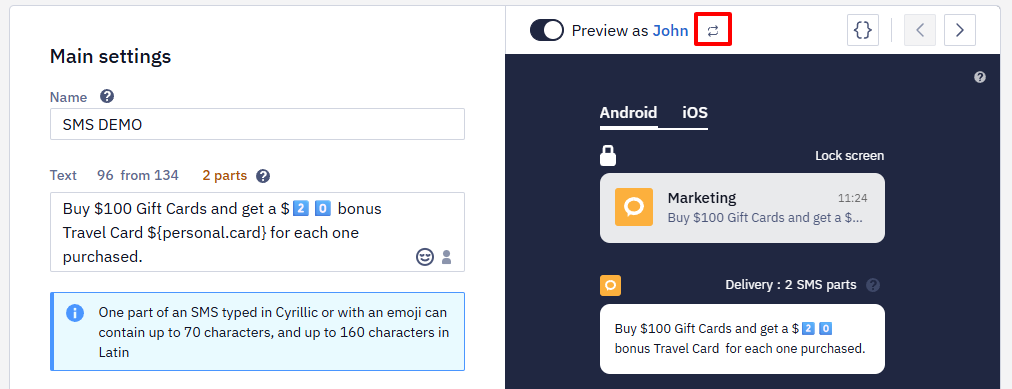
To change the contact, click the switch icon next to the contact name and select another one.
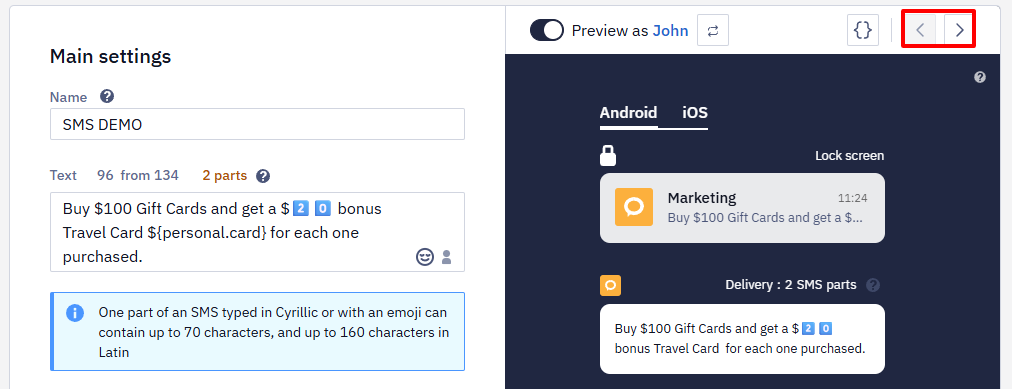
- Use the navigation buttons to go to the previous or next contact in the list.
- Click the
{}icon above the message preview to check event parameters and other dynamic data. The icon is available when the Preview as toggle is on.
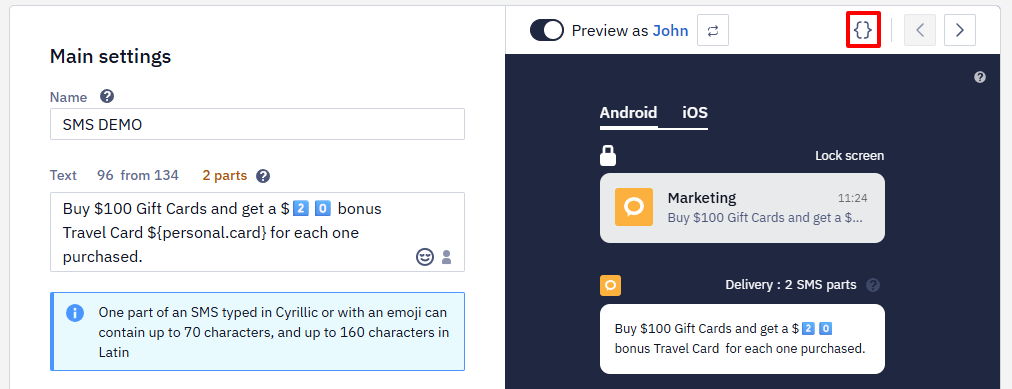
- In the Configure dynamic content panel, paste data in JSON format and click Apply.
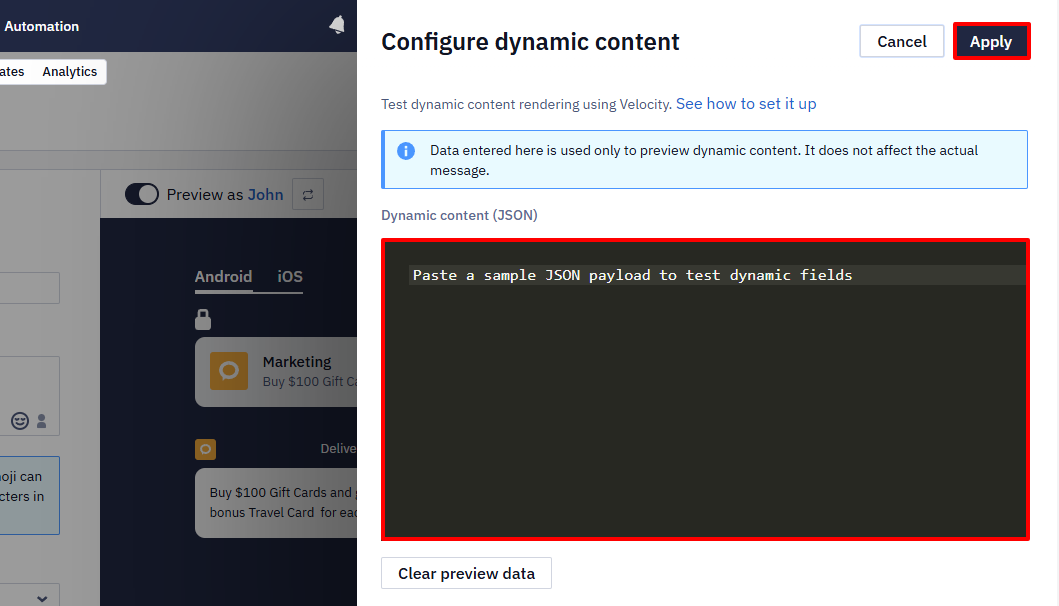
The Clear preview data button in the same panel removes the pasted data.
SMS Length for a Specific Recipient
The character and part counters in the SMS Text field count the template as written, including variables and Velocity code. The preview shows Delivery: N SMS parts — the actual number of parts after the values are substituted for the selected recipient.
The numbers can differ because the editor counter counts every character of the code, not the value that replaces it. For example, the Text field contains:
Hi ${firstName}! $data.get('bonusAmount') bonuses expire on $data.get('bonusExpirationDate') at $data.get('bonusExpirationTime'). Use them now 😉This is how the message looks without substituted dynamic data. The $data.get('...') expressions stay as they are in the preview, so both the editor counter and the preview show 3 parts:
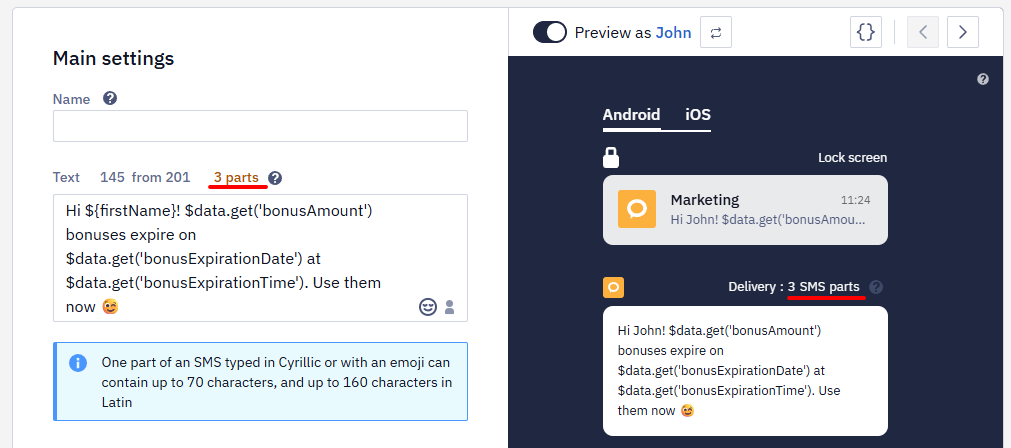
Paste the test data:
{
  "bonusAmount": "150",
  "bonusExpirationDate": "31.12",
  "bonusExpirationTime": "23:59"
}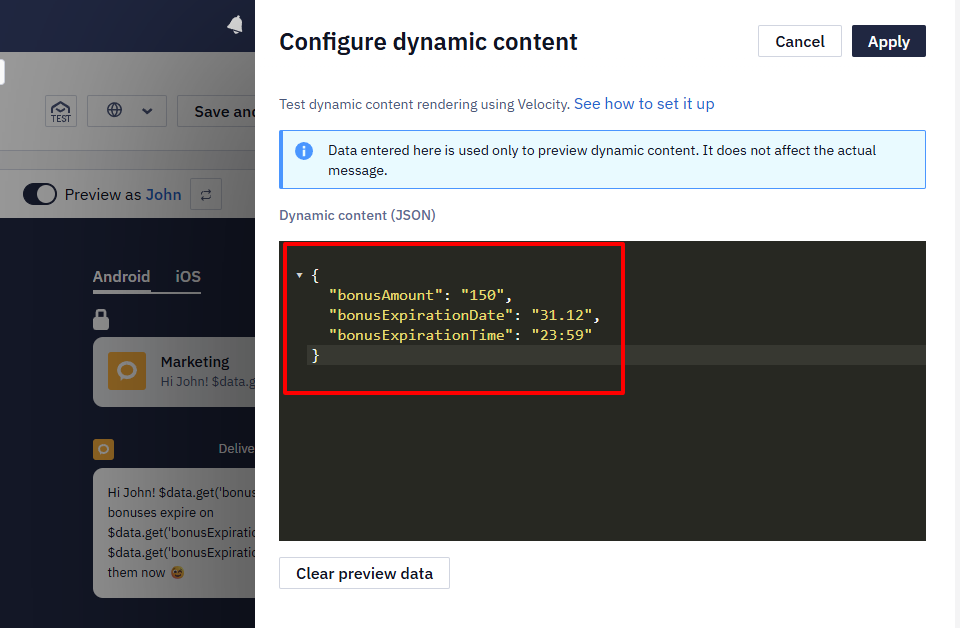
The values are substituted into the message. The editor counter still shows 3 parts, while in the preview the message takes one part:
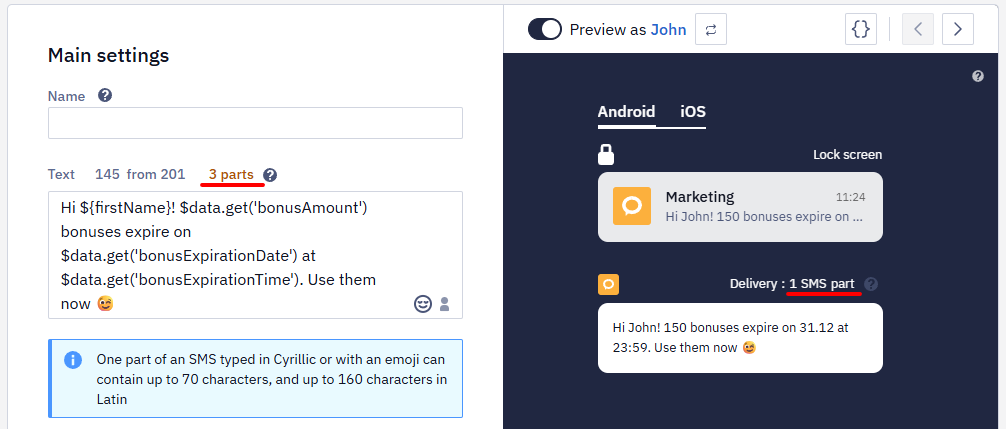
The opposite also happens: a short variable can expand into a long value, such as a product name or an address, and the preview shows more parts than the counter.
Each part is charged as a separate SMS. Check the preview with several contacts when variables can expand into long values. Learn more about SMS length >
Contact Selection Window
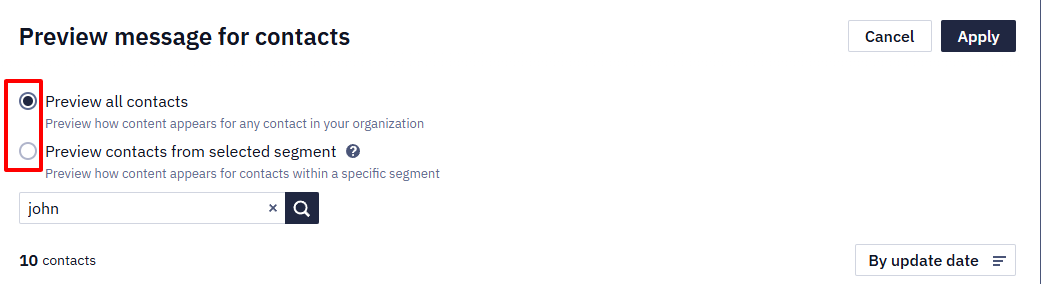
In the Preview message for contacts window, select where to choose the contact from:
- Preview all contacts — any contact in your organization.
- Preview contacts from selected segment — contacts of a specific segment. Use it to check the message for the audience of a campaign or the segment on which a workflow is launched.
Find the contact by search or sort the list, select the contact, and click Apply.
If the selected contact has no value for a variable, the preview shows the variable as it is written in the template — for example, $bonusGroup.bonusesActive. Check the message with several contacts to see how it looks for recipients with incomplete data, and add fallback values where needed.
Data in JSON Format
The contact profile does not contain event parameters, external source data, and other values that the message receives when it is sent — for example, $data.get('dateExpired') or $items[0].name. You can check how they render by pasting these values as a flat JSON object where each key is a parameter name. The values can be test values or taken from real data, for example, from Event history:
{
  "dateExpired": "2026-12-31",
  "PurchasePrice": 36.99,
  "currency": "USD"
}
If you paste the whole event request — with eventTypeKey and params — the variables in the preview stay empty.
The pasted data is used only for the preview and does not change the message.
Parameters from Event History
If the message is sent by a workflow triggered by an event, use the parameters of a real event:
- Go to Automation → Event history and click the event. It shows the whole request — with
eventTypeKey,keyValue, andparams. - Copy only the contents of
params. - Paste the parameters into the dynamic content panel.
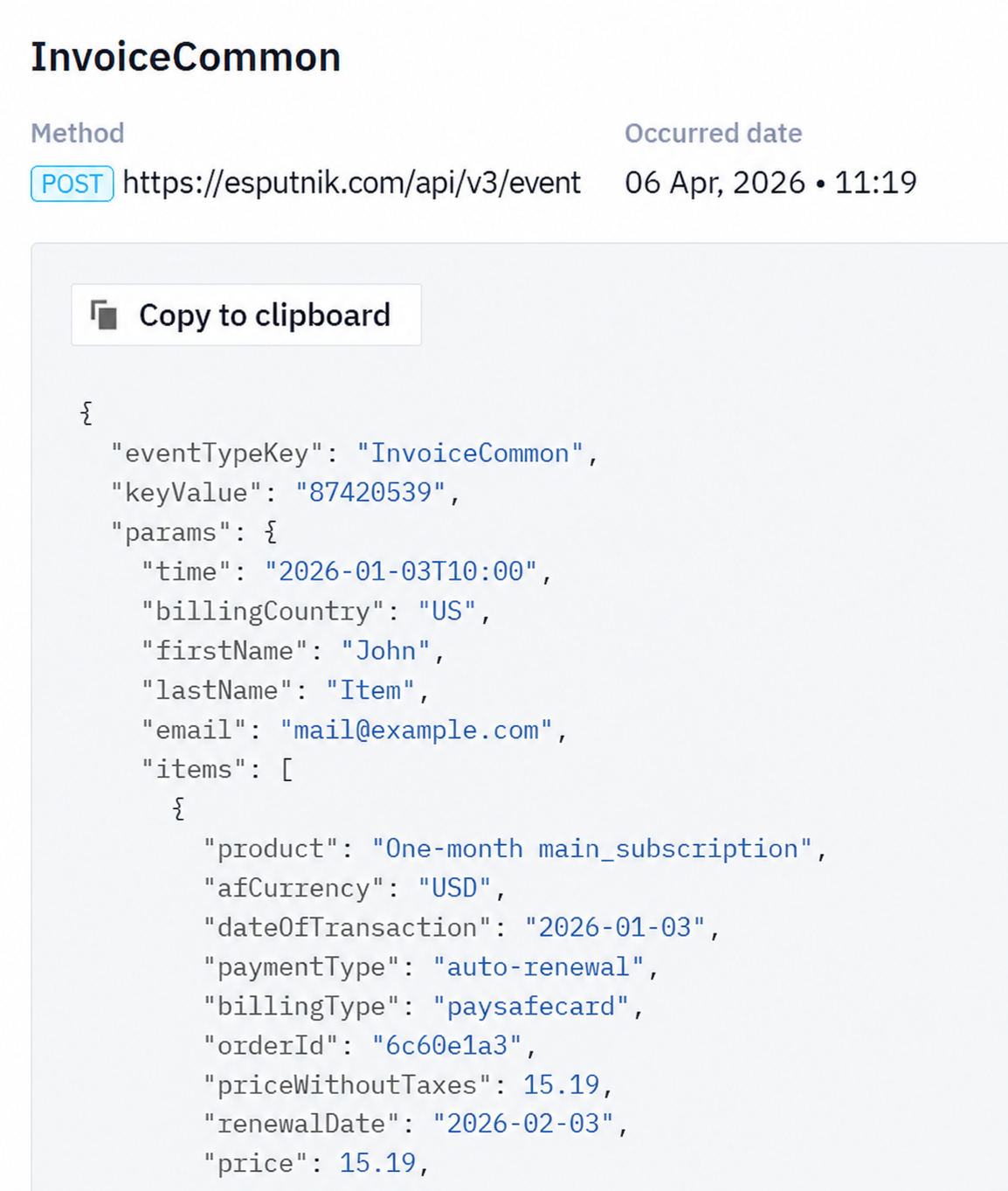
This is the easiest way to verify field names, array paths, and conditions before the message is sent.
Related Articles
- Contact Field Variables Cheat Sheet — variables for contact fields and fallback patterns.
- Testing & Troubleshooting Velocity — how to fix common substitution issues.
Updated about 8 hours ago