
Debug Mode
DebugMode enables you to see the event data logged by your app in near real-time. This is very useful for validation purposes during the instrumentation phase of development and can help you discover errors and mistakes in your Analytics implementation and confirm that all events and user properties are logged correctly.
NoteUse debug mode only with test devices or developer accounts
In DebugMode events are logged every 10 seconds and are stored in offline mode up to 1 hour.
To enable DebugMode provide isDebugMode: true to Reteno.start() method:
Reteno.start(apiKey: "API_KEY", isDebugMode: true)From Reteno SDK 2.0.4 onwards, you can use:
let configuration: RetenoConfiguration = .init(isDebugMode: true)
Reteno.start(apiKey: "API_KEY", configuration: configuration)
To view events from your app in debug mode specify X-Reteno-Debug:true in the request’s headers.
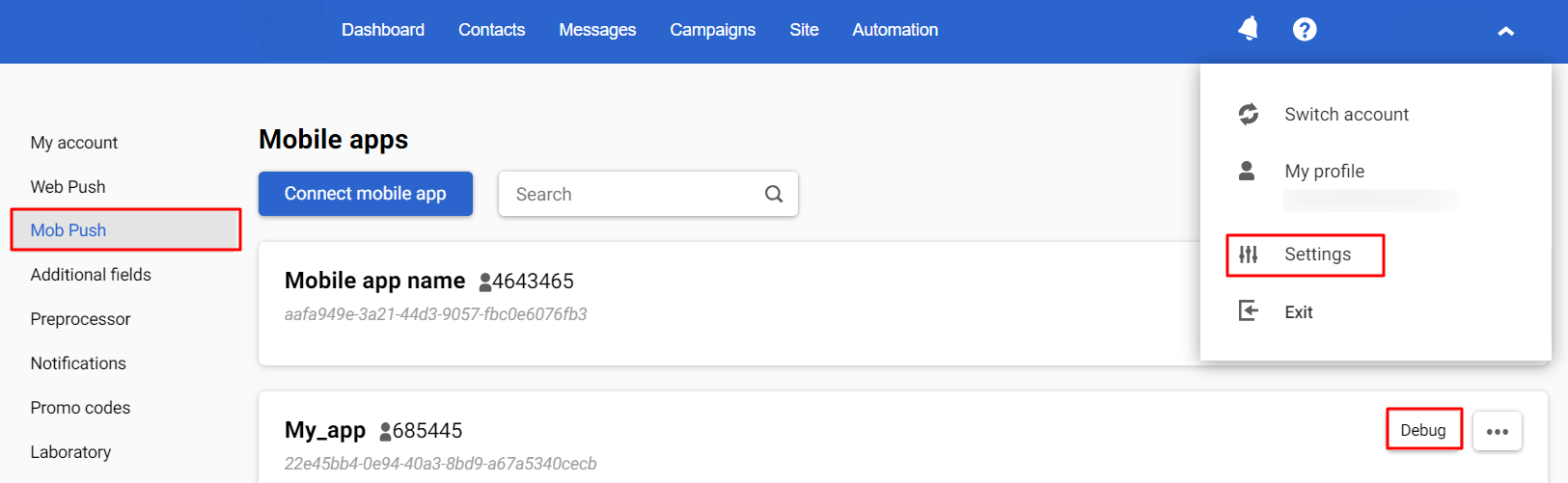
Then go to settings → Mob Push → and click Debug next to the app name.
You will see:
- notifications with recommendations for checking settings and verification statuses,
- Test Mobile Push and Test App Inbox buttons,
- valid and invalid events with error descriptions,
- event parameters,
- contact information (full name, email, phone, device ID),
- filter by devices.
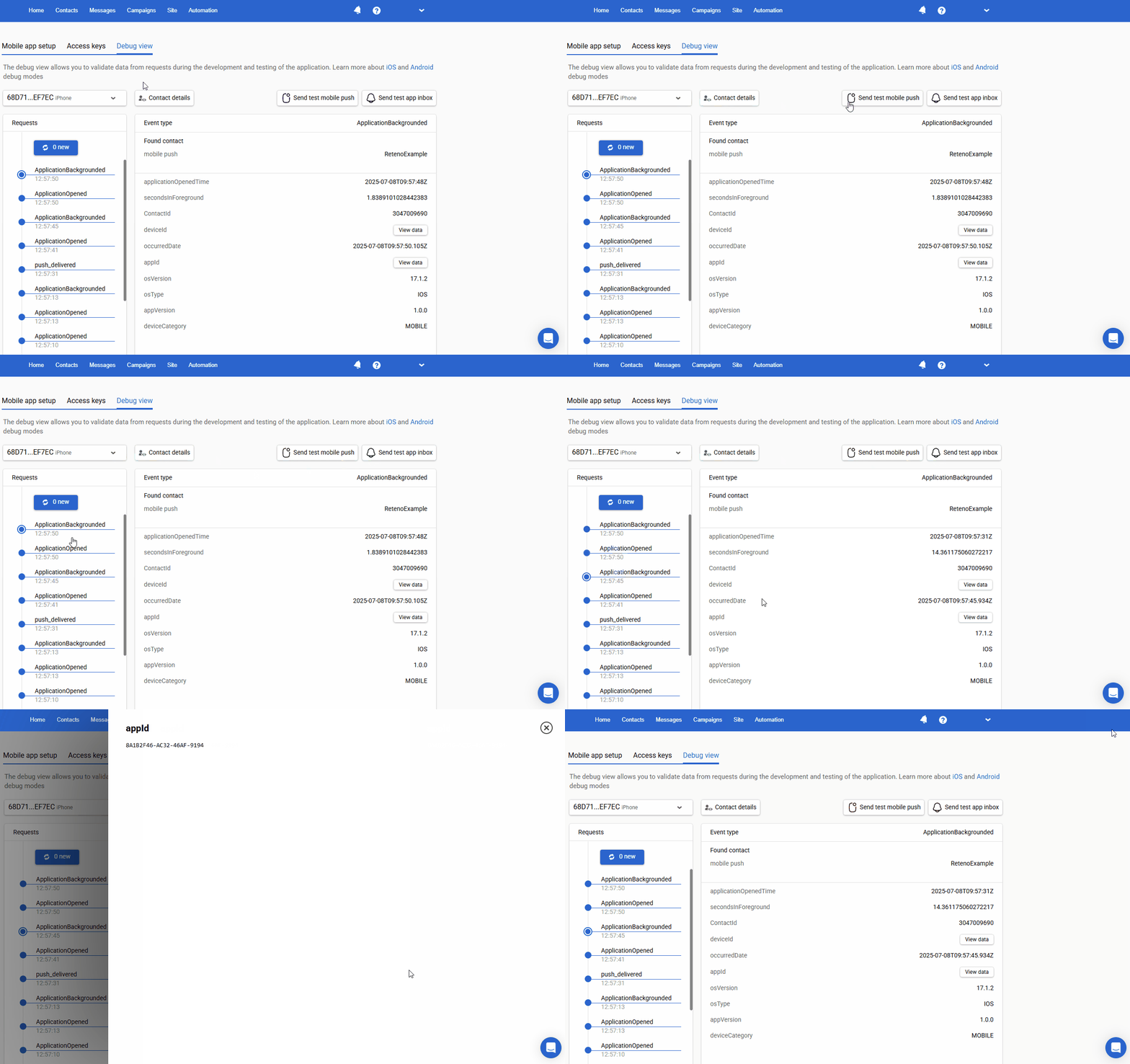
NoteThe system keeps events for 8 hours.
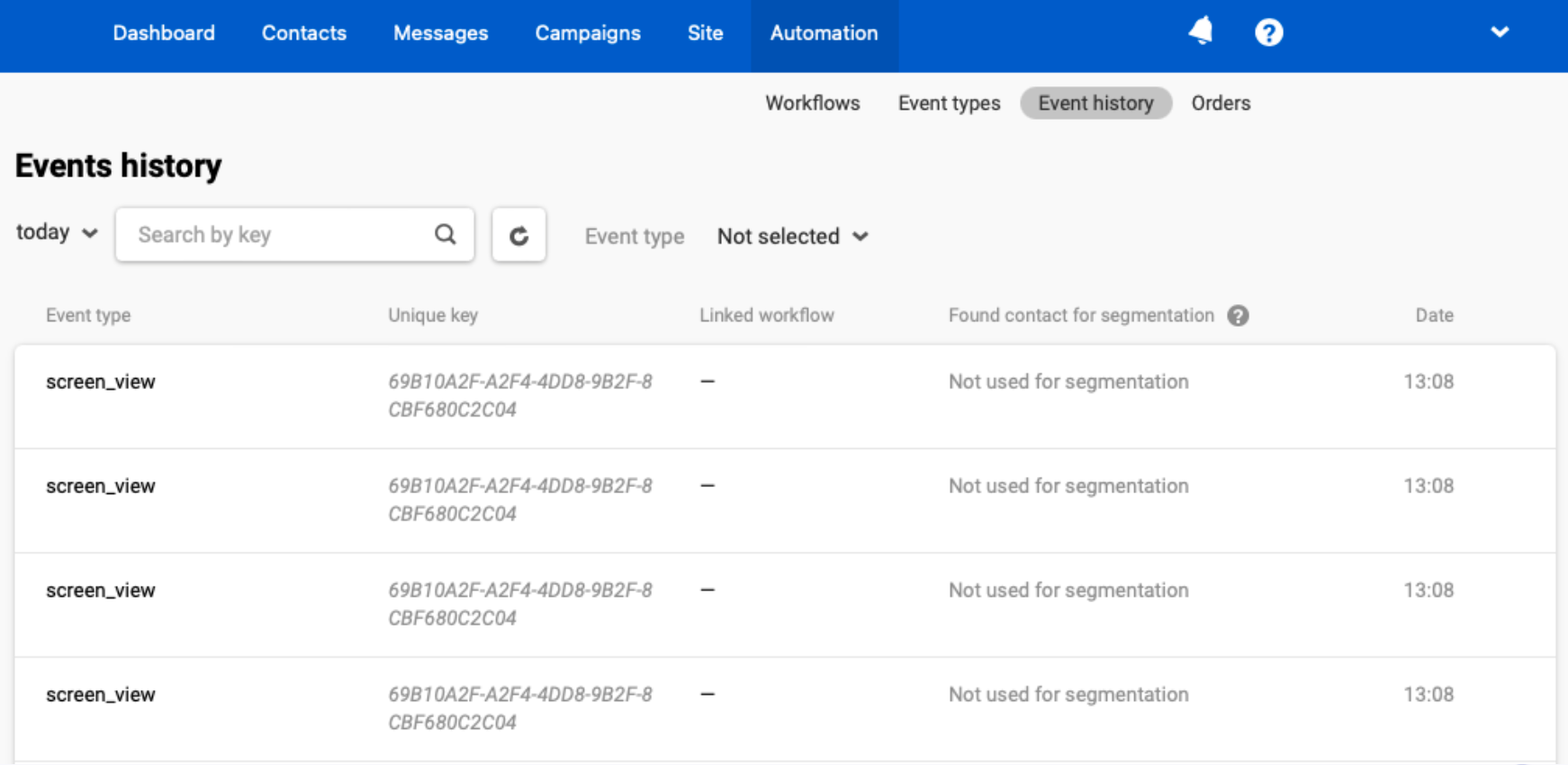
These requests also will be visible in the Event history (as shown below).
Testing SDK After Integration
For future SDK testing, to ensure a more convenient and flexible process, we recommend considering one of the following approaches:
- Create a separate app for development
- Create a separate account for development
- Keep the current configuration unchanged and perform testing using a
TestFlightbuild
Note: If you encounter a BadDeviceToken error while testing push notifications on iOS (APNs), test on a TestFlight or App Store build: a debug build receives a sandbox token, which can return this error.
Troubleshooting Steps
- The notification service is not configured: Configure APNs.
- Push tokens/device data are absent: Check that you have allowed notifications on the device and configured the token transfer. Details >
- TheDelivered message statuses are absent: Check your message delivery data settings. Details >
- TheClicked message statuses are absent: Click the notification, or check click tracking in the code. https://docs.esputnik.com/docs/setting-delivery-and-clicks-analytics
- User profile updates are absent: Ensure you send user data when you identify them. For example, when they sign in to the app. Details >